
Instead of checking Tradescraft for what's on, you can have your booked jobs drop straight into the calendar you already use. Tradescraft gives you a private link you add once - after that your calendar keeps itself up to date. Set it up on your Profile (your name, top-right -> Profile).
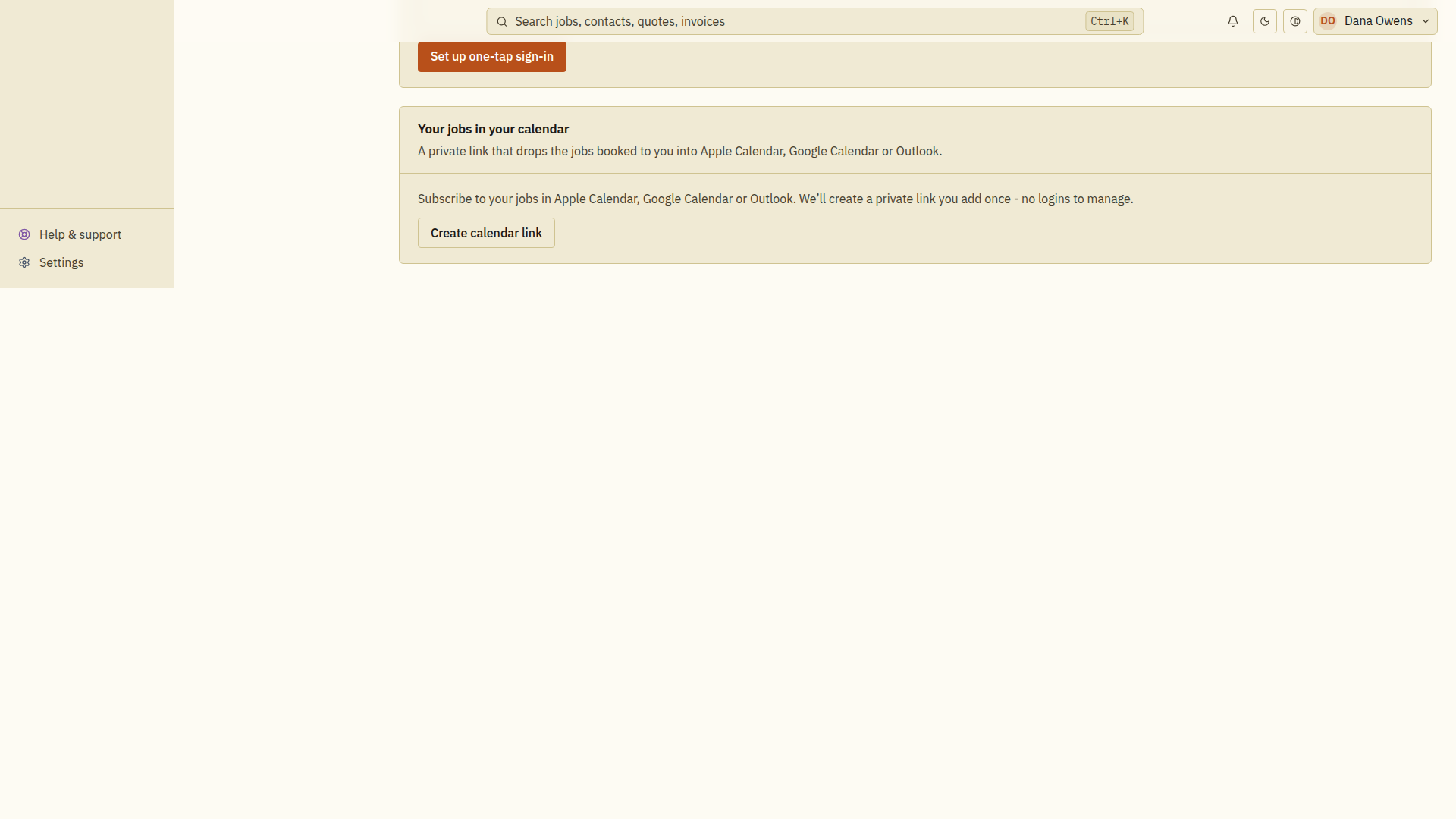
Create your link
- Open Profile and find Your jobs in your calendar.
- Tap Create calendar link. Tradescraft creates a private link just for you.
- Tap Add to calendar to open it in your device's calendar app, or use the copy button and paste it in yourself.
Add it to your calendar app
Add the private link as a calendar subscription. This means your calendar can pick up later appointment changes. Uploading a downloaded calendar file only gives you a copy of the appointments at that time.
- iPhone / Apple Calendar: use Add to calendar and follow the device prompt. To enter the link manually on iOS 26, open Calendar → Calendars → Add Calendar → Add Subscription Calendar, paste the link, choose Find, then finish with Done. Earlier versions can use different labels. Apple's current instructions.
- Google Calendar on a computer: beside Other calendars, choose + → From URL, paste the private link and choose Add calendar. Google's instructions.
- Outlook on the web: open Calendar → Add calendar → Subscribe from web, paste the link and finish with Import or Import and Save, depending on your account. Microsoft's instructions.
Check that the subscribed calendar is selected and a booked job appears. Your calendar app decides how often to check for updates; an appointment change may not appear immediately. Microsoft says updates can sometimes take over 24 hours. Use the Tradescraft schedule to confirm urgent changes.
Keep it private
- Treat the link like a password - anyone who has it can see your schedule.
- If it ever leaks, tap Reset link. Your old link stops working immediately, and you add the new one to your calendar app.
Good to know
- The feed is read-only - it shows your jobs; you can't edit a job from your calendar app.
- If the business is in billing read-only mode, an existing link keeps working and stays available to copy or add to your calendar. Creating or resetting a link is paused until the account owner restores editing.
- If Tradescraft cannot verify the live billing status temporarily, the existing link also remains available while creating or resetting it stays paused. Retry after the billing-status banner clears.
- It only includes jobs booked to you. If you're out on the tools, the same link is offered on your My jobs screen.
- The office can subscribe to a feed of every job under Settings -> Integrations - same idea, wider view.
- Where the business has enabled direct Google Calendar or Microsoft 365 syncing, an administrator can connect it under Settings -> Integrations. If a connection problem is temporary, Tradescraft tries again automatically. If it asks you to reconnect, an admin needs to sign in to that service again from Settings → Integrations.