
A credit note records a reduction in an invoice amount: for example, if you overcharged or the customer needs less work done. Creating one does not send money back to the customer. It reduces what the customer owes instead of quietly editing an issued invoice. AU/NZ accounts can also sync it to Xero. Find it under Sales → Credit notes.
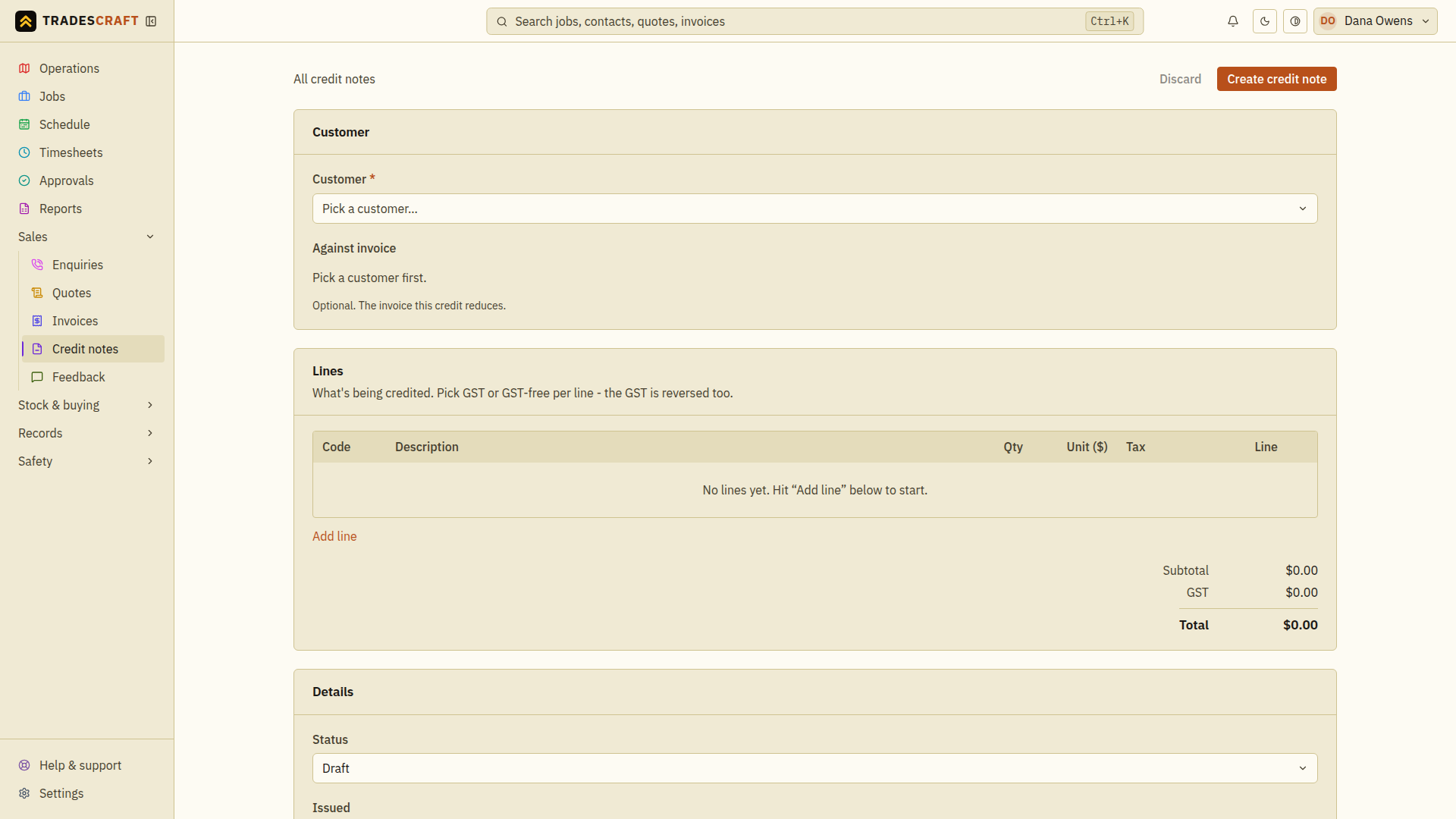
Create one
- Go to Sales → Credit notes and tap New credit note. (Coming from a specific invoice? Open it, then start a credit note - the invoice is filled in for you.)
- Pick the customer, and the invoice it relates to (optional, but linking it is what reduces that invoice's balance).
- Choose the reason:
- Adjustment (price or scope change) - the job changed.
- Error correction - you got something wrong on the invoice.
- Add the line items you're crediting, with the country-appropriate tax treatment per line - same as building an invoice. US lines use Taxable, Exempt or Not subject to sales tax and a linked credit note preserves the invoice's saved exact rate. The total is the amount you're crediting. Before issuing a US note, complete Check US sales tax before issuing below.
- Tick Reimbursed only if you already paid money back to the customer. This records the refund; it does not send money through Stripe or your bank.
- In Details, choose Draft to finish later or Issued to make the credit live, then tap Create credit note. Check the saved note's status, total and Against invoice link. For a linked issued note, open the invoice and check that its Outstanding reflects the credit.
Check US sales tax before issuing
- Without a linked invoice: check the combined sales tax rate for the customer's address and work before issuing the note.
- With a linked invoice: the credit uses the original invoice's tax rate and tax treatment. You cannot change the credit's rate separately. If asked to review sales tax, open the original invoice, check its rate and save it first. Return to the draft credit note and check its updated tax and total before issuing it.
While sales-tax review is required, you cannot issue, email, print or download these documents as a PDF.
What it does
- Once Issued and linked to an invoice, it reduces that invoice's Outstanding. For AU/NZ accounts, the Xero balance stays in step too.
- It's a real document you can send to the customer and print/PDF, just like an invoice.
Good to know
- You can only edit or delete a credit note while it's a Draft. Once issued, it's a financial record - if it's wrong, Cancel credit note instead (see Credit note details).
- Prefer not to credit at all? For a debt that won't be paid, write it off on the invoice instead; to undo a payment, reverse it. See Invoice details.