
Suppliers are the merchants and wholesalers you buy stock from. Open it from Stock & buying → Suppliers.
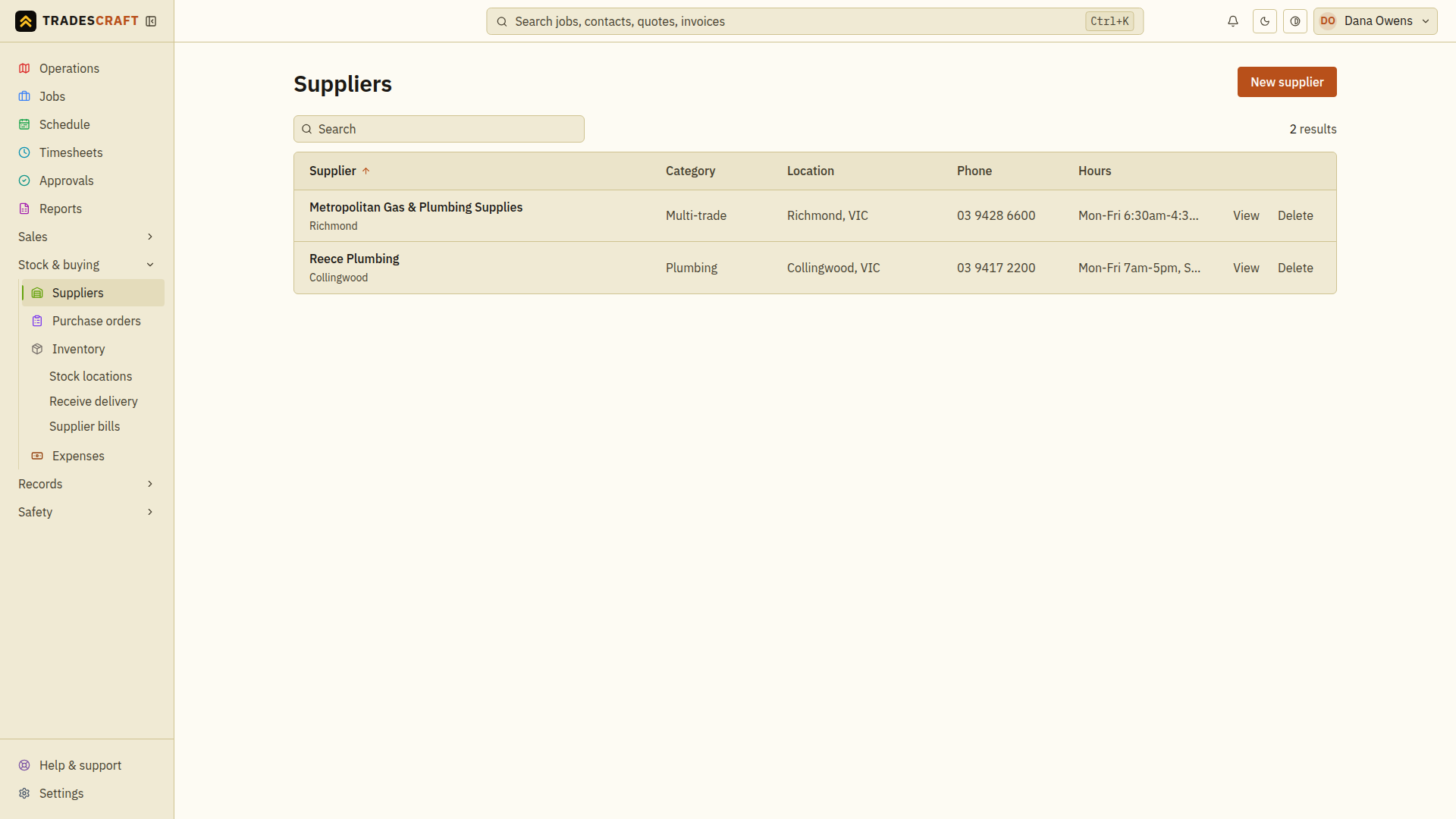
What's on the list
Each row is a supplier you buy stock from, with its category, branch and trade-counter details (which also pin it on the operations map).
- New supplier (top-right) adds one.
- Click a row to open it; raise purchase orders and receive stock against it.
Find what you need
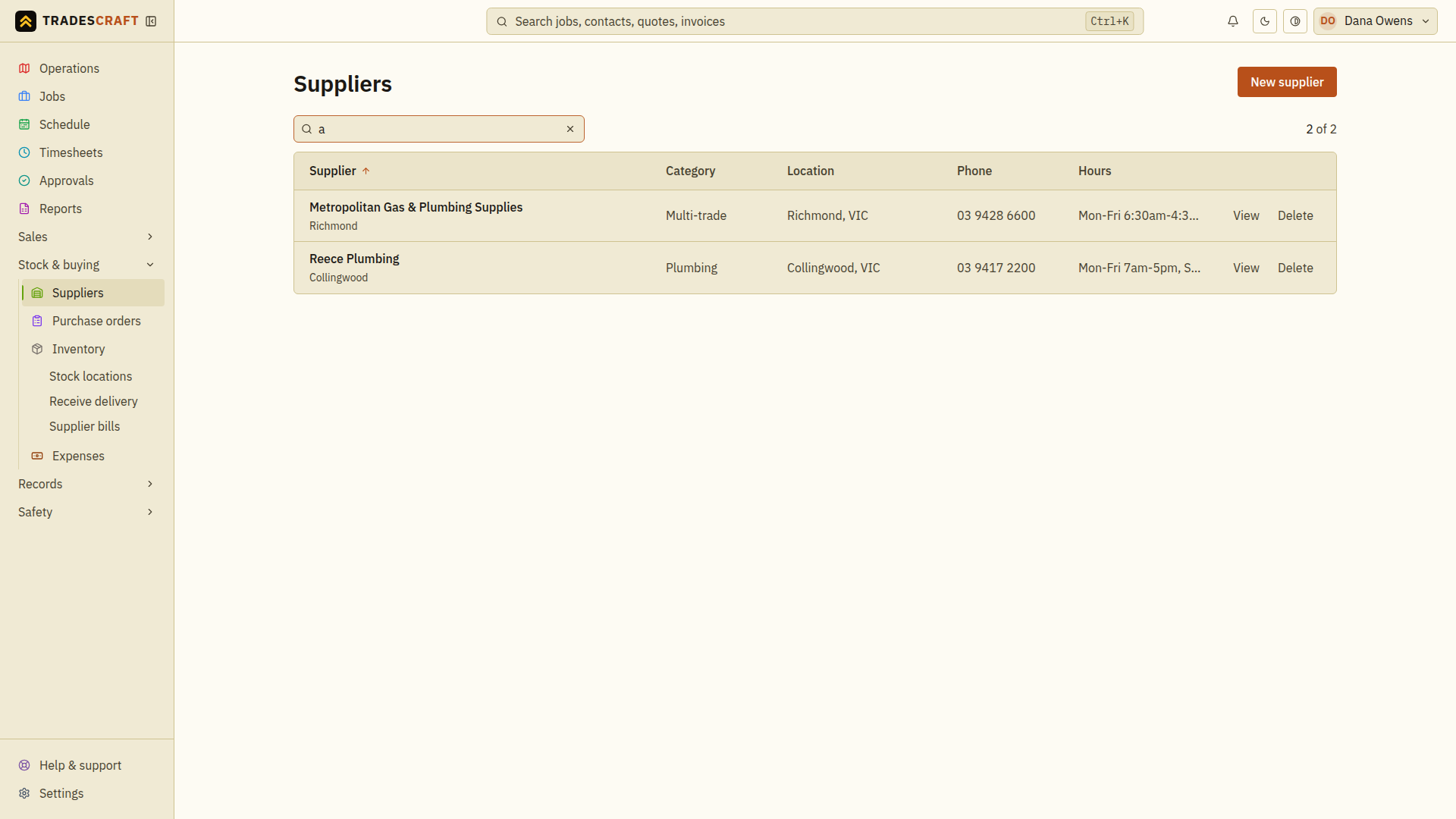
- Type the supplier's name in the list search. Use Category when offered to narrow by trade, or sort by the supplier heading.
- Check the branch/location and phone so you choose the correct trade counter.
- Open the supplier to review its details. When ready to order, open Stock & buying → Purchase orders → New purchase order and select this supplier.
Clear the search and category filter to see the full list again. Search for the supplier before adding it; an existing contact may already have the Supplier role.
Correct or remove a supplier
- Open the supplier and choose Edit supplier.
- Update its trading details or address, then choose Save changes.
- Reopen the record and check the branch, phone and address before ordering.
To remove a mistaken record, choose Delete supplier on its detail page. Read the confirmation: this removes it from the supplier list and operations map. Confirm only after checking you selected the right business. Wait for Supplier deleted and check the list. If a saved record prevents deletion, follow the message instead of creating duplicate suppliers.