
Open Settings at the bottom of the main menu. This page shows a summary of your business. Use the Settings menu beside it to open the area you want. On a smaller screen, that menu appears above the page instead.
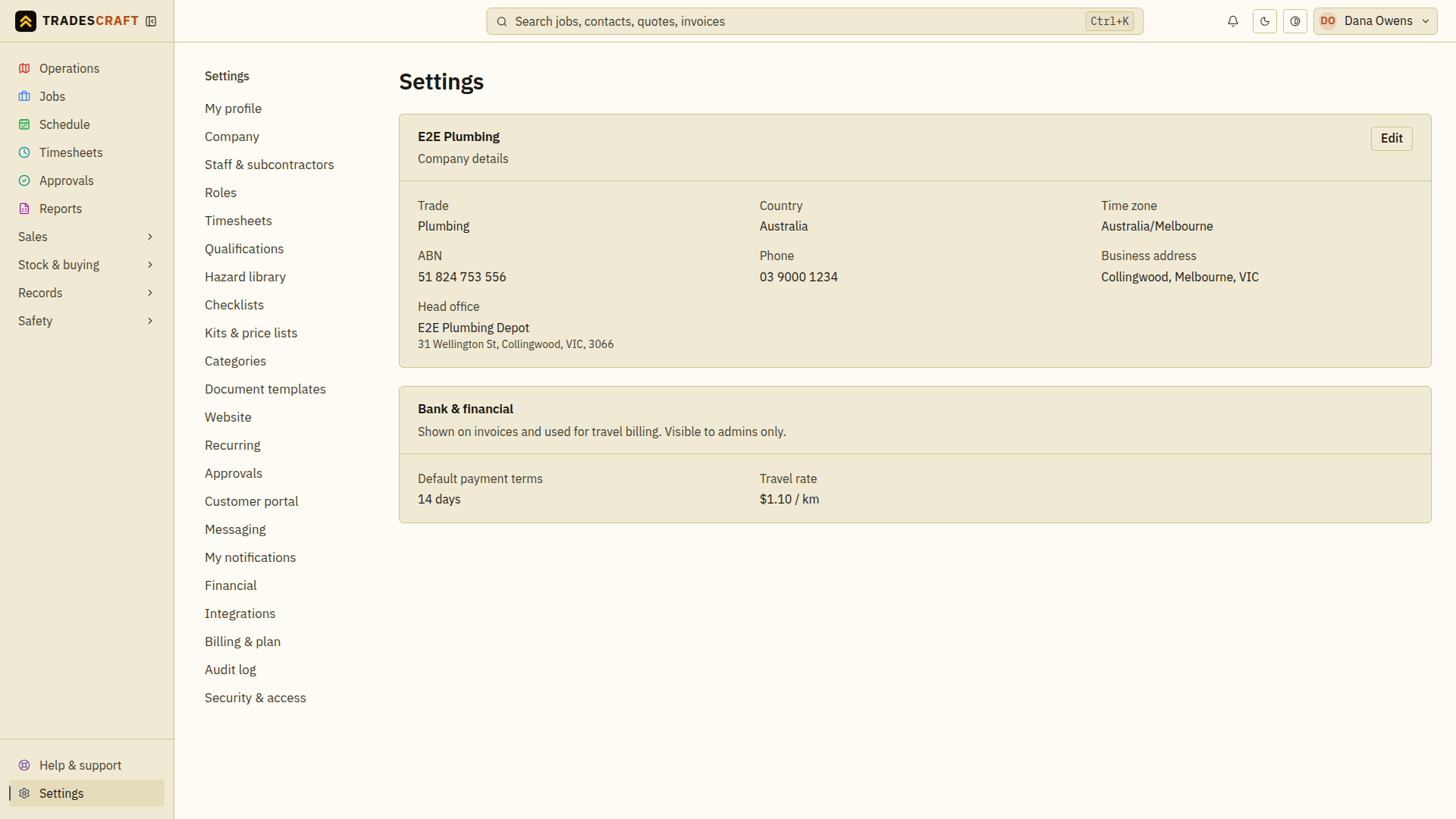
Check your business summary
- Check the company name, contact details, business address and Head office. Country and time zone affect how dates, addresses and money appear elsewhere.
- If you see Company details not set up yet, choose Add company details if available. Otherwise, ask your administrator to add them.
- To correct company details, choose Edit on the company card. Follow Company details, save, then return here to check.
- Admins can also review Bank & financial: payment account, payment terms and travel rate. To change these, open Financial in the Settings menu. The summary itself cannot be edited.
A blank detail may not have been entered yet. If the page reports a loading error, retry before replacing information you expected to see.
Every item in the Settings menu
Choose the matching guide below. Some entries appear only for your role, country or enabled features.
- My profile — change your own name, photo and contact details. You can also add your jobs to your calendar.
- Company — set the business name, logo, registration details and head office.
- Staff & subcontractors — invite and manage your team or add and manage subcontractors.
- Roles — choose which pages and actions people can use.
- Timesheets — set the week start, approval rules, rounding and payroll file format.
- Qualifications — manage licences, tickets and expiry dates. Available for Australian and New Zealand accounts.
- Hazard library — save hazards and control measures for safety plans. Available for Australian and New Zealand accounts.
- Checklists — build routine step lists and add them to jobs.
- Kits & price lists — bundle inventory items for quotes and invoices. Kit prices come from the current prices of their items.
- Categories — add or remove job subcategories.
- Document templates — choose document layouts, colours, logo and bank-detail display.
- Website — build, preview and publish your business website and choose whether to join the public directory.
- Recurring — set up repeating jobs or repeating invoices.
- Approvals — choose which actions need approval and who can approve them. Review waiting requests in Approvals on the main menu.
- Customer portal — invite customers and choose what they can see or do.
- Messaging — check text-message availability, subscription and sending limits. If it says Coming soon, setup is not available yet.
- My notifications — choose your own email and device alerts.
- Financial — set tax, payment terms, travel charges, bank details and customer reminders.
- Integrations — connect card payments, calendars and supported accounting services. Detailed guides cover Stripe and Xero.
- Billing & plan — check your subscription, payment card, seats and add-ons.
- Audit log — see recorded changes and who made them. Admin access is required.
- Security & access — manage passwords, email, passkeys and two-factor sign-in, review signed-in devices, require two-factor for your team, or download business data, leave or close the account.
Save and check the change
- Open the area for your task and follow its guide.
- Use that form's save button or finish its confirmation. Some pages have several forms with separate saves. Other switches save when changed.
- Reopen the page and check the saved result before relying on it for new work.
Changing My notifications affects your own alerts. Automatic customer emails are set under Financial. Changes to a document design belong in Document templates, while its business name and logo come from Company.
If a setting is missing
Ask the person who manages Tradescraft for your business to check your role. Access to a page does not necessarily allow every action on it. Paid features and country-specific features may also have different controls.
Everyone can reach their own My profile, My notifications and Security & access settings. You can set up your own sign-in security without being an admin. Some sections within Security & access are for admins only.