
From My jobs, tap Open on a job to see its details.
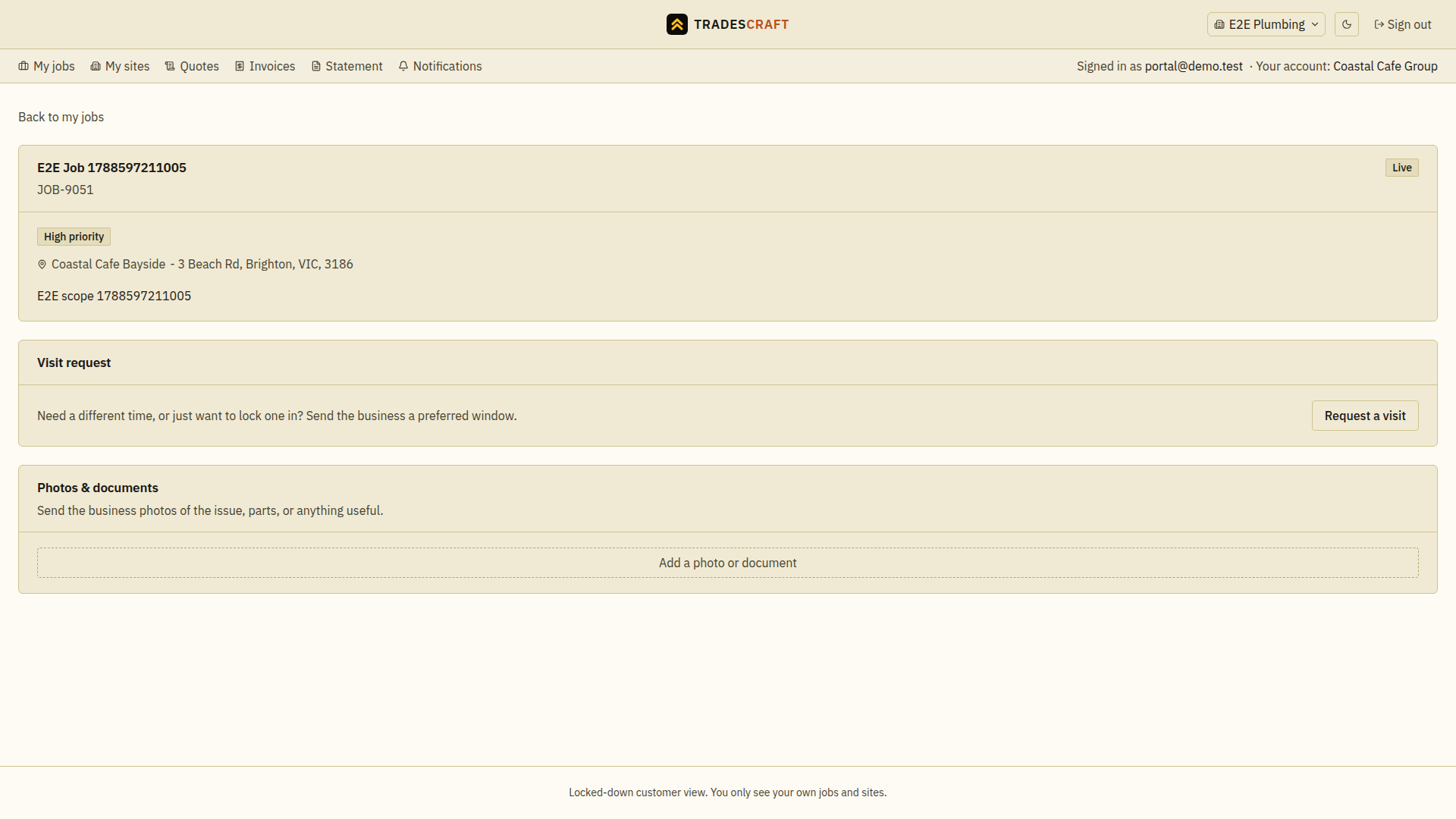
What you'll see and do
- The job title, number and status (scheduled, in progress, complete).
- The site it's at and what's being done.
- Request a visit - ask your tradie for a preferred time or window.
- Photos & documents - send your tradie photos of the issue, parts, anything useful.
Good to know
- You see the live status here without having to ring up for an update - your tradie runs the job from their app.
Request a visit
- Open the job and choose Request a visit.
- Enter Preferred start and Preferred end, plus an optional note about access or availability.
- Choose Send request and wait for Visit requested. Use Cancel if you do not want to send it.
This sends a preferred window to your tradie; it does not confirm a booking. Wait for the business to agree the appointment. If the control is missing, contact the business using your usual contact method.
Send a photo or document
In Photos & documents, choose Add a photo or document, then select the file from your device. Wait until the attachment appears before leaving the page. Check that you uploaded it to the right job. If the upload fails, follow the file or connection message and retry; selecting a file alone does not confirm it was received.