
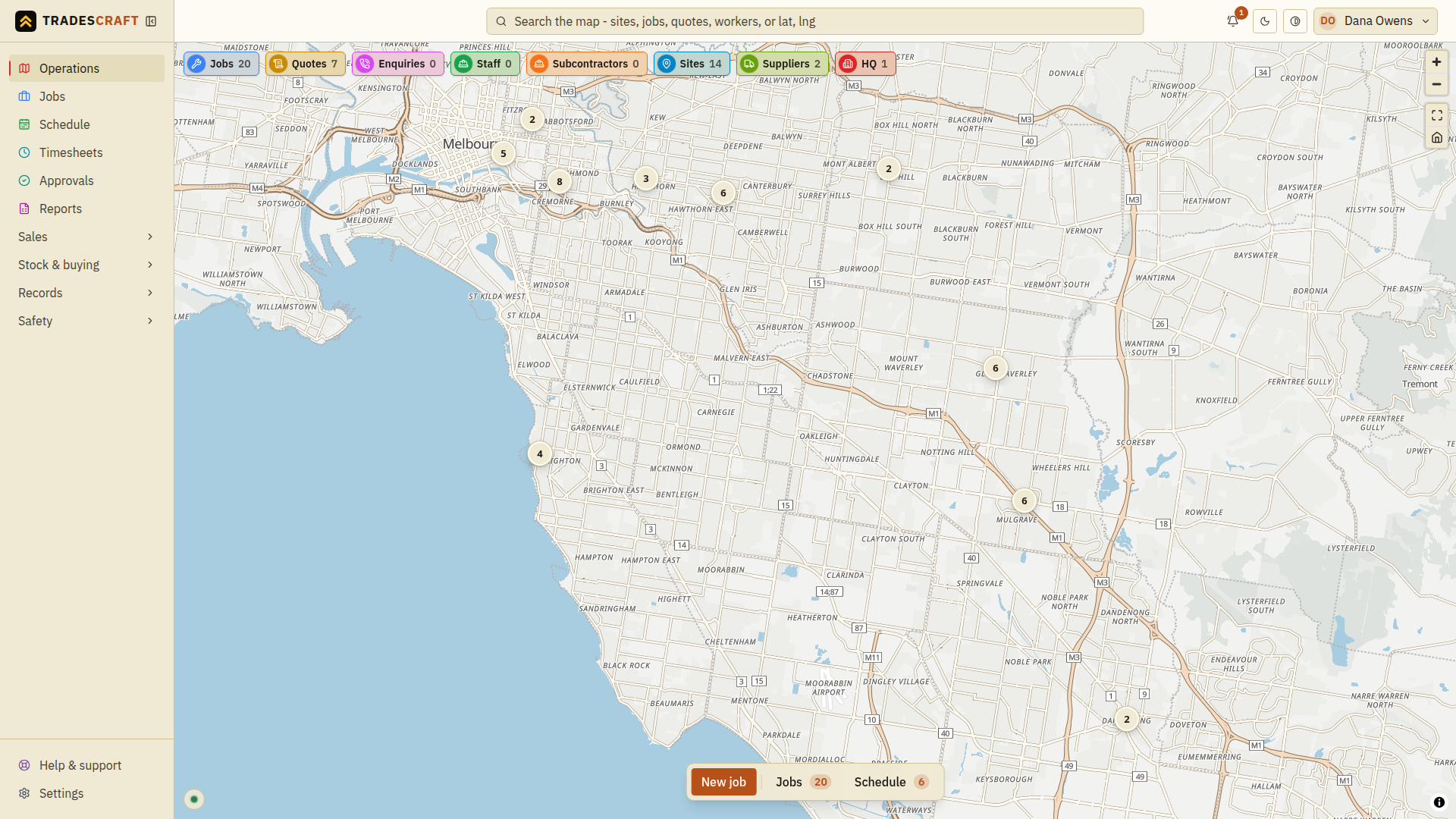
In the office app, the menu is on the left, search is at the top, and your work is in the middle. On a phone, open the menu using the button at the top.
How to follow these guides
- Bold words match labels on the screen. For example, New job is the button to choose when you want to create a job.
- Sales → Quotes means open Sales in the menu, then choose Quotes.
- Tap, click and choose all mean select the named button or option. Use a finger on a phone or a mouse on a computer.
- A field is a box you fill in. After entering your details, use the save button named in the guide and check the confirmation before leaving the page.
- An admin is someone who manages your business's Tradescraft account. If a button or page is missing, ask that person to check your access.
The screenshots use example customers and jobs. Enter your own details and follow the written steps; you do not need to copy the example information.
The left-hand menu
This is how you move around. The items you see depend on your role (an apprentice sees fewer than the boss).
- Operations - the live map and your home base (this screen).
- Jobs - every job you're running.
- Schedule - the calendar of who's doing what, when.
- Timesheets - hours worked on jobs.
- Approvals - things waiting for a yes/no (e.g. sending a quote, dispatching a job).
- Reports - how the business is tracking.
- Sales, Stock & buying, Records, Safety - grouped pages that fold open automatically when the screen has enough vertical room. Tap a group to fold it open or closed; Tradescraft remembers your choice. Quotes and invoices live under Sales; inventory, suppliers and purchase orders under Stock & buying; clients, sites, vehicles and equipment under Records; JSAs and incidents under Safety. Manufacturing businesses also find Machines under Records. The hazard library lives under Settings.
- Settings - set the business up: company details, staff, integrations and more.
The top bar
- Search - type a job number, customer, site, quote or invoice to jump straight to it. Open it from anywhere with the keyboard shortcut Ctrl+K (Cmd+K on a Mac) - no need to reach for the mouse.
- The bell - your notifications inbox.
- The sun/moon and contrast buttons - switch between light and dark, and turn on high-contrast (which boosts the difference between text and background to make the screen easier to read in glare).
- Your name (top-right) - your account menu: My jobs, Getting started, Profile and Sign out.
The map
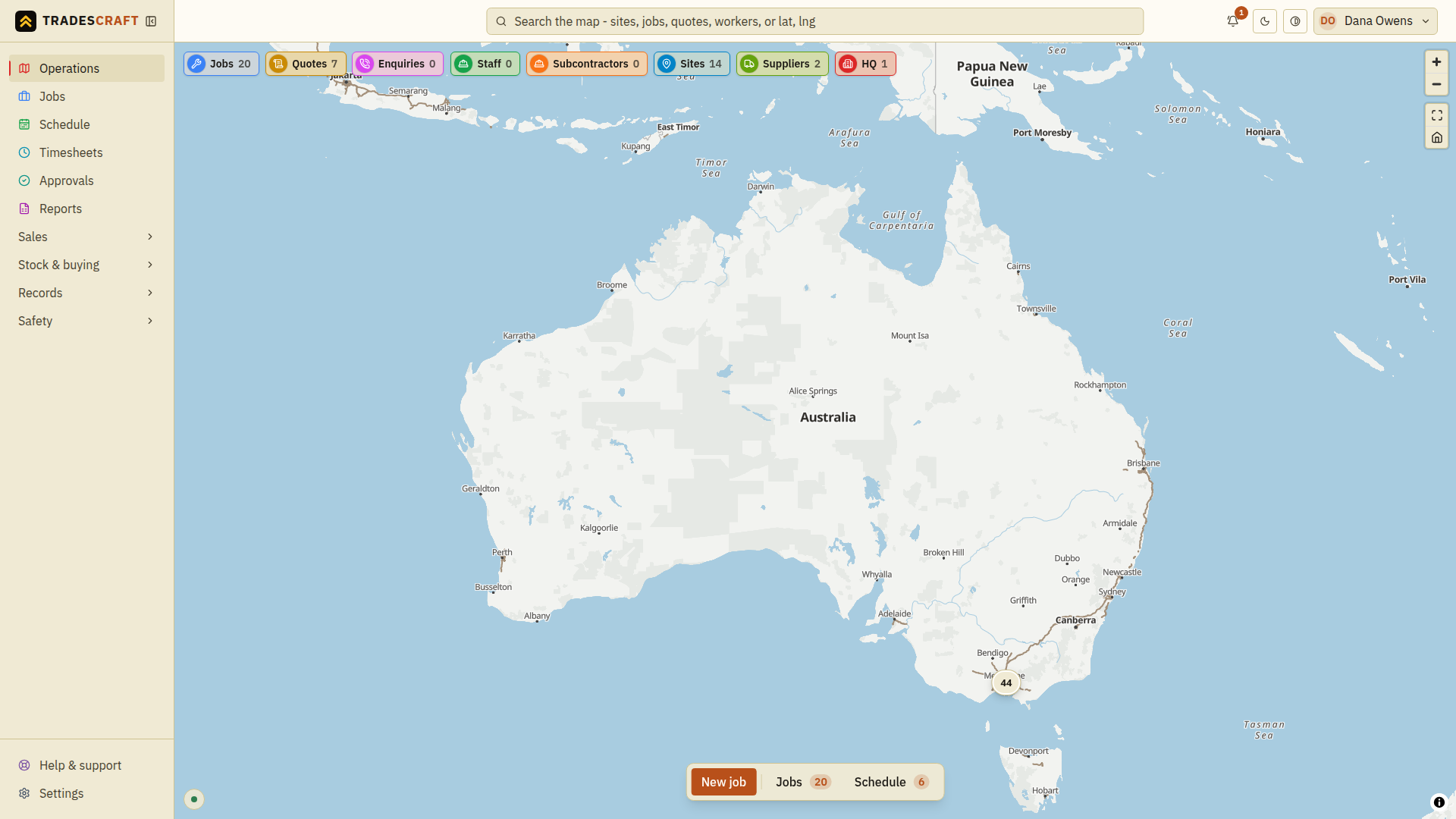
The big map shows your jobs, sites, workers and business address as pins. A new account shows "Nothing on the map yet" - add your address under Settings → Company and create some jobs and sites, and they'll appear here automatically. The buttons along the top of the map (Jobs, Quotes, Enquiries, Staff, Sites…) show how many of each there are. Choose a button to show or hide that type of pin.
Quick actions
The buttons at the bottom of Operations get you into the day's work fast: New job opens the new-job form, while Jobs and Schedule open as panels right on the map.
When someone else is editing the same record
Names or initials beside a record show other people viewing it. Beside a field, an editing indicator means someone else is working in that box. Wait for them to finish or agree who will make the change.
If saving reports that the record changed, keep a note of your intended edits, reopen the latest record and compare the saved values before applying your changes again. A failed save has not confirmed that your changes were kept. Use Discard only when you intend to drop your unsaved edits.
Tips
- Lost? The menu is always there on the left - tap Operations to come home.
- On a phone the menu tucks into a button at the top; tap it to slide it out.
Related
- Setting up your business - the first-time roadmap
- Signing in
- The Operations map