
Every job tracks two running totals as you work it: time (from clocking on and off) and materials (the parts and stock you use). Both live on the job's detail page. Time entries feed your timesheet; materials feed the job's stock usage and cost.
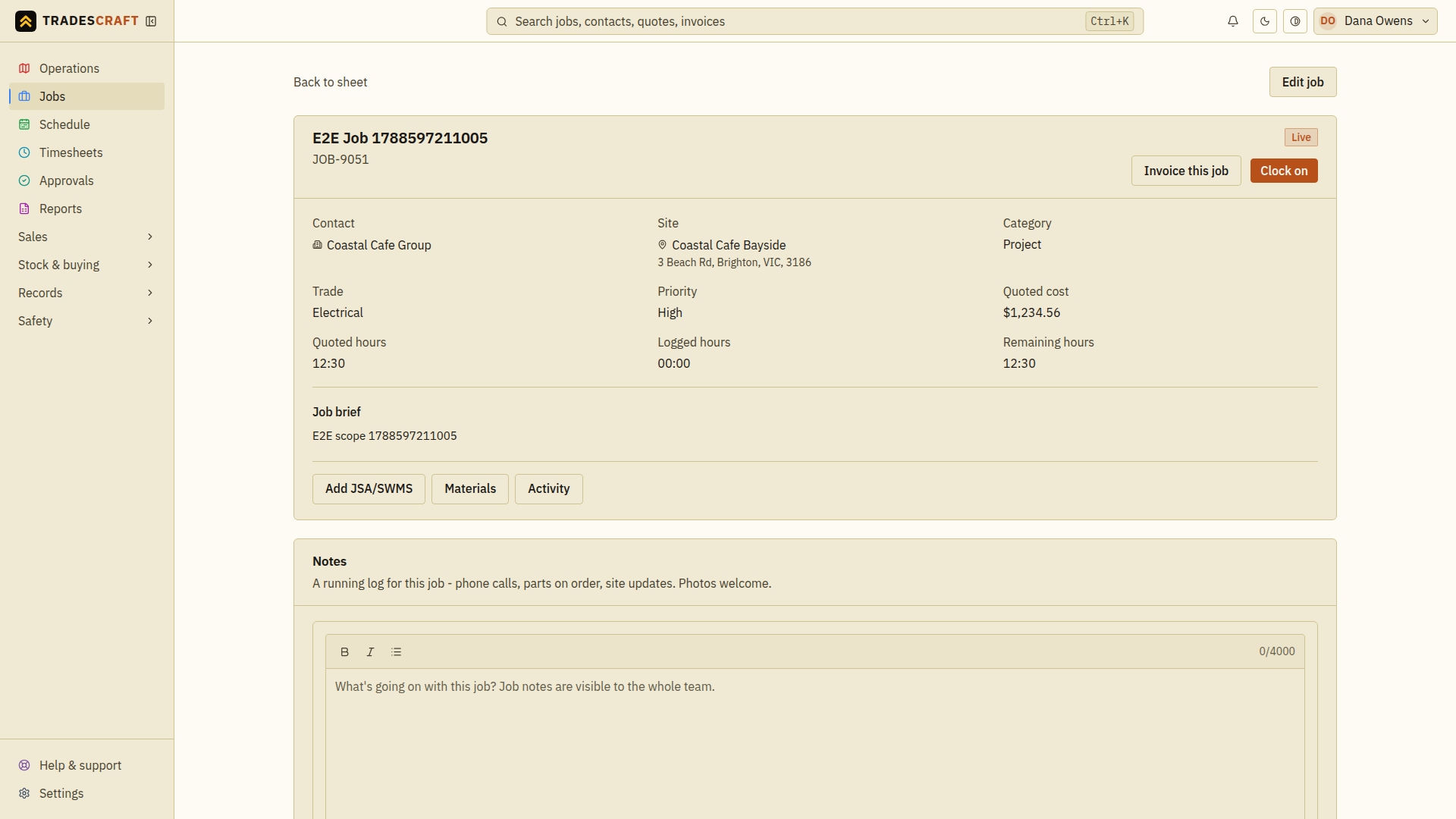
Clock your time
- Open the job (or your job in the field view on your phone).
- Tap Clock on to start your timer against this job. The button becomes Clock off.
- When you stop, tap Clock off. Your hours are added to the job.
A few things worth knowing:
- You can only be clocked on to one job at a time - if you're already on another, Tradescraft tells you rather than double-counting.
- After clocking off, check that your time entry appears on the job and in Timesheets.
- If the job needs pre-start safety checks, clocking on opens them first. Every required Active or Signed plan must be completed; if Tradescraft cannot verify the requirements, work is not started. See Set up clock-on safety checks.
Logged hours show on the job against the quoted hours, so you can see at a glance whether you're on budget. The same hours also appear in Timesheets for approval.
Record materials used
- On the job, open Materials, then choose Log material used.
- Pick the Item from inventory. In From, select the van or warehouse the part came from. This is the location whose stock will be reduced.
- Enter the Qty used, in that item's unit (for example, 3 metres of pipe). Enter Unit cost (optional) if you need to record a specific cost for one unit. Use the cost to your business, not the price you charge a customer.
- Choose Log material. Check the new row's item, location, quantity and total in the materials list. Repeat for each different item used.
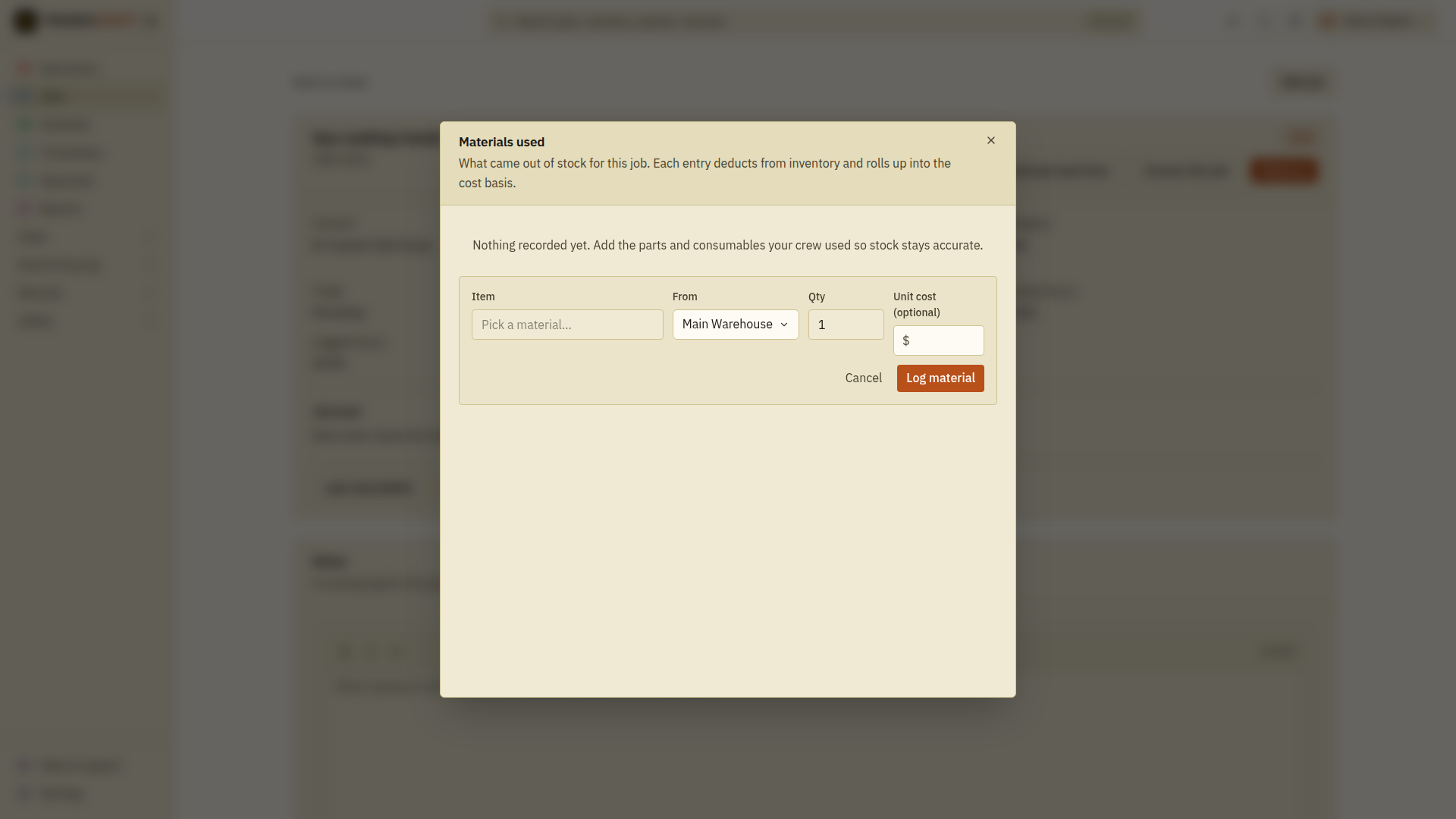
If the item or location is missing, add it under Inventory or Stock locations first. A quantity must be greater than zero. To correct a wrongly logged row, choose its Void action and confirm; stock returns to that location. Then log the correct item and quantity once.
What that does for you:
- Stock goes down by what you used - your inventory stays accurate without a separate step.
- The cost is added to the job. When you raise an invoice, review its lines and selling prices before sending; material cost is not the customer's final selling price.
- Used something you don't stock? Add it as an inventory item first (see Add an item), then book it here.