
Open Settings → Security & access. Everyone on the team can manage their own sign-in here. Admins—the people who manage the business account—also see team security and business-data options.
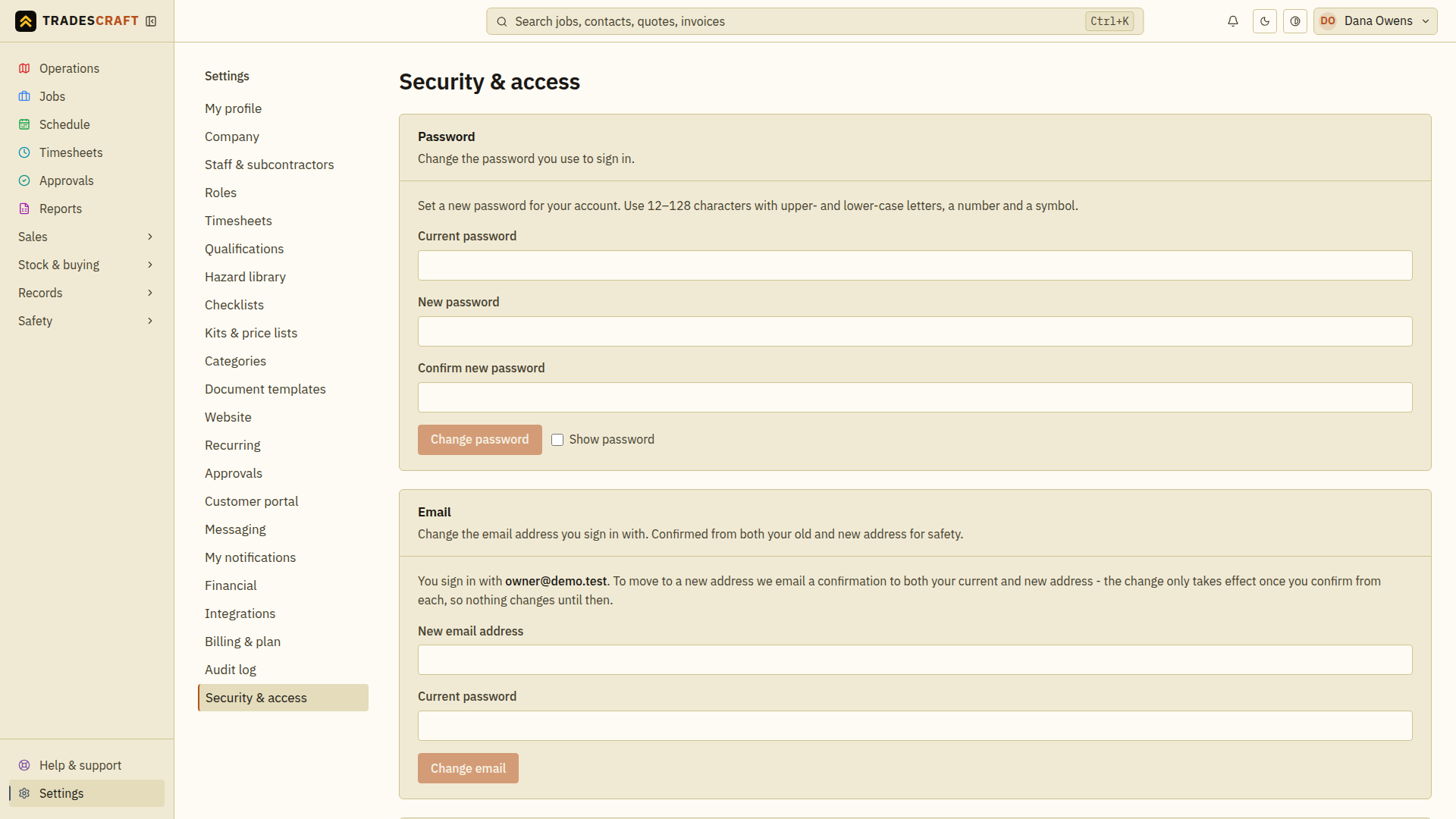
Password
- Enter your current password.
- Enter a new password, then enter it again to confirm. It must be 12–128 characters long and include upper- and lower-case letters, a number and a symbol. Use Show password if you need to check what you typed.
- Choose Change password and wait for the success message.
Changing your password signs out your other devices. Use the new password when you next sign in on them.
- Enter your new email and current password.
- Choose Change email.
- Open the confirmation email at your old address and follow its link. Do the same at your new address. The change only finishes after you confirm both.
If you did not request a change, ignore the emails; your address stays the same. See Change your email address for the full walkthrough.
Authenticator app (two-step verification)
Two-step verification, also called two-factor sign-in, adds an extra check after your password. An authenticator app on your phone generates a short code that you enter when asked.
- Choose Set up authenticator app. A QR code (a square scanning code) appears, with a written code you can enter instead.
- In your authenticator app, add an account and scan the QR code shown in Tradescraft, or enter the written code.
- Enter the 6-digit code from the authenticator app in Tradescraft, then choose Verify and turn on. Check that the method appears in the list.
To remove a method, choose Remove, enter your current password and choose Confirm. Tradescraft emails you when a method is added or removed. Set up a backup method before removing the one you use. See Set up two-factor sign-in.
Passkeys (one-tap sign-in)
A passkey lets you sign in using your device's fingerprint, face scan or PIN. Choose Set up one-tap sign-in, follow the prompts on your device, then check that it appears in the list. You can add more than one device.
If you also have an authenticator app set up, Tradescraft still asks for its code after one-tap sign-in. Some actions, such as connecting a payment service or changing someone's role, ask you to verify again even when already signed in.
Passkey two-factor
If this section is shown, Add a passkey lets you use a device check as your extra sign-in step instead of an authenticator code. Follow the device prompts and check that the method appears. The Set up one-tap sign-in option above does not, by itself, meet a requirement for two-factor sign-in.
Signed-in devices
Check the phones and computers listed here. This device marks the one you are using now.
- Choose Sign out beside a device you do not recognise or no longer use.
- Choose Sign out everywhere else to sign out all devices except this one.
See Signed-in devices for more detail.
Team two-factor (admins)
To require an extra sign-in check for the whole team, set up your own two-factor method first. Then turn on Require two-factor for everyone in the Team two-factor card.
Team members have 7 days to set up an authenticator app or, where available, a method under Passkey two-factor. They see reminders until the deadline. After the deadline they must finish setup before opening their work. Follow Require two-factor for your team to check the setting and what your team will see.
Recent activity (admins)
This shows recent changes and who made them. Open the audit log to see more recorded activity and the available details.
Your data
- Download my data — admins can use Download JSON to keep a copy of the business records. File attachments and encrypted payroll identifiers are excluded; see the business-data guide below for where to access them.
- Leave this business — use Leave business to remove your own access. Another admin must remain. Your work stays with the team; a login with no other business connection is also removed.
- Delete the business — admins can permanently remove the business's records and everyone's access. There is no undo.
Follow Download data, leave or close a business for what each action does, its confirmation steps and how to check the result.