
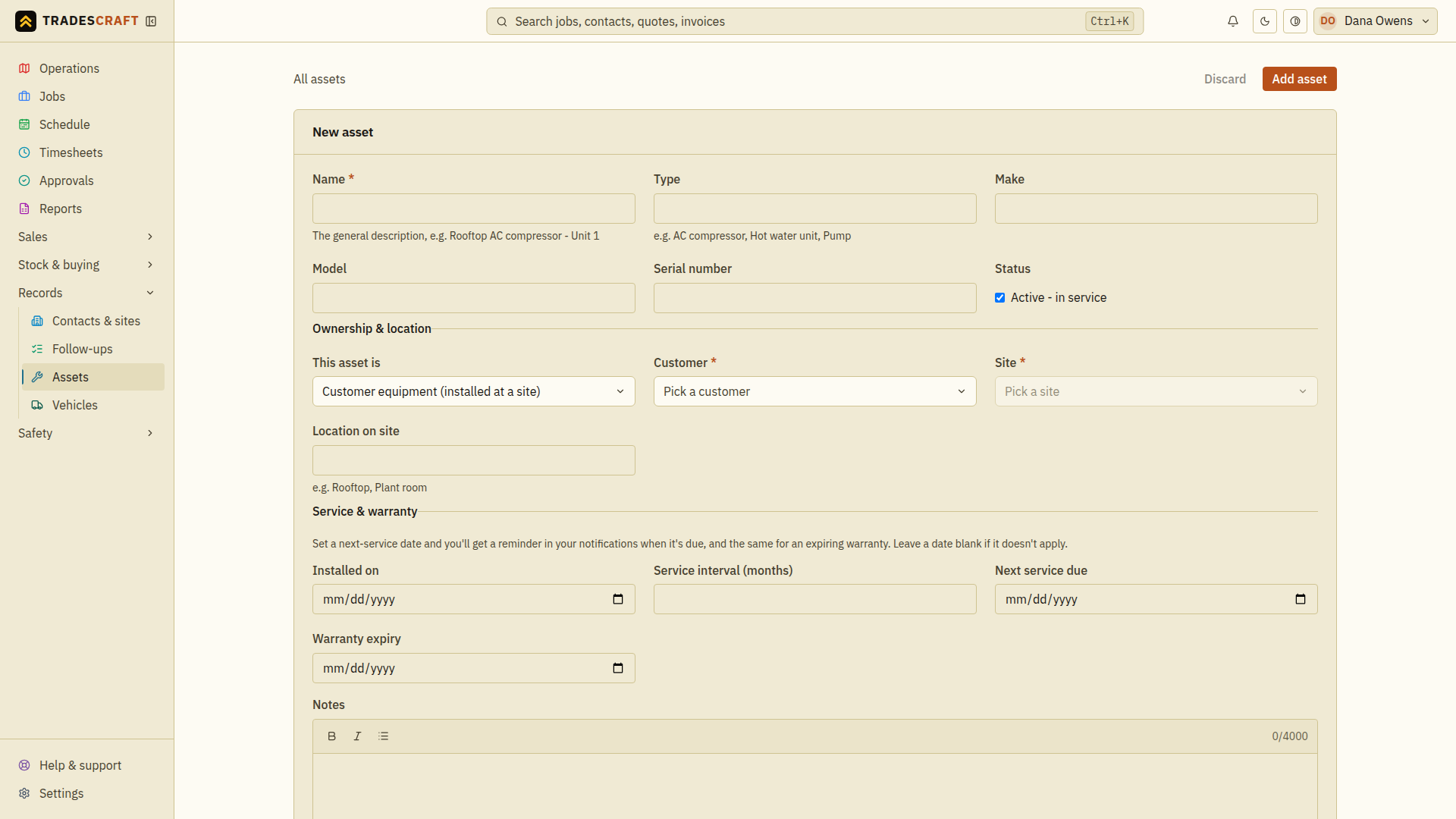
Add the machines you install or maintain - a customer's AC compressor, a pump, a hot-water unit, or your own gear - so you've got its details and service schedule on file. From Records → Assets, tap New asset.
What it is
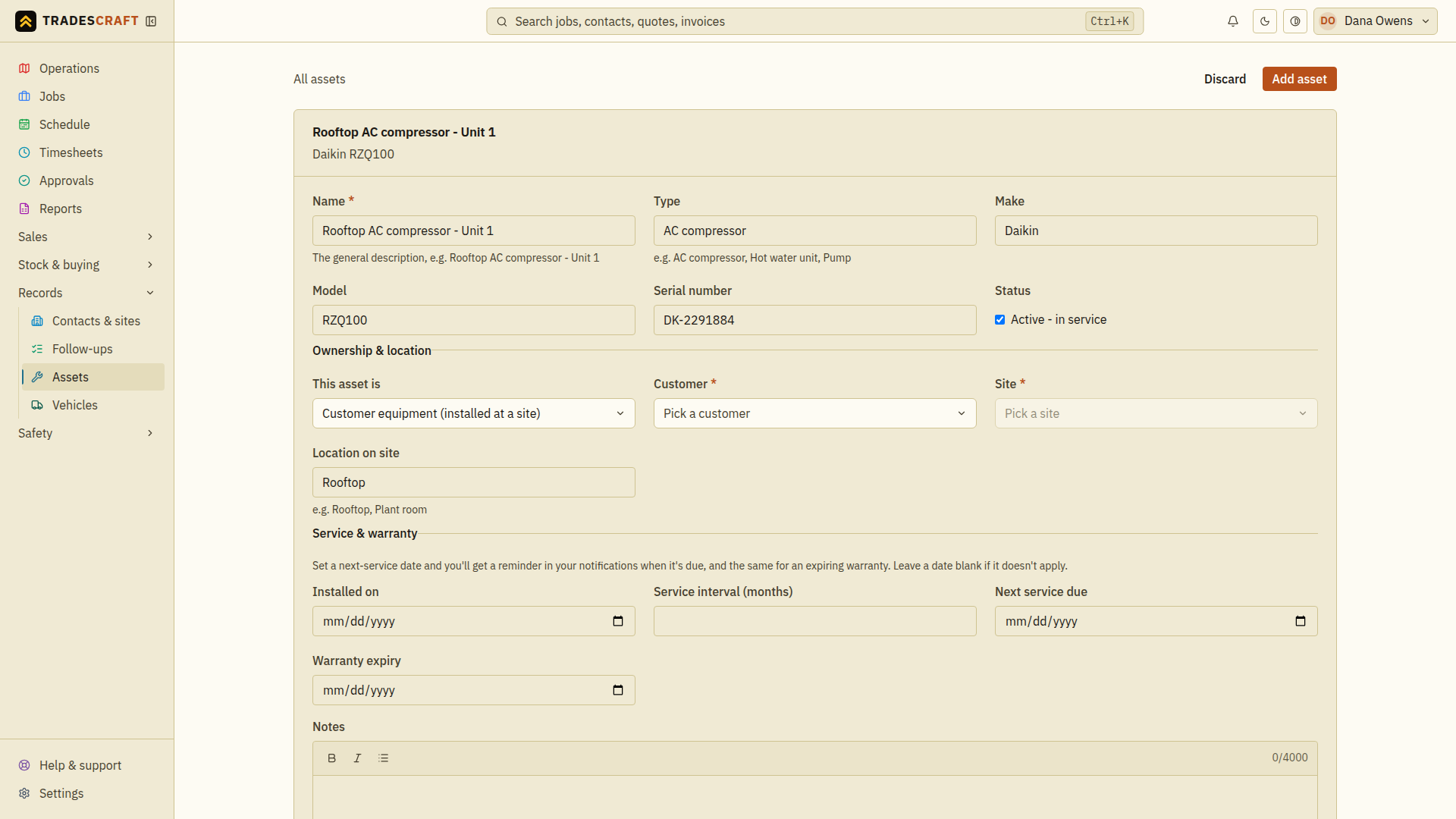
- Name (required) - the everyday description, e.g. "Rooftop AC compressor - Unit 1".
- Type - e.g. AC compressor, hot water unit, pump.
- Make, model and serial number - the specifics you'll want when you order parts or log a fault.
- Status - leave it Active while it's in service.
Whose it is, and where
Under Ownership & location, set whether the asset is a customer's or your own:
- For a customer's asset, pick the customer and the site, and note the location on site (e.g. "Rooftop", "Plant room") so whoever attends can find it.
- For your own gear, just leave it as yours.
Service & warranty (the reminders)
This is the useful bit. Fill in any of:
- Installed on, Service interval (months), Next service due, and Warranty expiry.
Set a next-service due date (or an interval) and Tradescraft reminds you in your notifications when it's coming up - and the same for an expiring warranty. On the register, the asset then shows Due soon or Overdue at a glance. Leave a date blank if it doesn't apply.
Tap Add asset to save it. (Editing later works the same way; you can delete an asset you no longer track from its detail page.)
Build its service history
Open a job and, in its Assets section, link the asset you're working on. Each job you link builds that asset's service history, so you can see everything that's been done to it over time - and from the asset you can jump straight to any of those jobs. See Job details.
Check what you saved
After Add asset, open the saved asset and check its customer, site and serial number against the equipment. Link it from the relevant job to build its service history; creating an asset alone does not create a job. If saving fails, correct the fields named in the error before trying again.