
Your tradie's portal keeps your jobs, quotes and invoices, so it's protected by two-factor sign-in. The first time you sign in you'll be asked to set up an authenticator app before you can go any further - a one-time setup that then protects every sign-in.
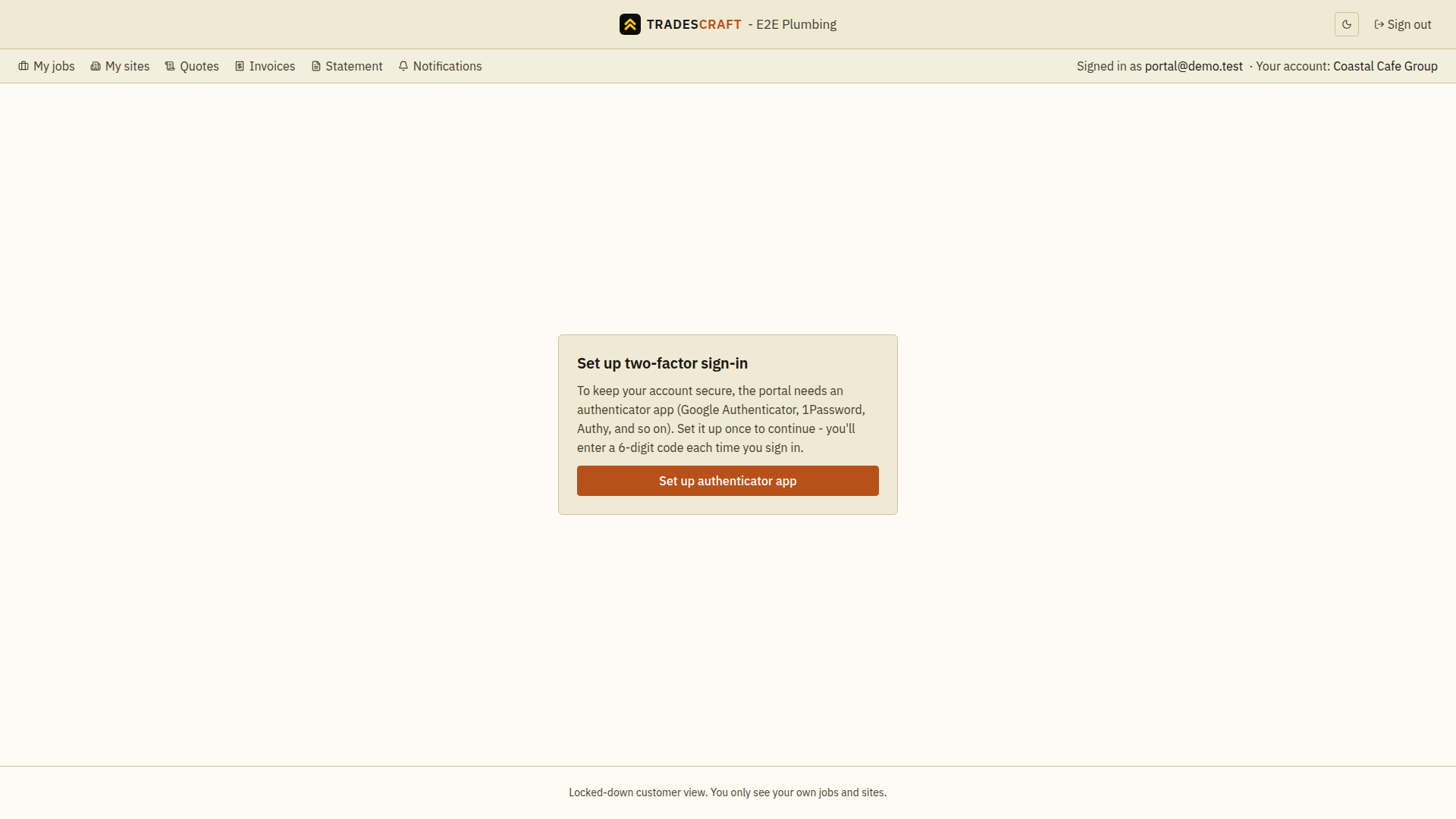
Set it up (once)
- Sign in with your email and password. You'll land on Set up two-factor sign-in.
- On your phone, install an authenticator app if you don't have one - Google Authenticator, 1Password, Authy, Microsoft Authenticator, they all work.
- Tap Set up authenticator app. A QR code appears - scan it with your authenticator app (or type in the key it shows).
- Your app starts generating a 6-digit code that changes every 30 seconds. Type the current code in to confirm, and you're in.
Every time after
From now on, each sign-in asks for the current 6-digit code from your authenticator app after your password. Open the app, read the code, type it in. That's the whole second step.
Lost your authenticator?
Changed phones or lost your authenticator app and cannot get a code? Choose Contact support on the code screen. It opens an email about portal two-factor recovery. Explain which email address you use and which business invited you; never send an authenticator code or recovery link. Support will need to verify your identity before helping you restore access.
Good to know
- This protects your account - only you can see your work with your tradie, so the second step keeps it that way.
- If you have portal access with more than one tradie, the same account and the same authenticator code work across all of them - see Connecting & switching between tradies.