
Stripe is the service that takes the card payment. The money goes to your Stripe account and is later transferred to your bank. That later transfer is called a payout. An invoice marked Paid does not mean the bank transfer has arrived yet.
Before you start
- You need the business owner/admin account. If you cannot see Connect Stripe, ask the person who manages Tradescraft for your business.
- Have your business name, business registration number, contact email and bank details ready. Stripe may also ask for proof of identity.
- If a subscription message prevents setup, check Settings → Billing & plan.
- You can create a Stripe account during setup if you do not already have one. Enter Stripe sign-in and bank details only on Stripe's own secure page.
Open the Stripe card payments card
Open Settings → Integrations and find Stripe card payments.
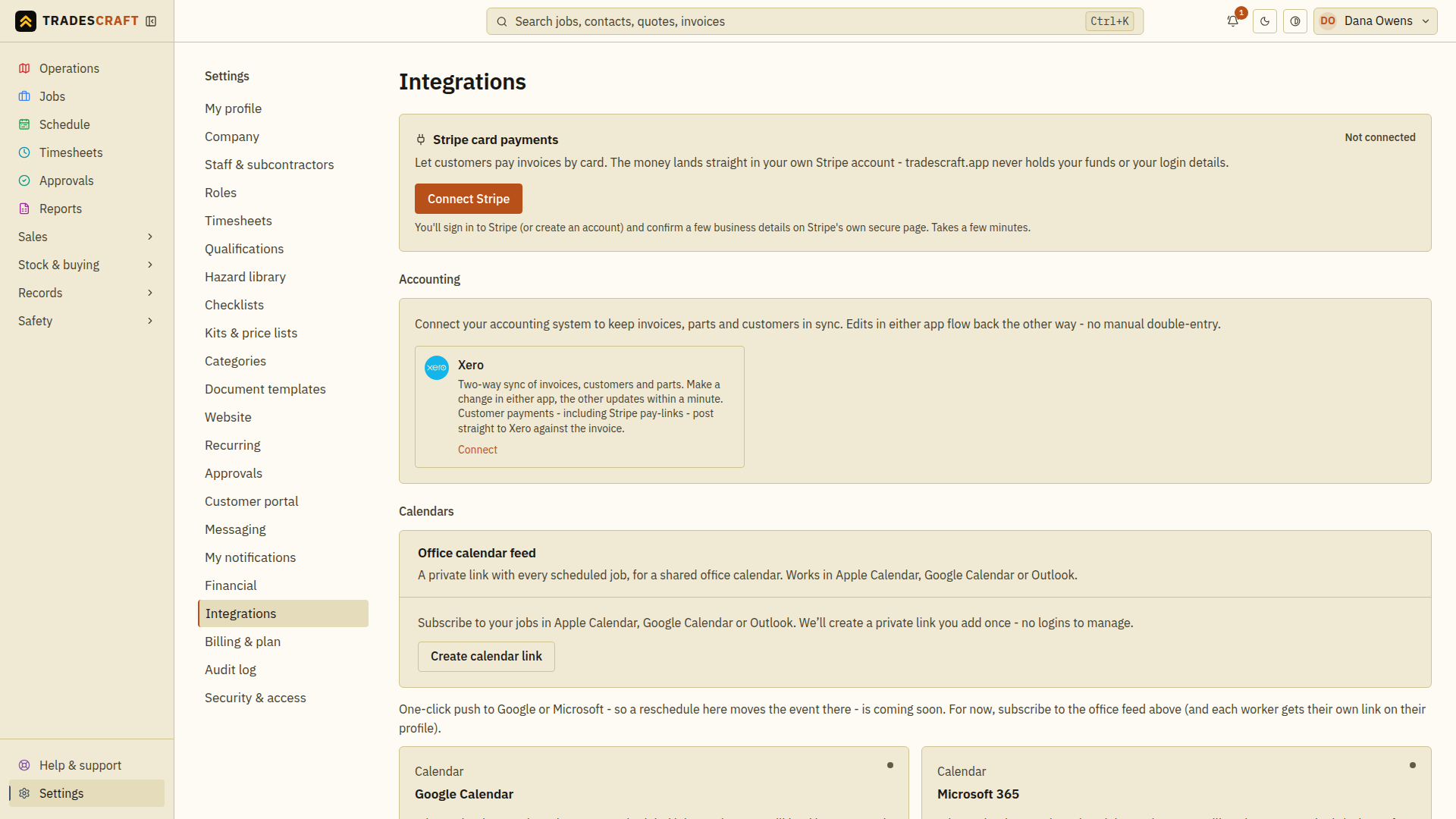
The status tells you where to start:
- Not connected — choose Connect Stripe.
- Finishing setup — choose Finish setup to provide missing details.
- Connected — check the business name, then continue to the invoice steps below.
Tap "Connect Stripe"
- Choose Connect Stripe and complete any security check.
- On Stripe's page, sign in or create an account.
- Follow Stripe's instructions to confirm your business and the bank account where you want the money paid.
- Finish the setup and return to Tradescraft.
Come back and check your status
Read the message on Integrations:
- Stripe is connected — setup is complete.
- Almost there - Stripe still needs to verify a few details — use Finish setup if details are missing. Stripe may also need time to review them.
Choose Check status after completing any missing details. Wait for Connected before relying on card payments. If you left Stripe's page early, use Finish setup to continue.
Check the first invoice payment
- Open an invoice with money still owing. Check its customer, amount and currency.
- Under Pay by Stripe, choose Create pay link. Use the full amount owing or the smaller amount agreed for a deposit or part-payment.
- Check the resulting link and amount. Create the link before using Email to contact so the emailed invoice includes it.
- After the customer pays, reopen the invoice. Check Payment history, Paid and Outstanding. A part-payment leaves the rest owing.
- Use Open Stripe dashboard to check when Stripe transfers the money to your bank. The dashboard is Stripe's own account page.
Stripe payments are recorded automatically when confirmed. Check that record before entering a payment yourself, so the same money is not counted twice. Australian and New Zealand accounts can also copy the payment to Xero.
How your customers pay
The customer opens the payment link and enters their card details on Stripe's secure page. They can also use Pay in the customer portal if you have allowed both View invoices and Pay invoices online for their login.
Paid or cancelled invoices cannot take another payment. A document with a required tax check must be reviewed and saved before payment is available.
Managing your connection
- Check status or Refresh checks the latest connection status.
- Open Stripe dashboard opens your Stripe account to review payments, fees, refunds and bank payouts.
- Disconnect stops new payment links and requests that existing links be disabled. Read the confirmation, then choose Disconnect to proceed.
If Stripe is temporarily unavailable, disabling old links can take longer. Check in Stripe before assuming a link you already shared has stopped working. Disconnecting does not close your Stripe account or change money already received. To connect a different account, disconnect the old one first.
Troubleshooting
- Finishing setup — choose Finish setup, complete the requested details, then choose Check status.
- Only the business owner (admin) can connect Stripe — ask your administrator to complete setup.
- Couldn't reach Stripe just now — wait a moment and try again.
- Set your business country… — open Settings → Company and check the business country, including the state for a US business.
- Your saved Stripe connection needs attention — contact support before creating more payment links.
- Couldn't load/save your Stripe connection — wait and retry. Check for Connected before using it.
- No Pay button — check that Stripe is connected, money is still owing and the invoice has no tax-review warning. For portal payments, also check the customer's two payment permissions described above.
Stripe controls payout timing. Check your Stripe account or its payout guide if money has not reached your bank.