
A purchase order (PO) is your formal order to a supplier for parts. Open the list from Stock & buying → Purchase orders.
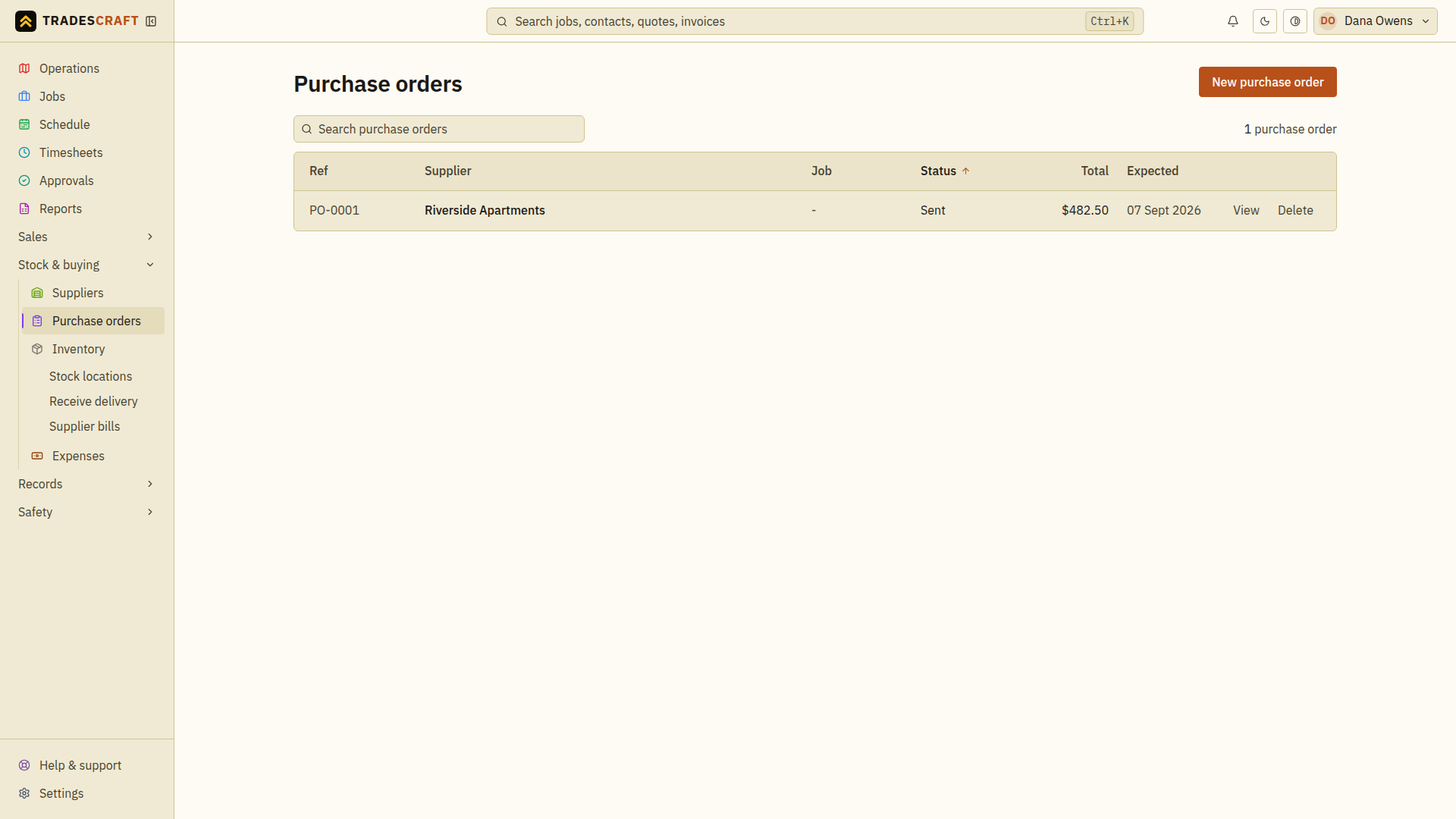
What's on the list
Each row is a PO (PO-2026-0001…), with the supplier, total and status (draft, sent, received). Click a row to open it.
- New purchase order (top-right) starts one.
- AU/NZ POs can be pushed to Xero so your accounts match what you've ordered. US POs have no Xero control and do not calculate sales or use tax.
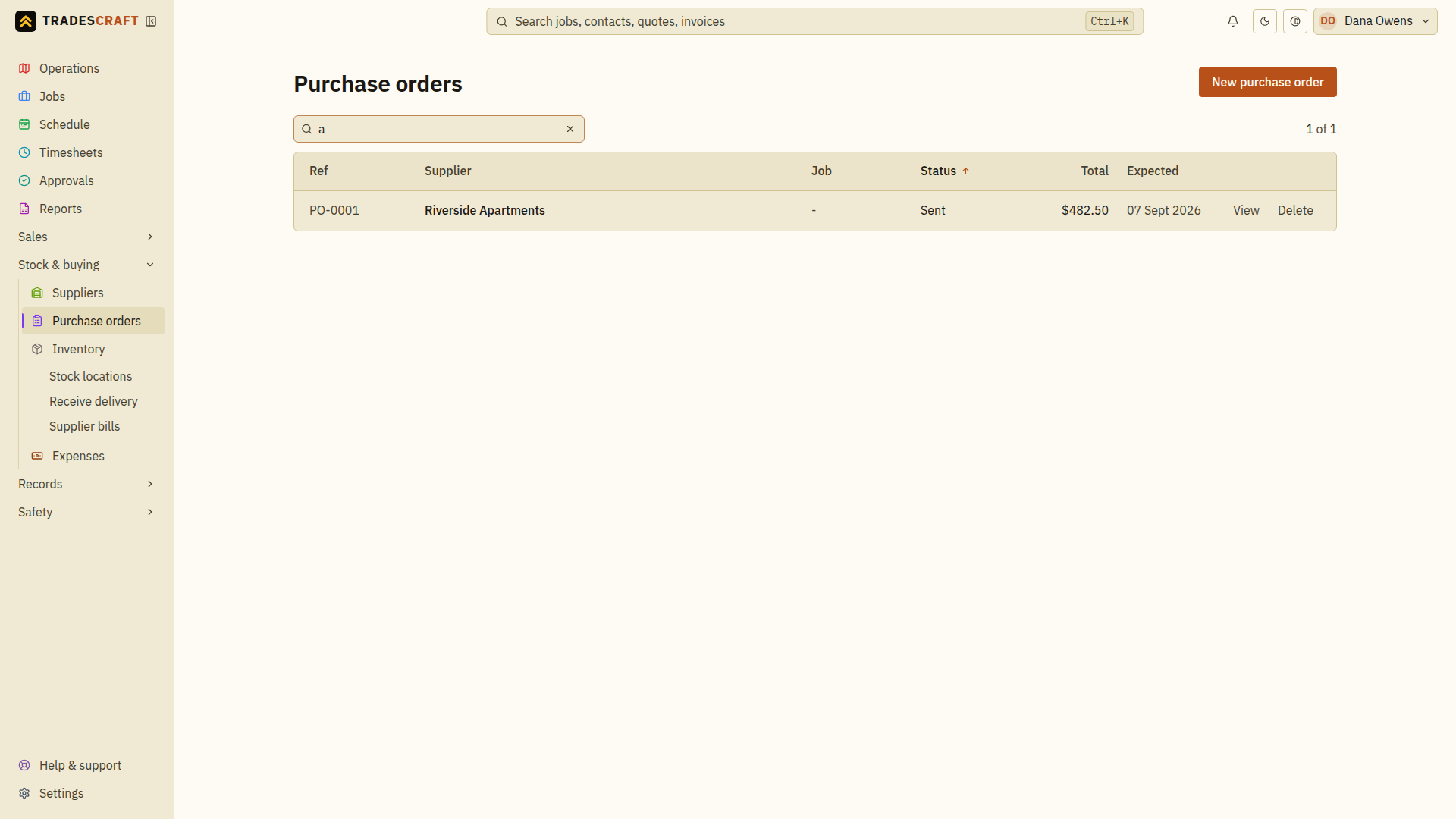
Find what you need
- Search for the PO reference or supplier. Read the status on the matching row.
- Open the PO and compare the lines with the supplier's order confirmation or delivery docket.
- For goods that have arrived, follow Receive a delivery. For an order that will not proceed, follow Cancel a purchase order.
Clear search and status filters if an order is missing. A Received order has already been booked in; do not receive those goods again through Inventory.
Edit an order
- Open the order and choose Edit purchase order.
- Check the supplier and job, then correct the items, quantities, costs, ordered date, expected date or notes as needed.
- Choose Save changes and reopen the order to check its total and dates.
For an open order, the editable status choices are Draft, Sent and Approved. Marking it Sent does not itself deliver an email to the supplier. Use the order's sending controls separately. Receiving and cancelling have separate workflows; changing a form field does not book stock in or undo a received delivery. A received order's status is shown as a fixed value.