
If your business runs a workshop (machining, fabrication), Machines lets you treat each machine like a resource you schedule work onto - the same way you book a worker or a van. Open it from the menu (manufacturing mode).
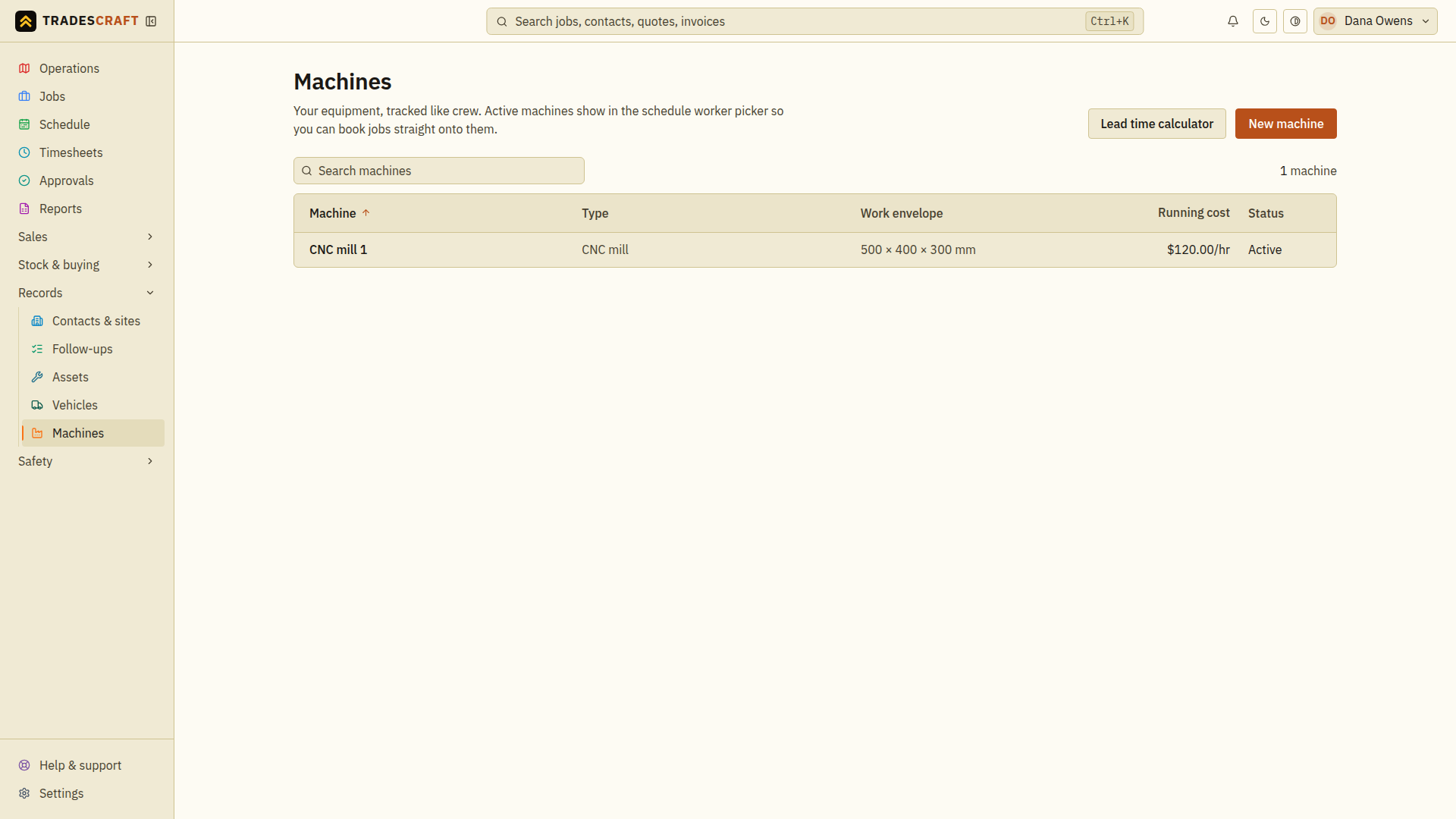
What's on the list
Each row is a machine, with its name and status. Click one for its details and the jobs booked on it.
- New machine (top-right) adds one.
- Book jobs onto a machine on the schedule, and use the lead-time calculator to quote realistic turnaround.
- On a machine's details, upload its CAD files (fixtures, tooling, or the machine model itself) to keep them to hand.
Check a machine before booking it
- Open the machine's row and review its type, active status, running cost and work-envelope dimensions.
- Check existing bookings and the job's part dimensions before committing to a time. Use CAD files & fit-check where a model is available.
- Open the job and use Assign crew, machine or vehicle to book the machine for the required window. Confirm the booking on Schedule.
If Machines is absent, ask the business administrator whether manufacturing mode is enabled. If a particular machine is missing from the picker, check that its record is active. A lead-time calculation alone does not reserve it.
Update a machine or stop offering it for bookings
Open the machine and choose Edit. Correct its details and choose Save changes, then reopen it to check them. To take it out of the booking picker, untick Active - can be booked on the schedule and save. Review existing bookings on Schedule and rearrange any affected work separately. Tick the same box and save when the machine is ready to be booked again.