
Pay the supplier through your bank or payment provider first. This screen does not transfer money. Then record the payment against their bill so the amount outstanding drops and your accounts stay accurate. A bill shows a Record a payment panel whenever it still has something owing. Open it from Stock & buying → Supplier bills, then the bill.
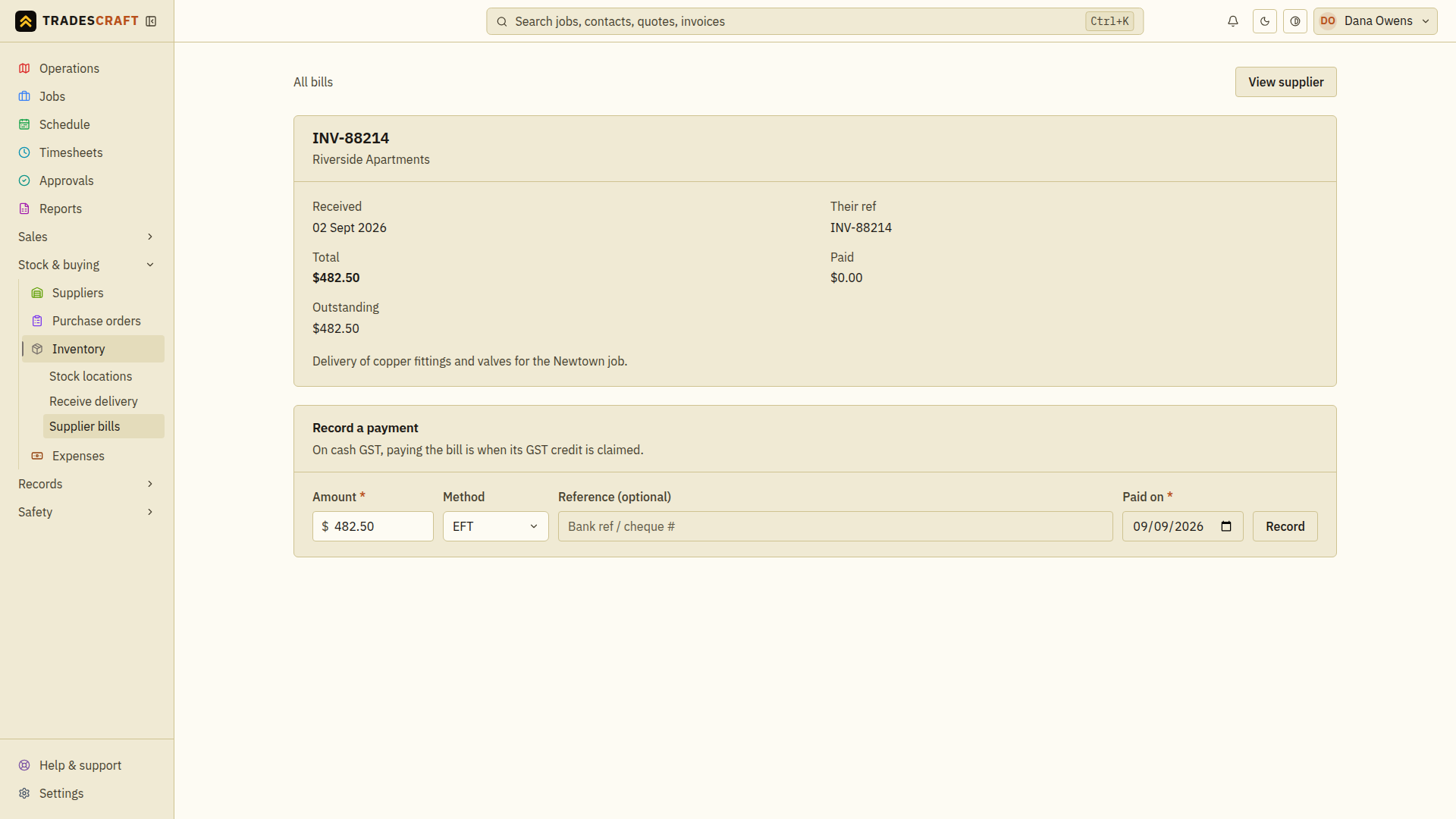
Record the payment
- Open the bill (Stock & buying → Supplier bills → the bill). While it has an outstanding balance, the Record a payment panel is there.
- Amount is pre-filled to what's still owing - leave it for a full payment, or type a smaller figure for a part payment.
- Pick the method - EFT (bank transfer), Card, Cash or Cheque.
- Add a reference if you like (bank ref or cheque number), and set the paid-on date.
- Choose Record in the Record a payment form. The bill's outstanding drops by what you paid, and the payment shows in its Payment history.
Paying less than the full amount leaves the bill part-paid - repeat the steps for each further payment until it's cleared.
What it does
- Keeps what you owe suppliers correct. AU/NZ accounts can sync the same figure to Xero as an accounts-payable bill; US accounts retain it in Tradescraft.
- Records when and how you paid, against that specific bill.
Fixing a mistake
Recorded a payment wrong, or the supplier refunded you? On any payment in the bill's Payment history, an admin can Reverse it - a void (keyed in error) or a refund - and the bill re-opens for that amount. See Supplier bills.
Good to know
- Bills appear here automatically when you receive stock against a supplier or a purchase order - you don't key the bill itself in by hand, only its payments.
- Where the bill came from a purchase order, the bill links back to that PO so you can reconcile order → receipt → payment.