
Two-factor sign-in (2FA) asks for a second proof - a code from an app on your phone, or a passkey (your fingerprint/face) - on top of your password. It helps protect your account if your password is stolen. Set it up on Settings → Security & access.
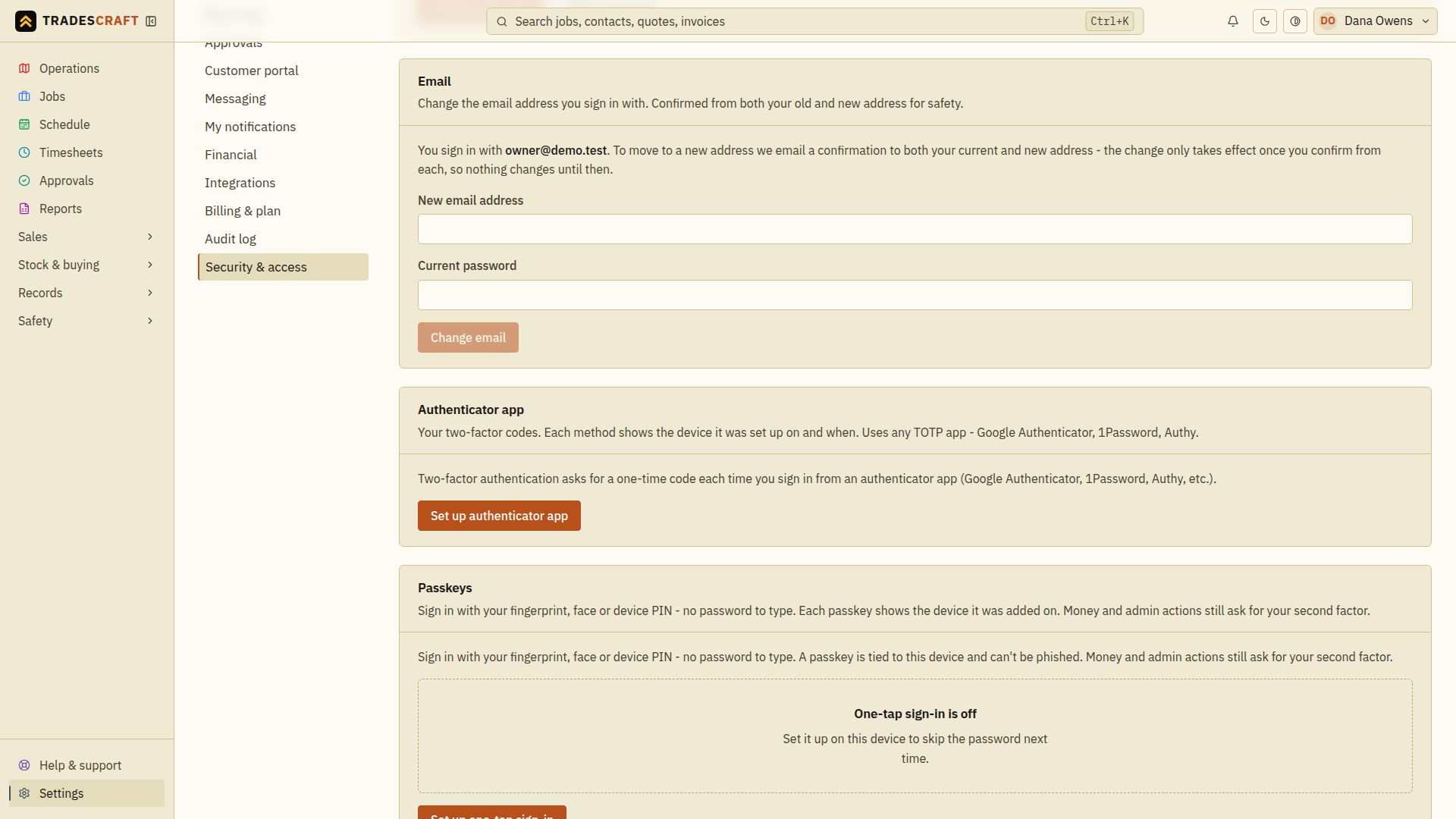
There are two kinds - pick either (or both):
Authenticator app (a 6-digit code)
You'll need an authenticator app on your phone - Google Authenticator, Microsoft Authenticator, Authy or 1Password all work.
- In the Authenticator app section, tap Set up authenticator app.
- A QR code appears. Open your authenticator app and scan it (there's a code you can type in by hand instead).
- The app now shows a 6-digit code that changes every 30 seconds. Type the current one in and tap Verify and turn on.
From now on, after your password you'll be asked for the current 6-digit code.
Passkey (fingerprint / face)
A passkey lets you confirm with your fingerprint, face or device PIN instead of typing a code. If Passkey two-factor is shown, choose Add a passkey there and follow the prompts on your device. You can add one per device. If this section is not shown, use an authenticator app.
Choose Passkey two-factor for this extra security check. Set up one-tap sign-in, in the separate Passkeys section, does not meet a two-factor requirement on its own.
Good to know
- Keep a backup. Set up more than one method (or an app on two phones) so you can still get in if you lose a device. If you ever do get locked out, see Recover two-factor.
- We email you whenever a two-factor method is added or removed - so you'd know if someone else tried.
- Removing a method asks for your current password first, so no one at an unlocked screen can quietly strip your protection.