
A document template is a saved design. You can use a different design for quotes, invoices and other document types. Open Settings → Document templates.
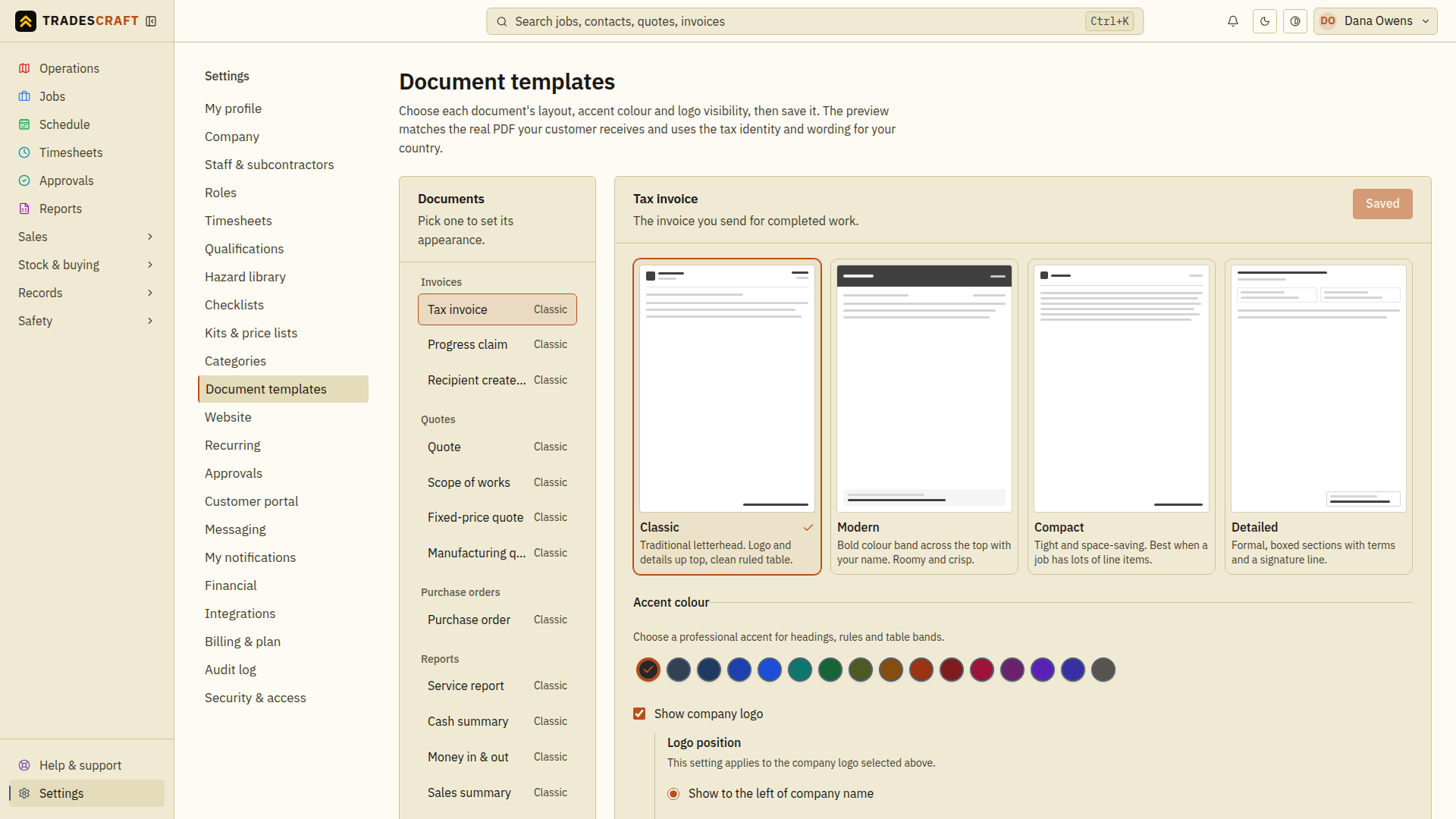
Make and verify one template change
- Under Documents, choose the type you want to change, such as Tax invoice or Quote. Check the name before changing its design.
- Choose a layout and accent colour. The options are explained below.
- Choose whether to show your company logo and bank details, where offered.
- Wait for the Preview to load. Scroll through its pages and check the text, logo and payment details.
- Choose Save and wait for confirmation. Open the same document type again to check that your choices were saved.
- Open a real quote or invoice and choose Print / PDF. Check its details before sending it to a customer.
A PDF is a document file you can view, print or share. The preview uses sample information and is marked DEMONSTRATION. Use a real saved quote or invoice when you are ready to send something to a customer.
Pick a document, set its appearance
Choose one of four layouts:
- Classic — a traditional letterhead.
- Modern — a bold colour band across the top.
- Compact — a layout that uses less space.
- Detailed — boxed sections, terms and a signature line.
Choose an accent colour from the circles. It colours headings, lines and other details on the page. A tick shows the selected colour.
Show company logo includes the logo uploaded in Company settings. Logo position puts it beside or above your business name.
Show bank details, on quotes and invoices, uses the payment account saved in Financial settings. If those details are missing, follow the link to Financial settings and add them first.
Sign-off & tax
Below the appearance options, the business owner can change:
- Sign-off message — a closing line, such as “Thanks for your business”.
- GST number, for a New Zealand business — the number printed on its tax documents. Ask your accountant if you are unsure which number to enter.
Other team members with settings access can still change the document design. The business name and other registration details come from Company settings.
Preview & save
The preview updates as you change the design. Wait for it to finish before checking the result. For a longer document, scroll down to inspect every page.
If it fails to load, choose Retry preview. If it says Not set for a business or tax detail, add that detail in the relevant settings before issuing real documents. Changing the layout does not fix missing business information.
Choose Save for each document type you change. Saving one type does not give every other type the same design.
Where your logo and details come from
- Company details supplies your logo, business name and registration number.
- Financial settings supplies your bank details and the starting tax settings for new documents.
- The quote or invoice keeps its own saved prices and tax details.
For a US document with a tax-review warning, open and check that document before sending it. A successful sample preview does not complete that tax check.
Good to know
The saved design is also used for emailed documents and customer portal copies. Progress claims have their own design choice. Credit notes and statements use the tax-invoice design.
RCTI means recipient-created tax invoice: an invoice the buyer creates for an eligible supplier. This document type is offered only for qualifying Australian businesses. It does not have the bank-details display option.