
The Invoices tab lists the invoices your tradie has sent you, with what's paid and what's outstanding.
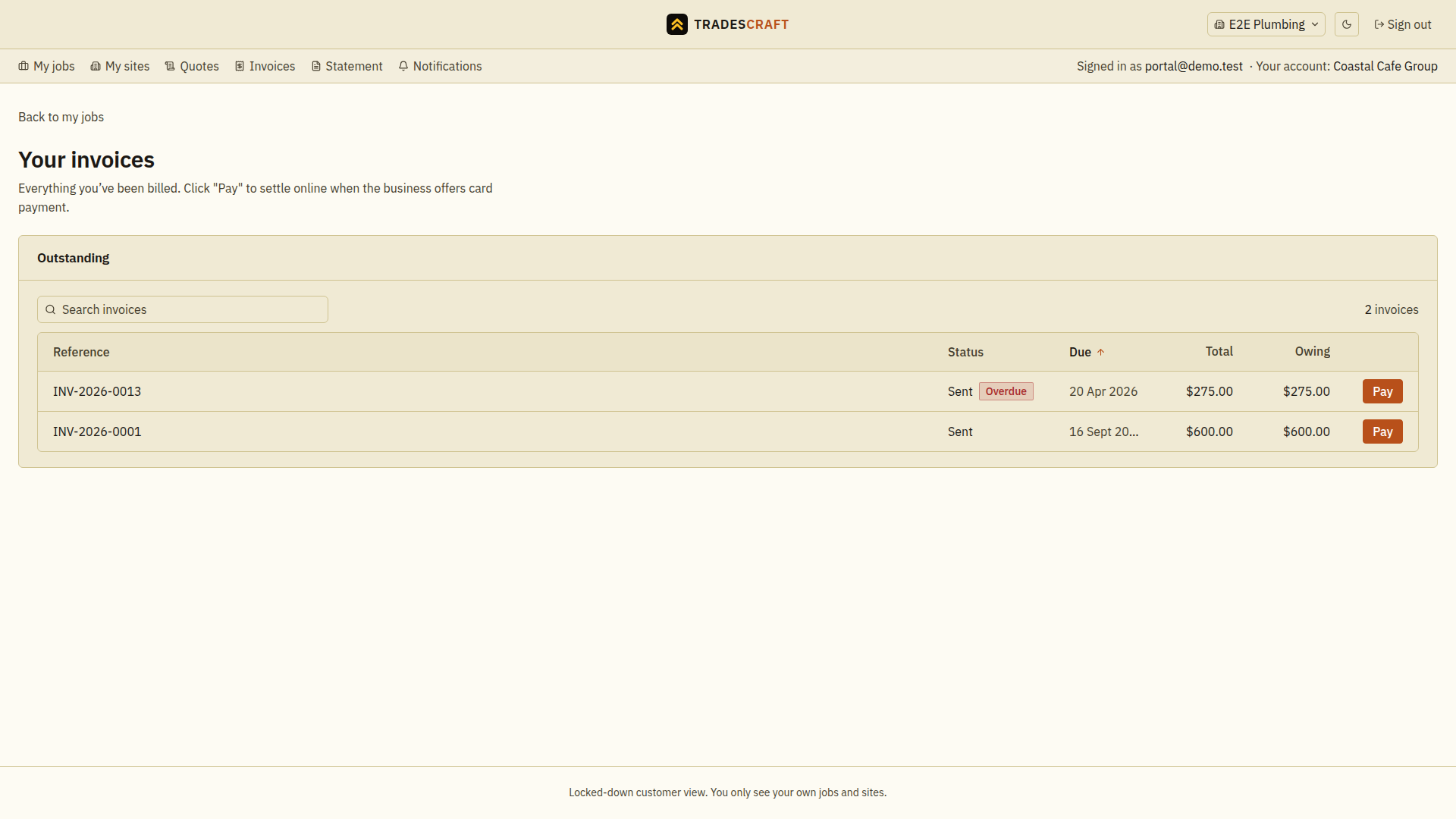
Tap an invoice to see its details. Payment controls appear only when online payment is available to your login and this invoice.
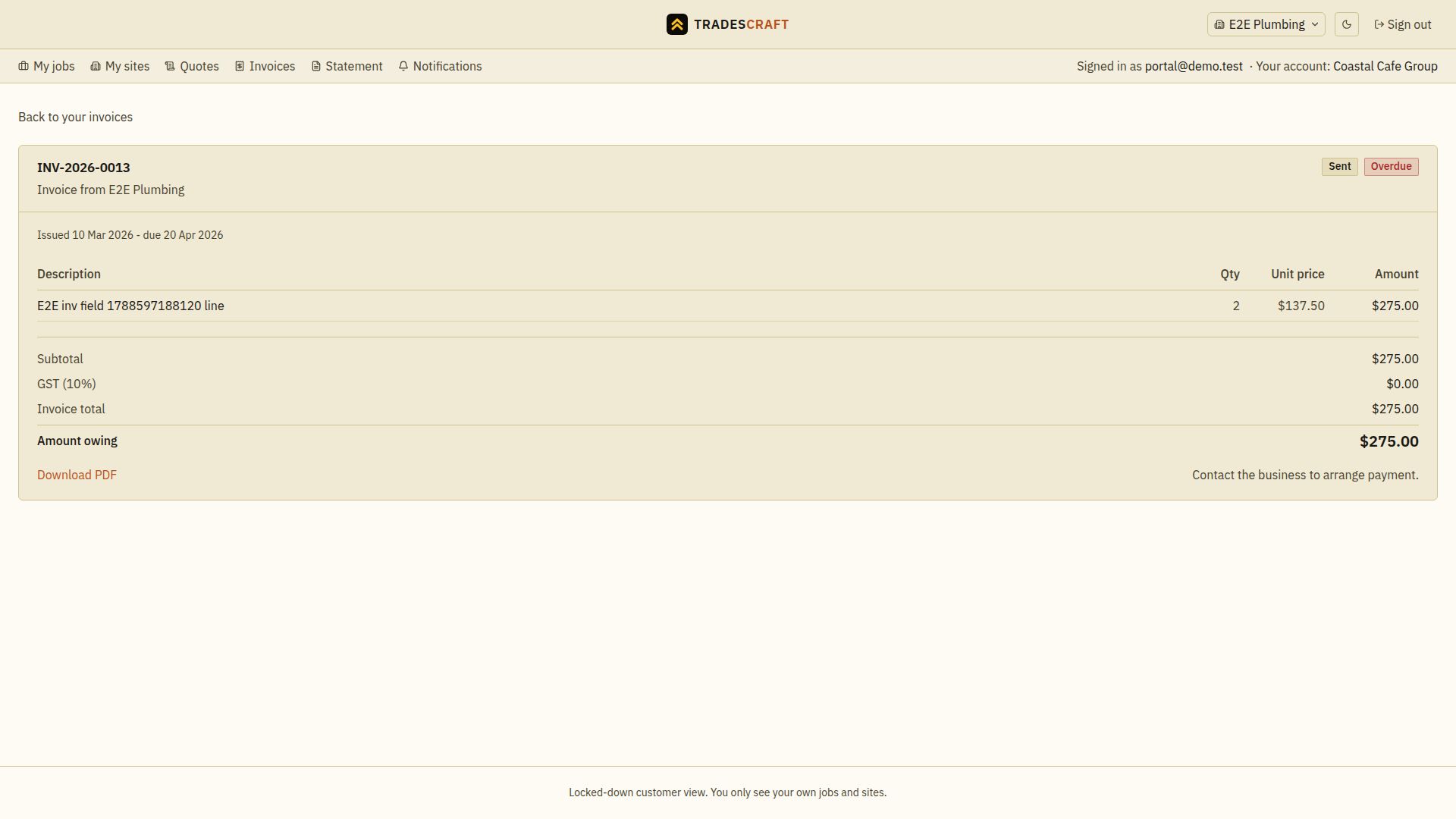
What you can do
- See the line items, GST or Sales tax, total and the amount outstanding, in the invoice's currency. US invoices show USD and their saved exact tax rate.
- Pay online by card (where your tradie has enabled payments) - the money goes straight to them, and you get a card receipt by email.
- If a credit or deposit has reduced your balance, you'll see a Credits & adjustments line explaining why the amount owing is lower than the total.
- Download or print the invoice.
Pay an invoice
- Choose the correct tradie's business and open Invoices.
- Open the invoice and check its reference, currency, total and outstanding balance.
- In Pay this invoice, keep the full Amount to pay or enter a smaller amount. If a message says the amount is not allowed, correct it before continuing.
- Choose the Pay button showing that amount. Review and complete payment on Stripe's secure checkout page.
- Return to the invoice and check the remaining balance after the payment is confirmed. A part-payment leaves the remainder owing.
If payment is not offered, the invoice may be settled, or your tradie may not have enabled card payments. Use the payment instructions on the invoice or contact the tradie. If the result is unclear, check the invoice and your payment confirmation before starting another payment.
A Download PDF link provides a copy where your tradie has shared invoices with you. A payment confirmation and a bank payout are separate events.