
If your business requires approval, clocking off leaves a finished entry Awaiting approval. Open Timesheets to review it. With No approval selected in Timesheet settings, completed entries are accepted automatically. Only roles with permission to approve time see the approval controls.
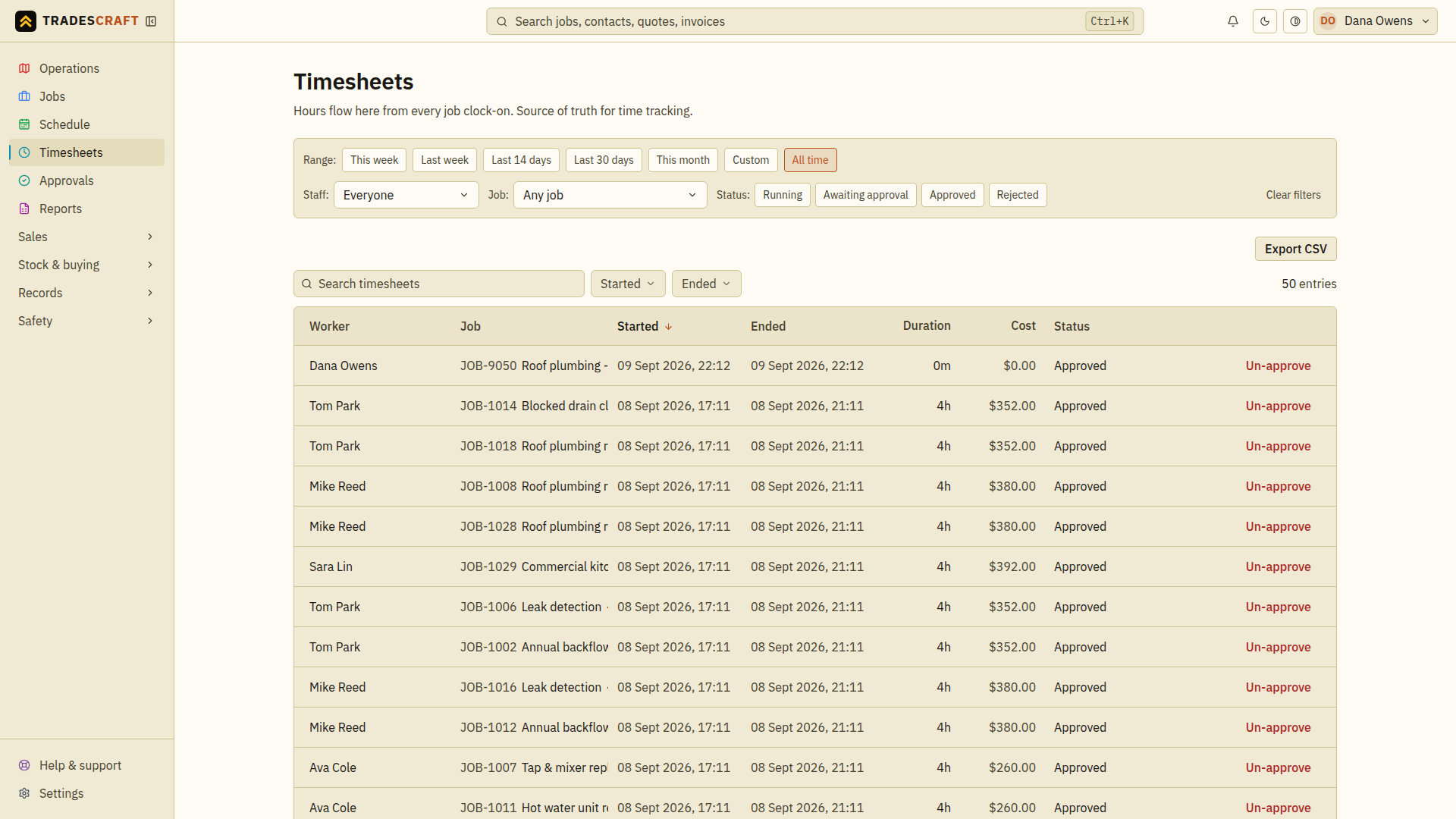
Approve an entry
- Open Timesheets. Each entry shows its worker, job, hours and a status; use the Awaiting approval status filter to jump to the ones waiting on you.
- Check the worker, job and hours. If it's right, tap Approve on that row - it flips to Approved (with your name against it).
Approve a lot at once
If a batch looks good, you don't have to do them one by one:
- Review the filtered period and tick the entries you want, or choose Select all (N). Check the selected count before continuing.
- Tap Approve selected. You'll get a "N timesheets approved" confirmation.
Send one back
Something not right - wrong job, too many hours, forgot to clock off?
- Tap Reject on the row and give a short reason. The entry is marked rejected and the reason is recorded, so there is a record of what needs correcting. Check the rejected status and reason, then tell the worker what needs review. Reopening changes the review state; it does not itself correct a job or duration.
Change your mind
Approved or rejected something by mistake, or need to revisit it? On an approved entry tap Un-approve, and on a rejected one tap Reopen - either puts it back to awaiting approval so you can approve or reject it again.
Good to know
- Approving an entry marks its hours as checked. It does not change the hours recorded. If the hours are wrong, have them corrected before approval.
- Before payroll export, explicitly select the Approved status filter. Exporting does not apply that filter for you; follow Export timesheets for payroll.