
A worker's lost their phone, wiped their authenticator app, or changed devices and can't get their 6-digit code? As an admin you can reset their two-factor from their staff record - it removes their existing methods and lets them set up a new method next time they sign in. Find it under Settings → Staff & subcontractors.
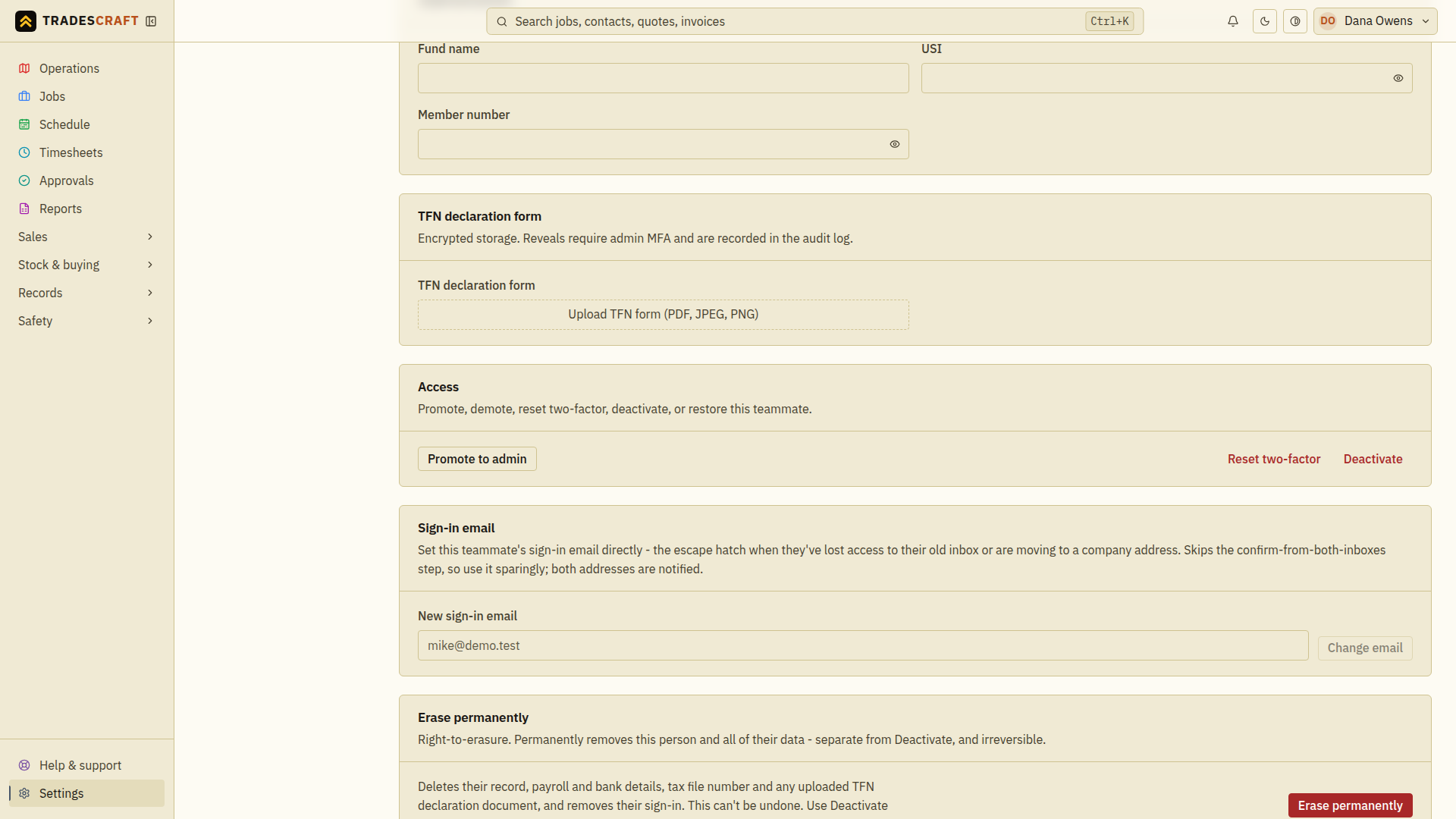
Reset it
- Verify the request really came from your teammate through a known contact method. Open Settings → Staff & subcontractors, select them and choose Edit.
- On the edit screen, find the Access card and tap Reset two-factor.
- Confirm. Because it's a sensitive change, you'll be asked to confirm your own two-step verification first.
That's it. Their two-factor methods are cleared and they're signed out everywhere. The next time they sign in they'll be walked through setting up two-factor again.
Good to know
- This is the admin rescue path, for when a teammate can't get in. If it's your own two-factor you've lost, use Recover your two-factor instead.
- It only clears two-factor - it doesn't change their password or their access. They keep their role and history.
- You can't reset your own two-factor from here (there's no Access card on your own record) - that's what the self-service recovery path is for.
- If your business requires two-factor, the worker must finish setup again before they can get back into the app - see Require two-factor for your team.