
This connection is available for Australian and New Zealand businesses. It is not available for US accounts. You need admin access and two-factor sign-in (an extra security check after your password).
Sync means copying supported changes between Tradescraft and Xero. This can include customers, invoices, parts, supplier bills and payments. Changes may take time to appear, so check their status before entering the same information again.
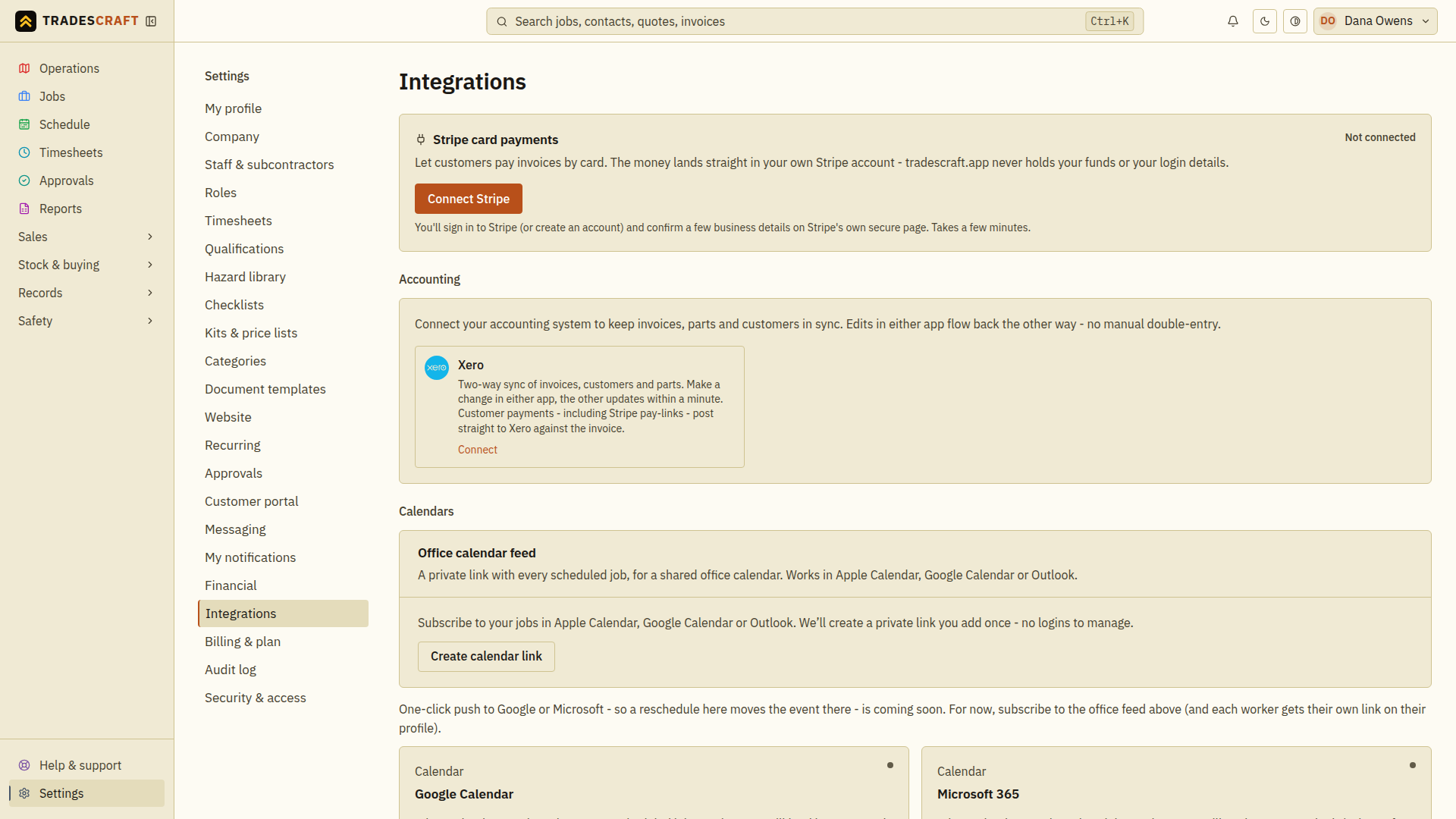
Connect
- Open Settings → Integrations. Under Accounting, find Xero and choose Connect.
- Complete the security check if asked, then sign in on Xero's own page.
- Choose the Xero business that matches this Tradescraft business and approve access. Choose one organisation only.
- Return to Tradescraft and continue with the setup below.
If an error appears, follow its instructions and try again. If you selected more than one Xero business, reconnect and choose just the intended one.
Map your accounts (the wizard)
The setup asks which Xero accounts to use. These choices are called mappings. Ask your accountant if you are unsure which accounts or tax type to select.
- Revenue account — where sales from invoice lines are recorded, unless an item has its own account setting.
- Bank / clearing account — where payments received outside Stripe are recorded. Stripe payments use Xero's own bank feed.
- Purchases account — where supplier bills are recorded. Choose this before asking Tradescraft to create bills in Xero for deliveries.
- Default tax type — check the suggested tax type with your accountant.
- Invoice branding theme — optional; the document design to use in Xero.
- Job tracking category — optional; groups invoice lines by job in Xero.
Choose Save mapping. You can save incomplete choices and finish later, but invoices will not be sent to Xero until the required accounts and tax type are set.
Check the first sync
- Check the saved Xero business name and account choices.
- Read Activity and the last-sync times to see what has been copied.
- Open the same customer or invoice in both apps. Compare its name, reference and amount before relying on the connection for everyday work.
- If a record is still waiting or has an error, follow the message to correct its details or account choices. Keep the existing record; do not create a second invoice or customer to try again.
Managing the connection
- Connection shows the Xero business and when information last copied.
- Mappings → Edit lets you change the account choices.
- Activity shows recent updates and anything still waiting.
- Reconnect Xero lets you sign in again when the connection has expired. Existing records and their Xero links are kept.
- Disconnect, on the Integrations card, stops updates between the apps. It does not delete the records already in either app.
A temporary connection problem can delay updates. Check Activity before trying again. If a billing message prevents changes, follow that message or ask the account owner to check Settings → Billing & plan.
Good to know
Keep using Xero and your accountant for your accounting and tax returns. Tradescraft does not delete your Xero customers or overwrite locked invoices.