
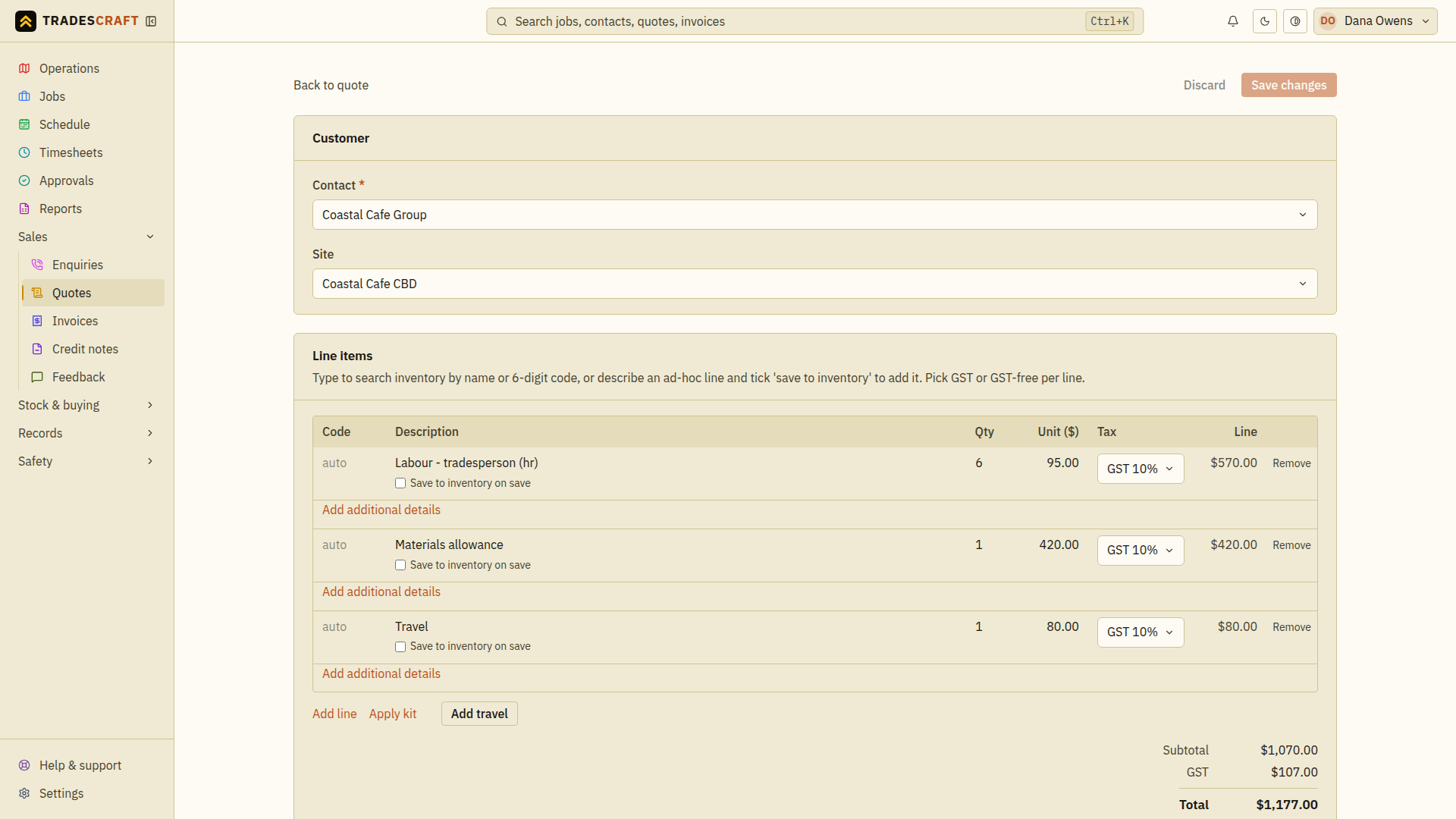
Open Sales → Quotes, select the quote and tap Edit quote (top-right). You get the same three-section form you built it with - Customer / Line items / Details - pre-filled with everything that's on the quote.
What you can change
- Customer / Site - if it was raised against the wrong one.
- Line items - add or remove lines, change a description, qty, Unit ($) or Tax per line; the Subtotal, tax and Total re-calculate as you go. AU/NZ use GST treatments. US quotes use Taxable, Exempt or Not subject to sales tax and keep their saved exact combined rate. Use Add line, Apply kit or Add travel to add more.
- Status / Expires / Notes.
Save and check the revision
- Change the required fields, then check each line's quantity, unit price and tax treatment against the revised scope. Read the new total before saving.
- Tap Save changes and wait for Quote saved. The form stays open with the saved values. Discard restores the last saved values if you want to abandon the edits instead.
- Return to the quote and review its lines and total. If the customer needs the revised copy, use Email to contact again; saving does not deliver it.
If saving fails, read the message and correct the named field before trying again. If Edit quote is absent, check the quote's status and your access; accepted or closed quotes do not offer the usual edit action.
Good to know
- If a US quote says Verify destination sales tax before sending, sending, PDF/print, portal access and conversion are blocked. Check the destination and work, verify the Combined sales tax rate, then tap Save changes. Saving through this form is what records the review; dismissing the warning does not.
- A US rate can be corrected while the quote is Draft or Awaiting client. Once it is accepted or closed, you cannot change its saved tax rate.
- Editing a quote keeps a record of the previous version, so you always have the history of what was originally quoted - handy if a customer queries a change in price.
- Tap Save changes to keep them. Discard puts the quote back as you opened it without leaving the page. Both are greyed out until you change something, and it says Unsaved changes when you have.