
Before you start
- You need at least one supplier to order from - add a supplier first. (The form will tell you if you don't have any yet.)
Start a new PO
From Stock & buying → Purchase orders, tap New purchase order.
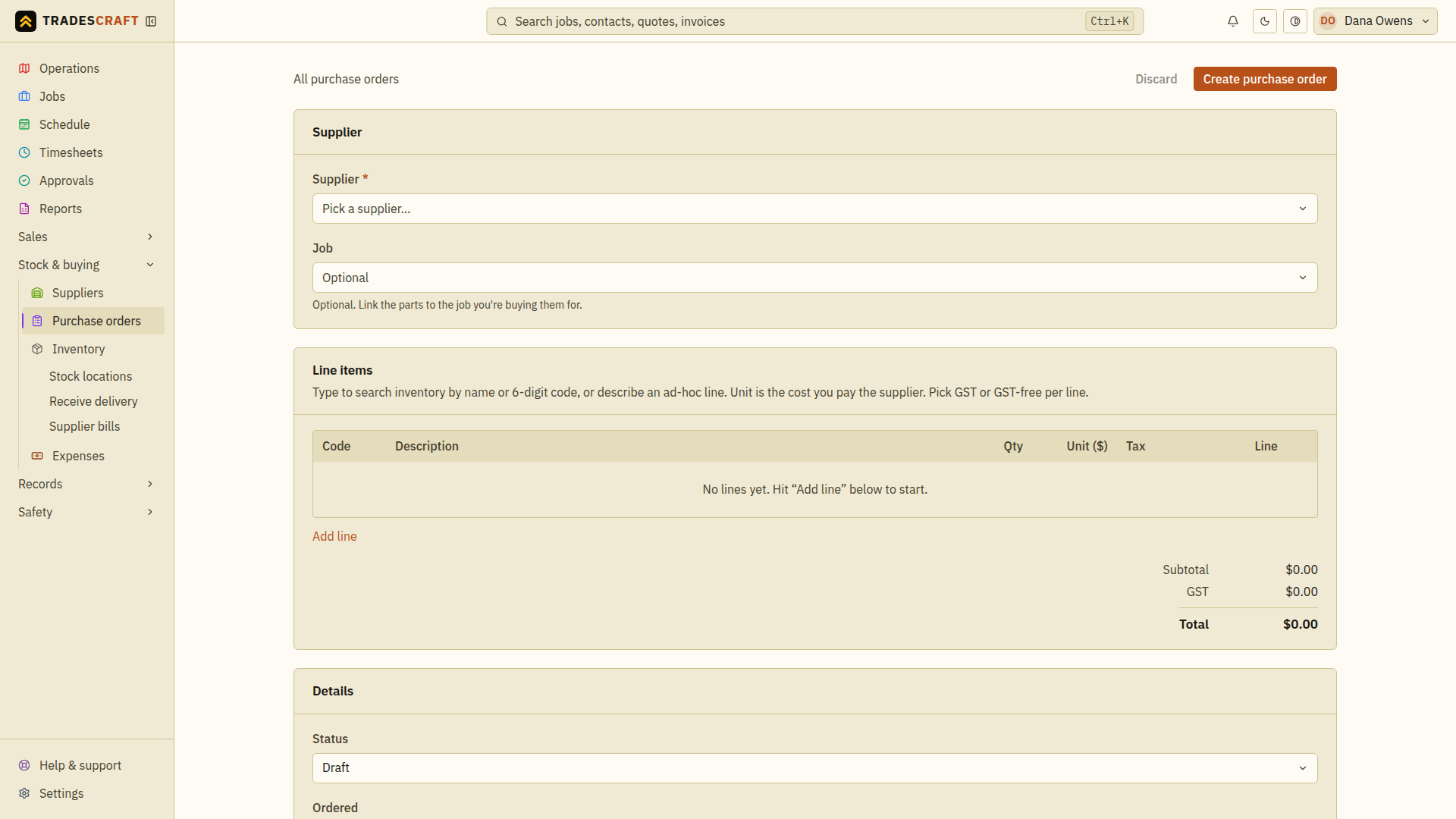
Pick the supplier
Choose who you're ordering from. Start typing to search by name, phone or address. You can also link the job the parts are for, so the cost lands against it.
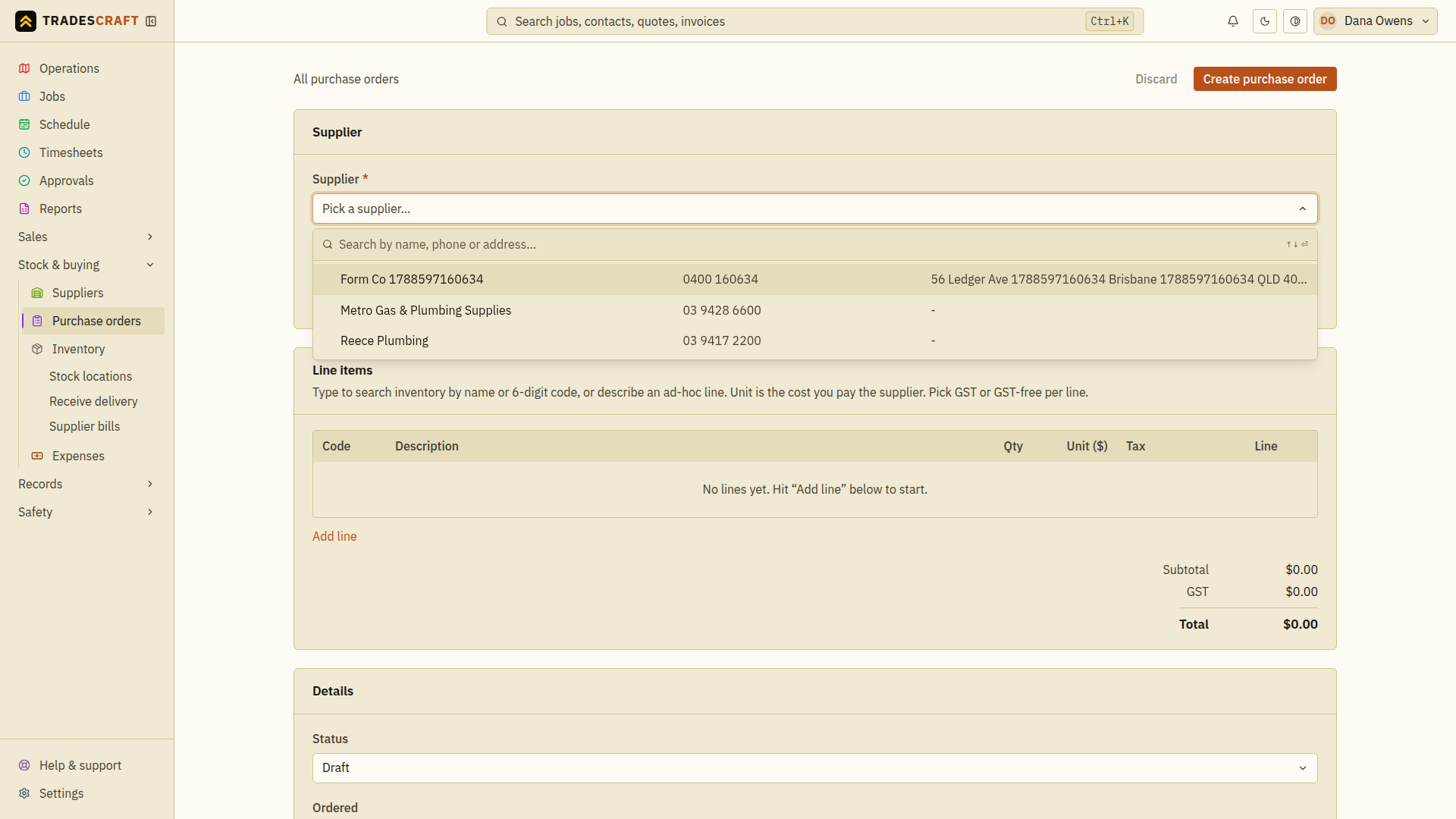
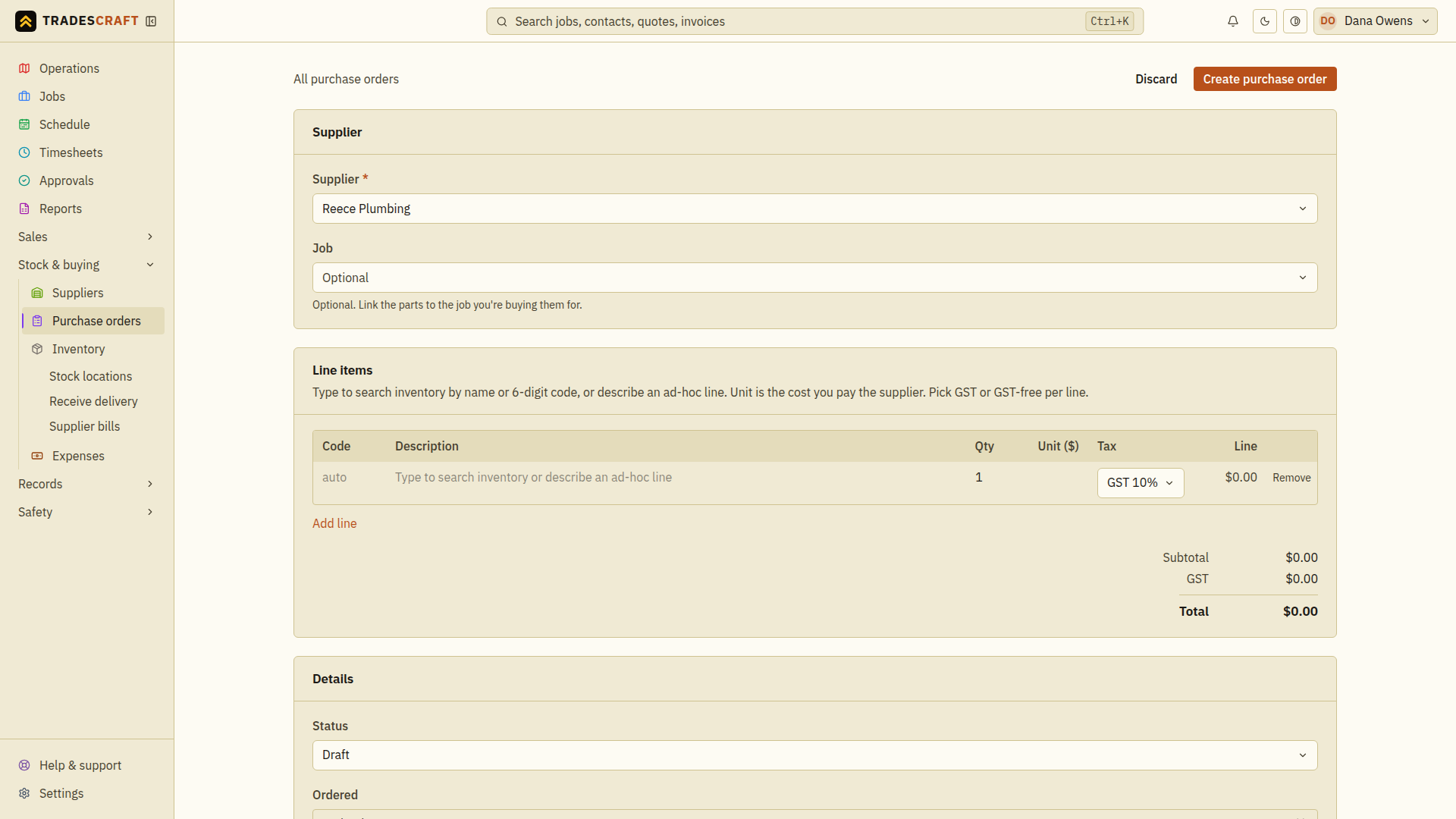
Add the line items
Add each part: type in the Line items box to search your inventory by name or six-digit code (which links the line so receiving adds stock), or just describe a one-off item description. Set the quantity and unit cost - the line totals, GST and order total are worked out for you in AU/NZ. US purchase orders do not calculate sales or use tax: their totals are the entered supplier costs, and no GST field or Xero status is shown.
Set the dates and save
In Details, review Status, Ordered, Expected and Notes. Use the expected date to record when the supplier says the parts will arrive. Choose Create purchase order, then check the saved supplier, lines and total. Saving records the order; it does not email the supplier.
If saving fails, correct the highlighted supplier or line details and retry the same form. Confirm stock items were selected from inventory if you want receiving to increase their counts.
Send it, then receive it
Tap Send to supplier. The dialog pre-fills the supplier's billing email (when one's on file); check or change the address, review the email and choose Send to supplier in the dialog. Wait for Purchase order sent to the supplier before closing the task. If sending fails, correct the address or reported problem and retry sending the saved order.
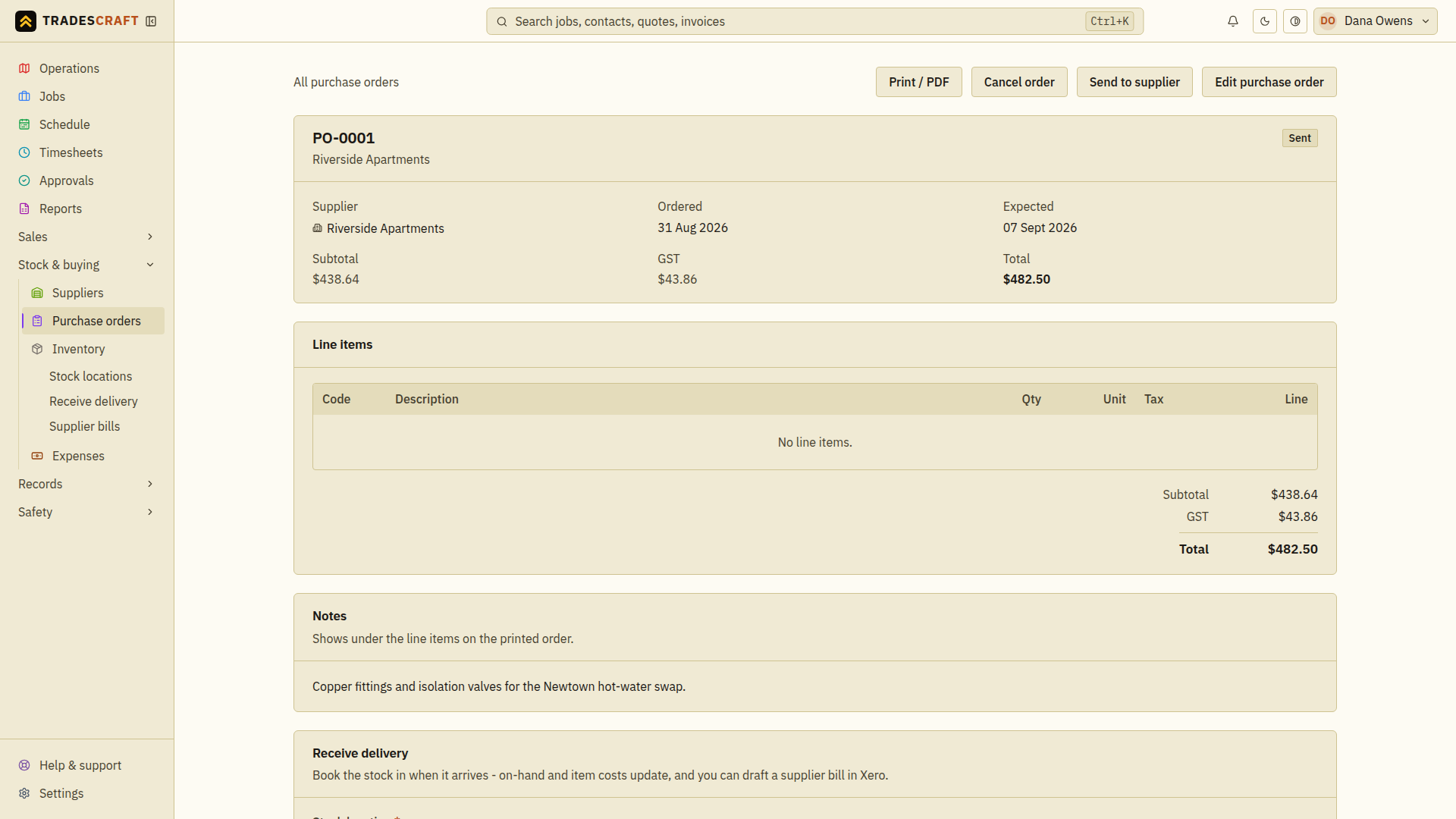
When the goods arrive, use Receive delivery on the PO so your inventory counts go up and the supplier bill can be matched.
Tips
- Send to supplier needs the Manage purchase orders permission - the same one that lets you raise and receive a PO. A role without it (a field-only role, for instance) can still open the order and its PDF, but won't see the button.
- AU/NZ accounts can push the PO to Xero to keep their accounts in step with what's on order. Xero is hidden and disabled for US accounts.
Print or keep a PDF copy
On the saved purchase order, choose Print / PDF. Check the supplier, item quantities and total in the preview. Use the print controls to print it or save it as a PDF, then open the saved file to check it. Making a PDF does not send the order; use Send to supplier when you want Tradescraft to email it.