
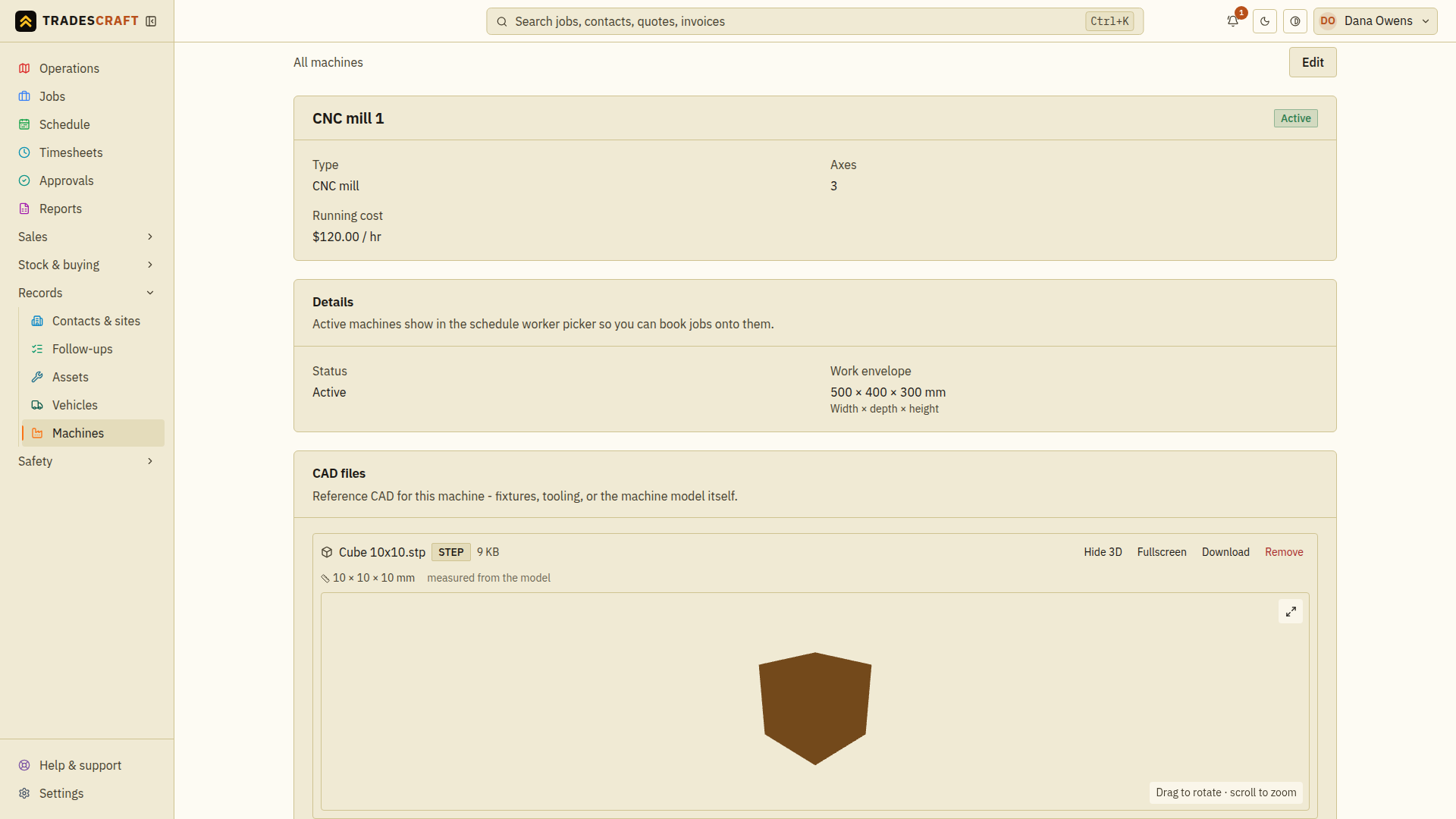
Keep a part's CAD model with the work it belongs to. Tradescraft can show it in 3D, read its exact bounding-box size, and - on a job booked to a machine - warn you if the part won't fit that machine's work envelope. You'll find a CAD files section on a machine's detail (for its fixtures, tooling or the machine model) and a Parts & CAD section on a manufacturing job.
Upload a model
- Open the machine (Machines → the machine) or the job, and find the CAD section.
- Tap Upload CAD file and pick the file. Supported formats: STL, STEP, IGES, BREP, DWG and Parasolid (
.x_t/.x_b). - It's attached. When the file can be measured, its card shows width × depth × height, with View 3D, Fullscreen, Download and Remove controls. STL files also show the calculated volume.
View it and read its size
- STL, STEP, IGES and BREP are measured from the file, so the model card shows width × depth × height. STL also shows volume. Tap View 3D to spin the model, or Fullscreen for a closer look.
- DWG shows its saved drawing thumbnail; Parasolid is stored for Download. Tradescraft can't measure these, so you type the sizes in by hand.
- Remove deletes a file you no longer need (it asks you to confirm first).
Files over 50 MiB, malformed geometry, or models that are too complex to preview stay available for Download. They receive no automatic measurements; enter the dimensions manually if needed. A preview that takes more than 30 seconds stops with an explanation. Wait for a preview to finish before starting another.
Check it fits the machine
On a job that's booked to a machine, each part is fit-checked against that machine's work envelope (the biggest part it can take, set when you add the machine). If a part is bigger than the machine in any dimension, you get a clear warning before you schedule the cut - not after you've set up.