
Plans change - a price gets agreed, the scope grows, the dates move, or the job was logged against the wrong site. Editing keeps the job accurate.
Open the edit form
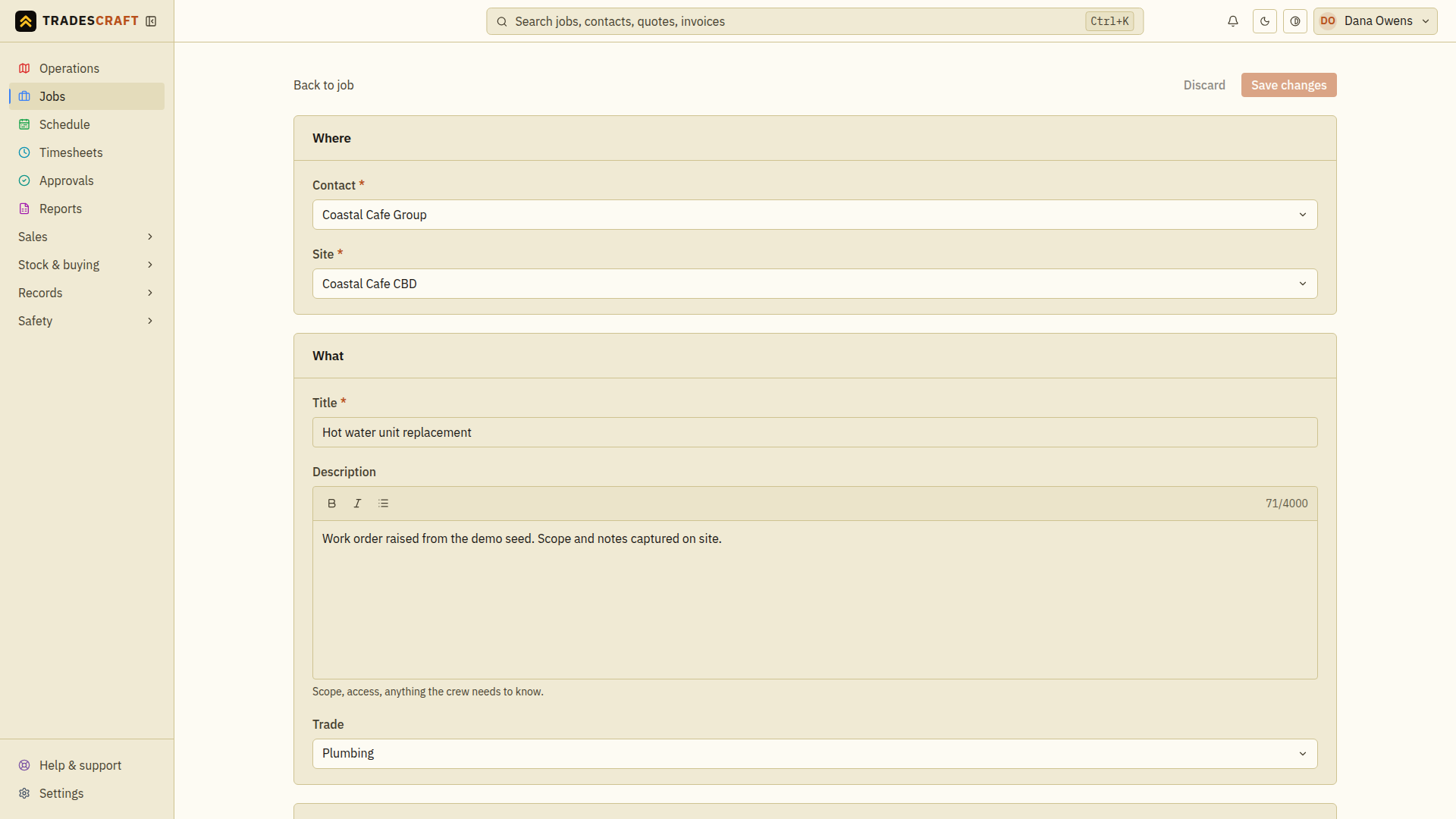
On the job's details page, tap Edit job (top-right). You get the same four-section form you used to create it - Where, What, Classification and Quote - pre-filled with the job's current values.
Change what you need
Every field is editable. Work through the sections:
- Where - move the job to a different contact or site if it was logged against the wrong one.
- What - update the title, the description/brief, or the trade.
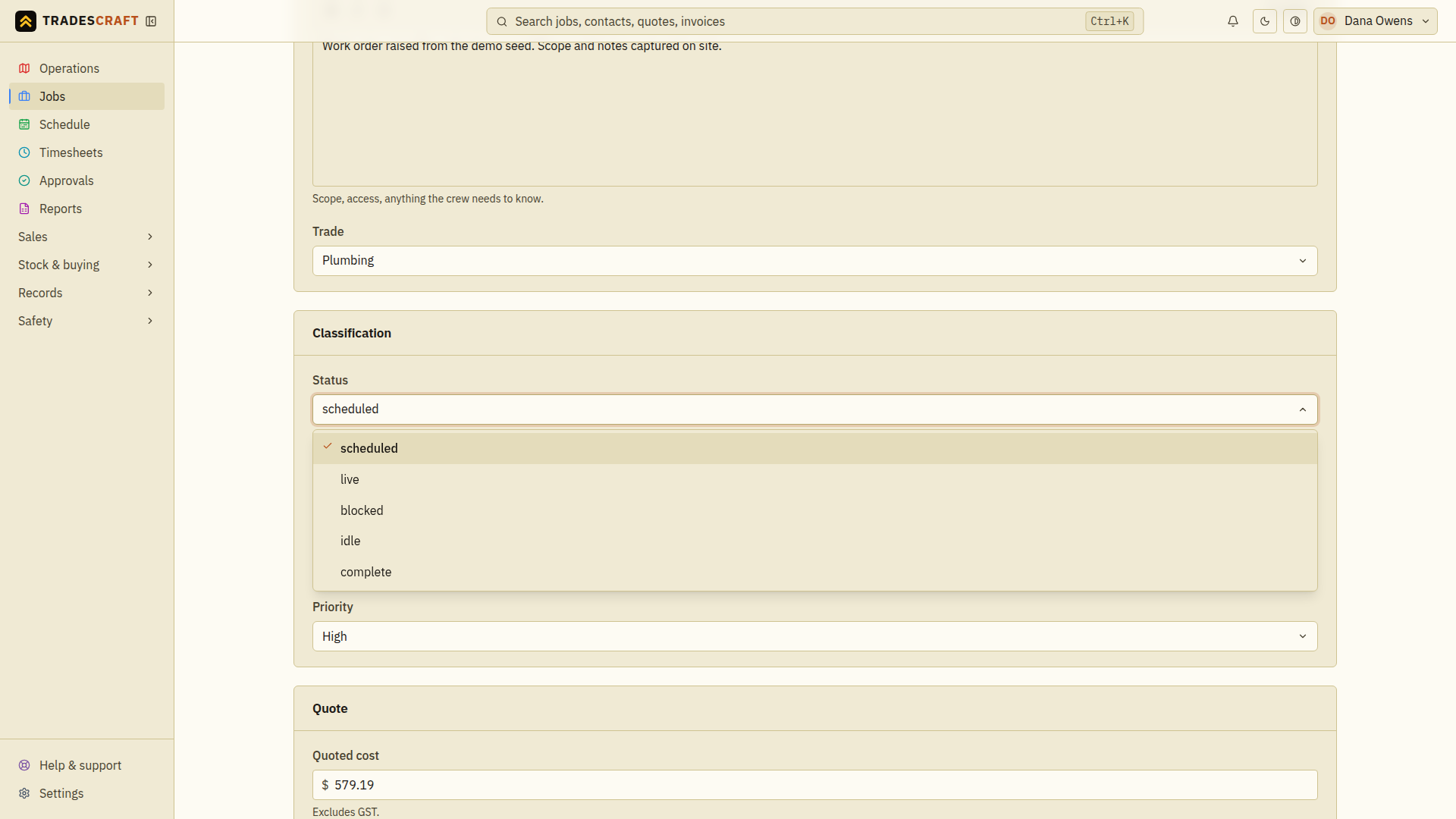
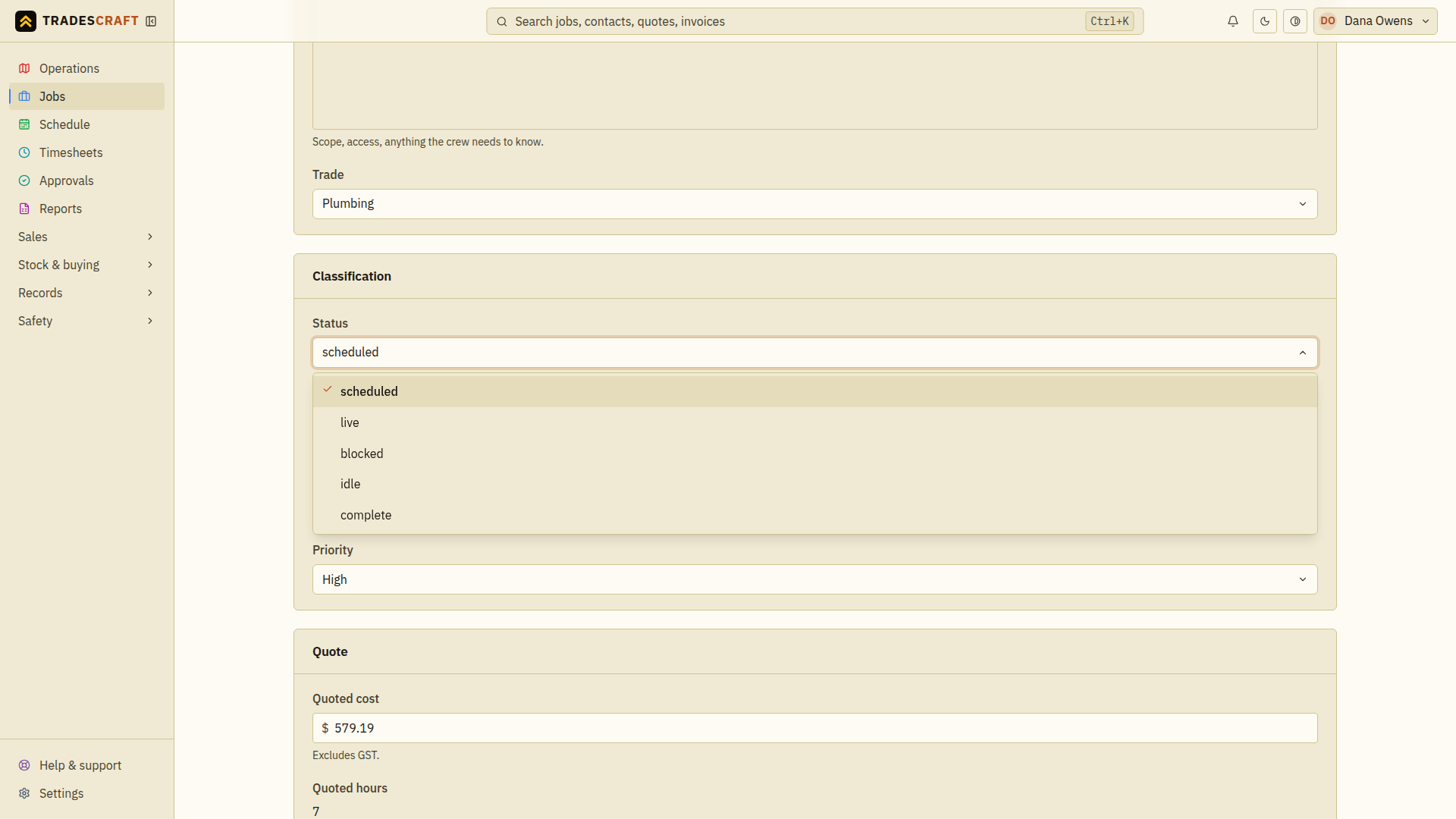
- Classification - change the status, category/subcategory or priority. The Status picker is the important one: setting it to complete moves the job off the live map into your finished work, and blocked flags it as waiting on something.
- Quote - revise the quoted cost (before GST/sales tax) and quoted hours as the scope firms up. Tradescraft keeps tracking the real logged time and materials against these figures.
Save, or back out
Save changes and Discard sit together at the top-right. Both stay greyed out until you actually change something, so you can always tell at a glance whether this job has edits waiting - it says Unsaved changes beside them when it does.
Tap Save changes to keep your edits. Discard puts the job back exactly as you opened it and leaves you on the page - it doesn't take you anywhere. If you'd rather leave entirely, Back to job still warns you before you lose unsaved work.
Either way, the job's logged time, materials, notes, safety paperwork and history are untouched - those live on the job, not on this form. That's the whole idea: the work record only ever gets added to, so editing the job's details never erases what's already been done.
Tips
- If you find yourself editing the same field on lots of jobs, it might belong in Settings instead (e.g. a new Category or Trade).