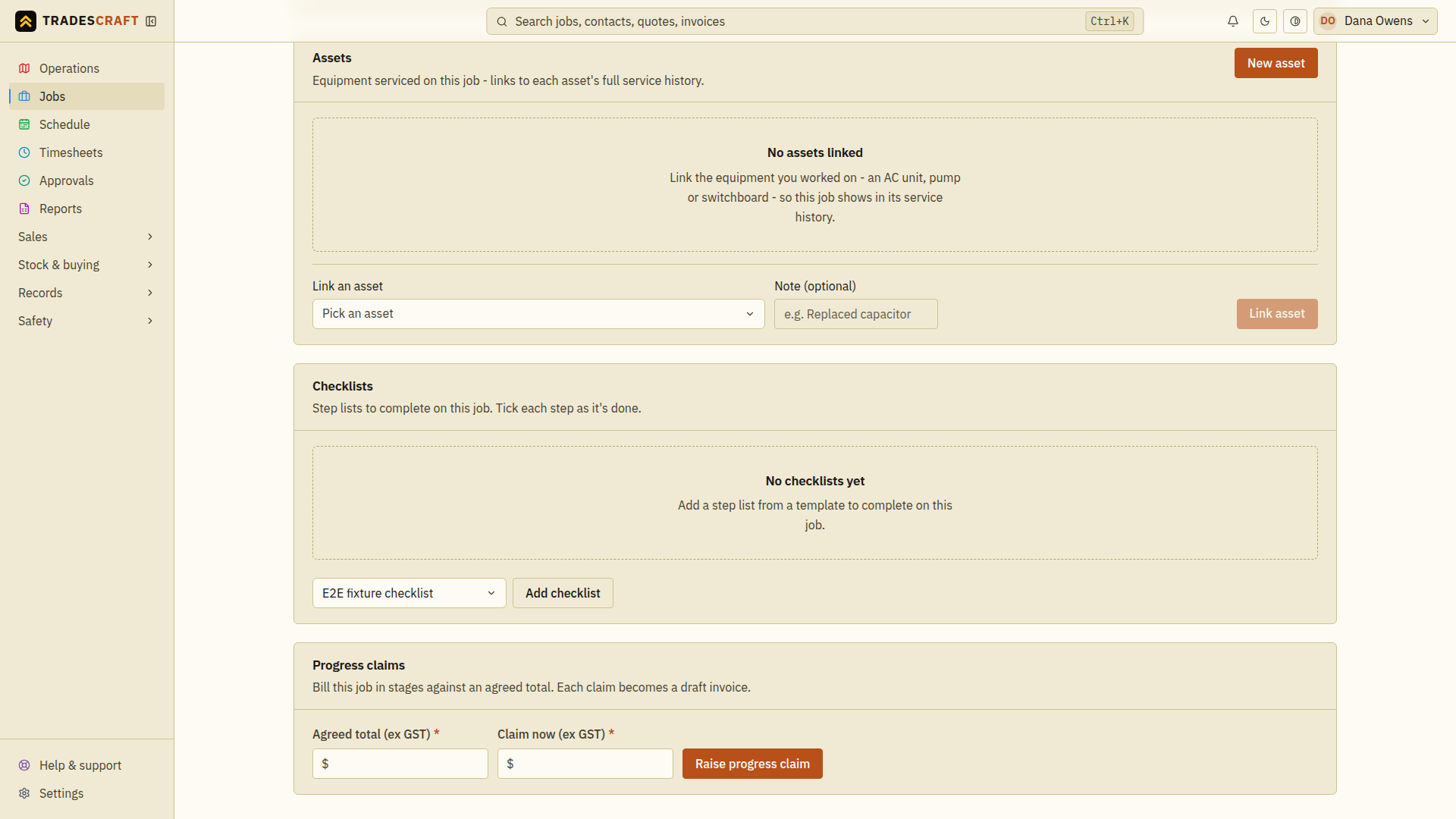
Open Jobs and choose the job you want to work on. Check the job number, customer and site address before making changes.
The usual flow on this page
- Clock on when you start (or your field crew do it from their phones).
- Add notes/photos as the job runs.
- Record materials used so their cost is added to the job.
- Choose Clock off when you stop and check that your time was recorded.
- When the job is done, Invoice this job - or raise a progress claim for staged work.
The header and quick actions
The top of the page shows the job number (e.g. JOB-0003), its title and a status badge. On the right are the quick actions:
- Clock on - start logging your time against this job (it becomes Clock off while you're on).
- Invoice this job - raise an invoice pre-filled from the job.
- Edit job - change the job's details (see Edit a job).
Below that is the summary: customer, site, type, trade, priority, and the tracking figures - quoted hours, logged hours and remaining hours, plus the quoted cost - so you can see in a glance whether the job is on budget.
Under the Job brief are shortcuts for Materials and Activity. AU/NZ accounts also show Add JSA/SWMS (or the New Zealand Task Analysis wording); US accounts do not expose that AU/NZ compliance workflow.
Where the job came from
If the job came from a quote, this shows the trail - e.g. Quote QT-2026-0001 → Job JOB-0003 - so you always know where the work (and its pricing) came from.
Notes - log what's happening
A running diary for the job, visible to the whole team. Type into the box, attach photos/files with Add files, and tap Add note.
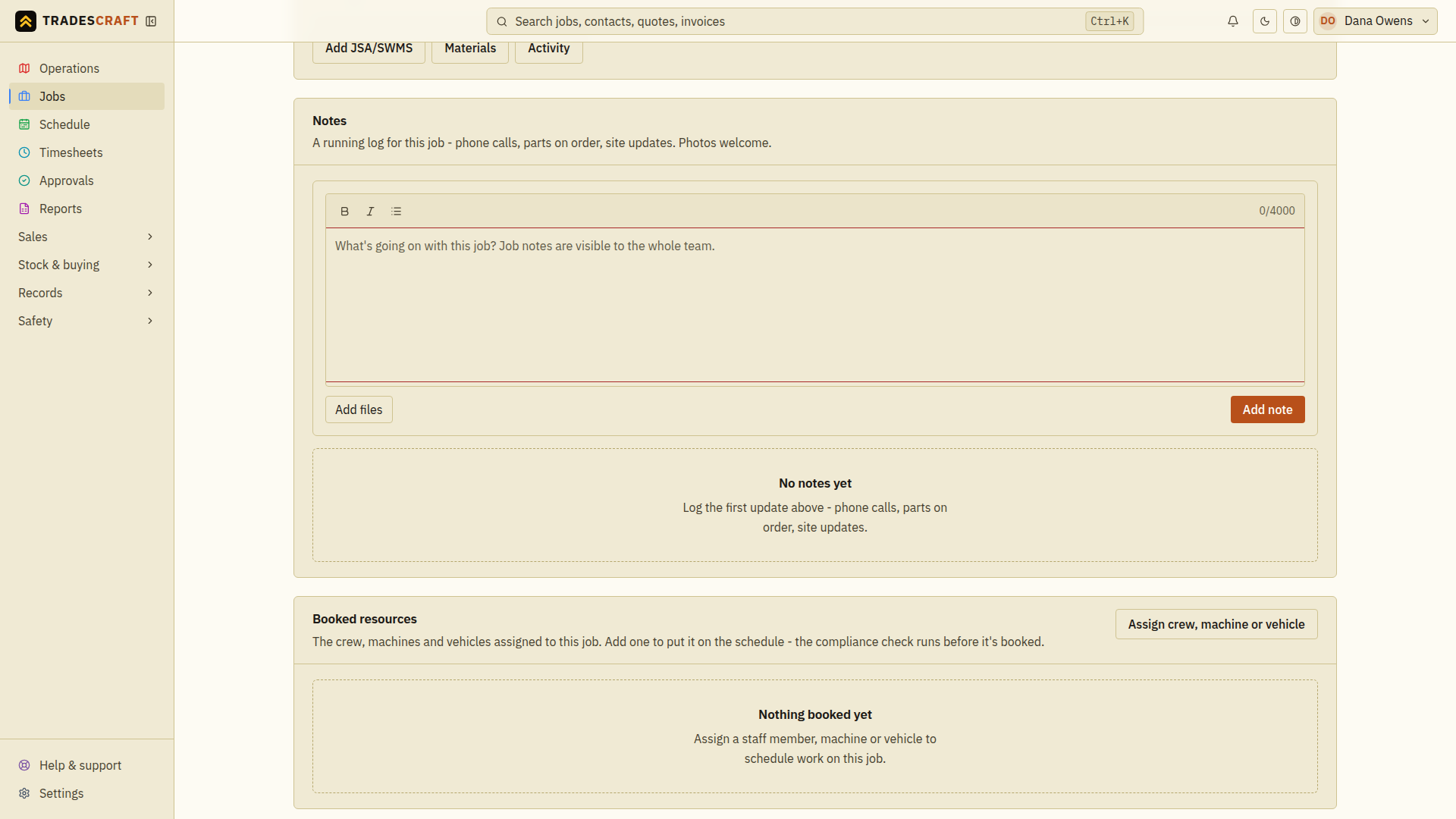
Check that the note appears below the form, with any attached files. If an upload or save fails, resolve the message before assuming your team can see the update.
Booked resources - assign crew
Tap Assign crew, machine or vehicle to book someone on. A panel opens where you pick the worker (or machine/vehicle), the start and end window, and a status, then Add to schedule.
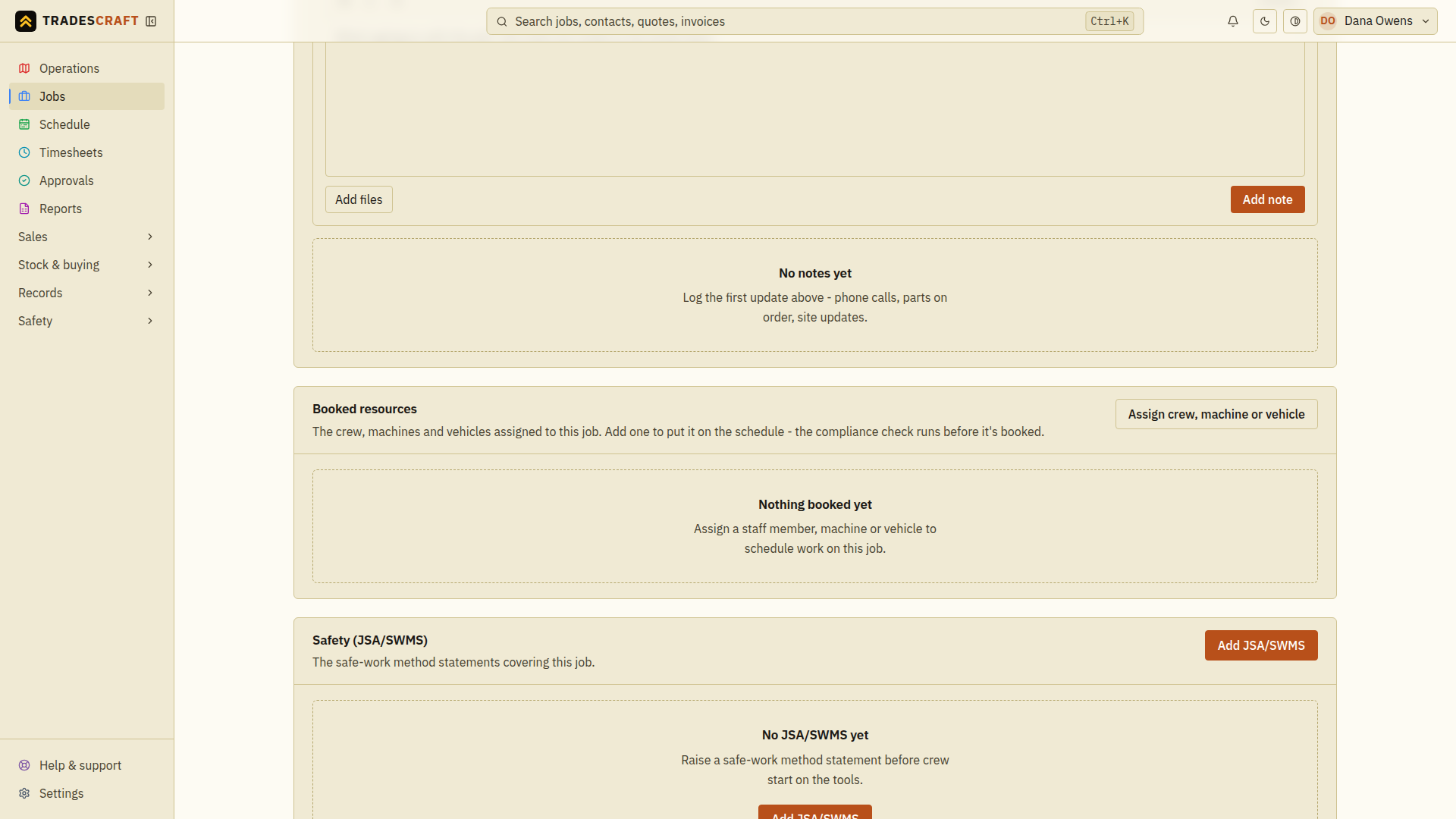
For AU/NZ accounts, this is where the compliance check runs. By default a missing or expired mandatory qualification is shown as a warning. If your business has enabled the Compliance setting, you cannot save the assignment until the worker meets the requirement. After saving, check the resource and start/end times in Booked resources, then open the Schedule to confirm the slot. An empty Booked resources section means no resource booking is shown yet.
Safety, Incidents and Checklists
- Safety (AU/NZ only) - Add JSA/SWMS to attach the country-appropriate plan: an Australian JSA/SWMS where applicable, or New Zealand Task Analysis / documented safe method. Configure the plan if the current version must be acknowledged at clock-on. (See Create a JSA.)
- Incidents - Log incident records any injury, near miss or dangerous occurrence on the job. (See Report an incident.)
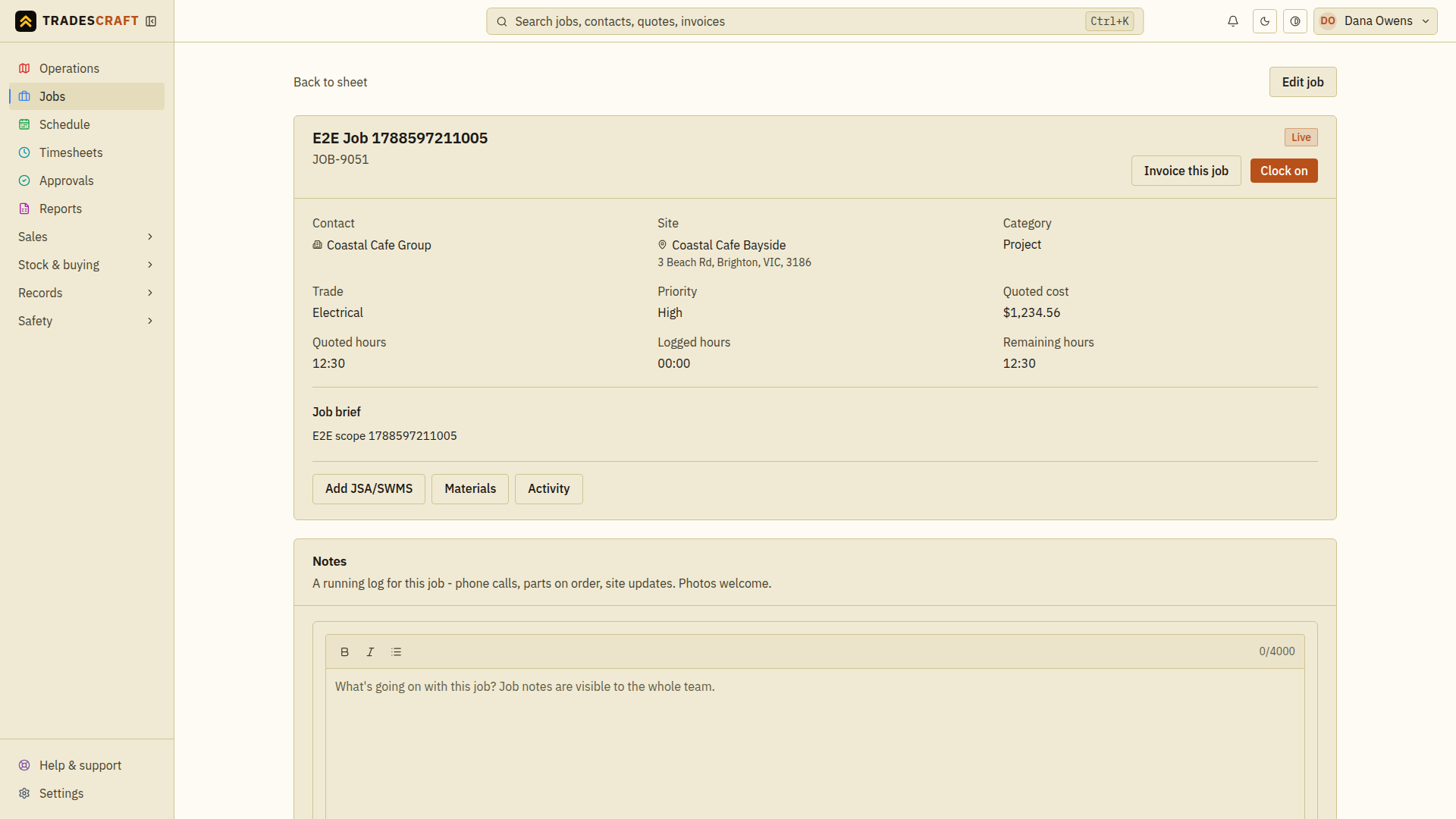
- Checklists - attach a reusable checklist and tick steps off as they're done.
- Assets - link the equipment you're working on (a customer's AC unit, pump, etc.), so the job joins that asset's service history. (See Add an asset.)
Progress claims - bill in stages
- Under Progress claims, enter the full Agreed total before tax and the amount to Claim now before tax. For example, a $10,000 agreed total and a $2,000 stage claim use those two separate fields.
- Choose Raise progress claim. After Progress claim raised, the new draft invoice opens for editing.
- Review its lines, tax and due date, then save. Follow the invoice sending steps to issue it.
- Return to the job and check the claimed and remaining amounts before raising another stage. Do not count a draft claim as money received.