
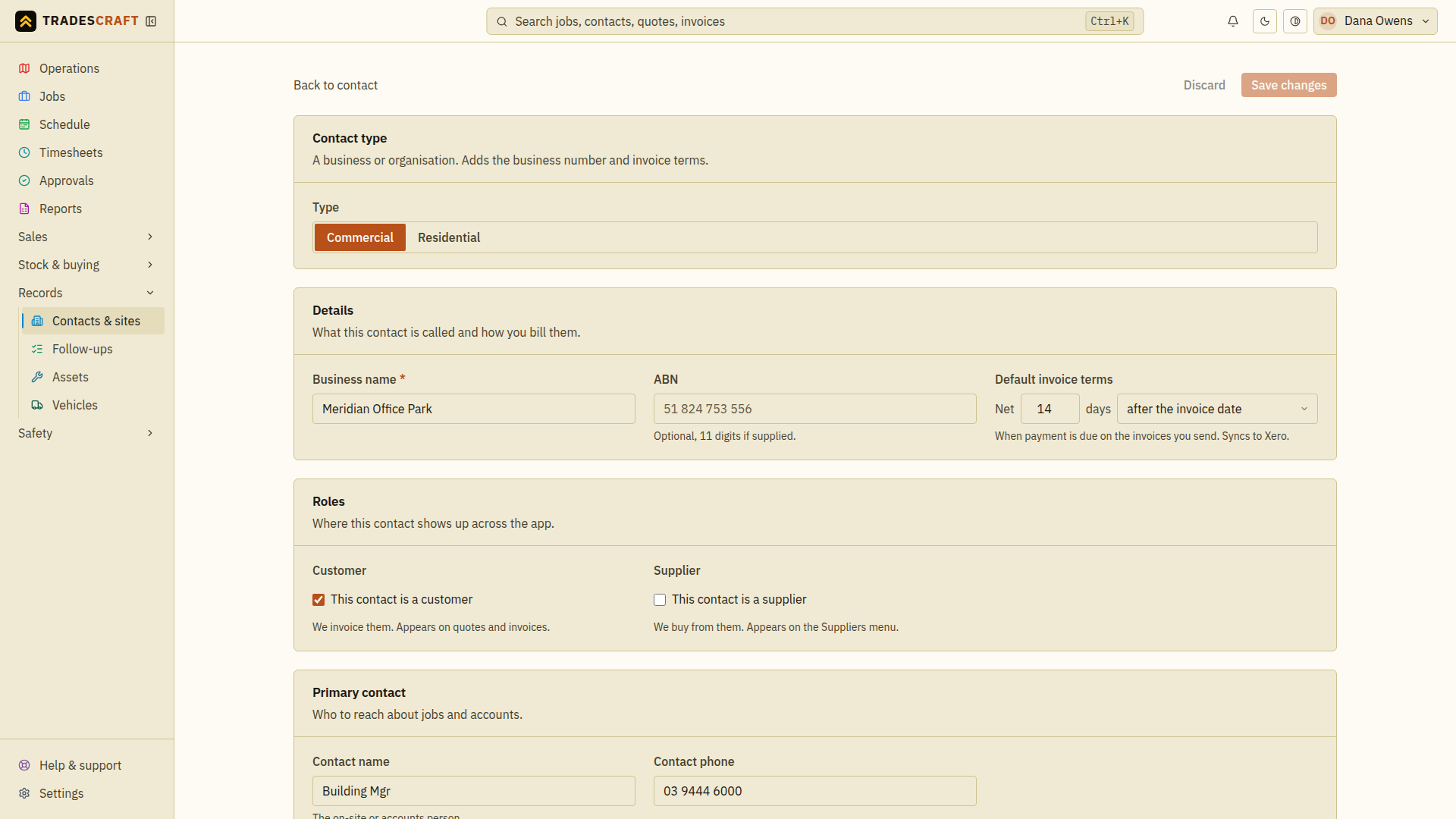
Open the customer and tap Edit contact (top-right). You get the same form you created them with, pre-filled, in clear sections.
What you can change
- Contact type - switch between Commercial and Residential.
- Details - business/contact name, ABN/NZBN/EIN where applicable, and default invoice terms.
- Roles - tick/untick Customer and Supplier (a contact can be both).
- Primary contact - the main person and their phone.
- Business / Postal / Billing addresses - including the "same as" shortcuts.
- Notes - your private team note (never shown to the customer).
Tap Save changes to keep them, or Discard to put the customer back as you opened it. Both stay greyed out until you actually change something.
Good to know
- Editing the customer doesn't touch their sites, jobs, quotes, invoices or history - those are kept; you're only changing the customer's own details.
- Turning on the Supplier role makes them appear under Stock & buying → Suppliers, so you don't have to add them twice.