
Start a new machine
From Machines, tap New machine.
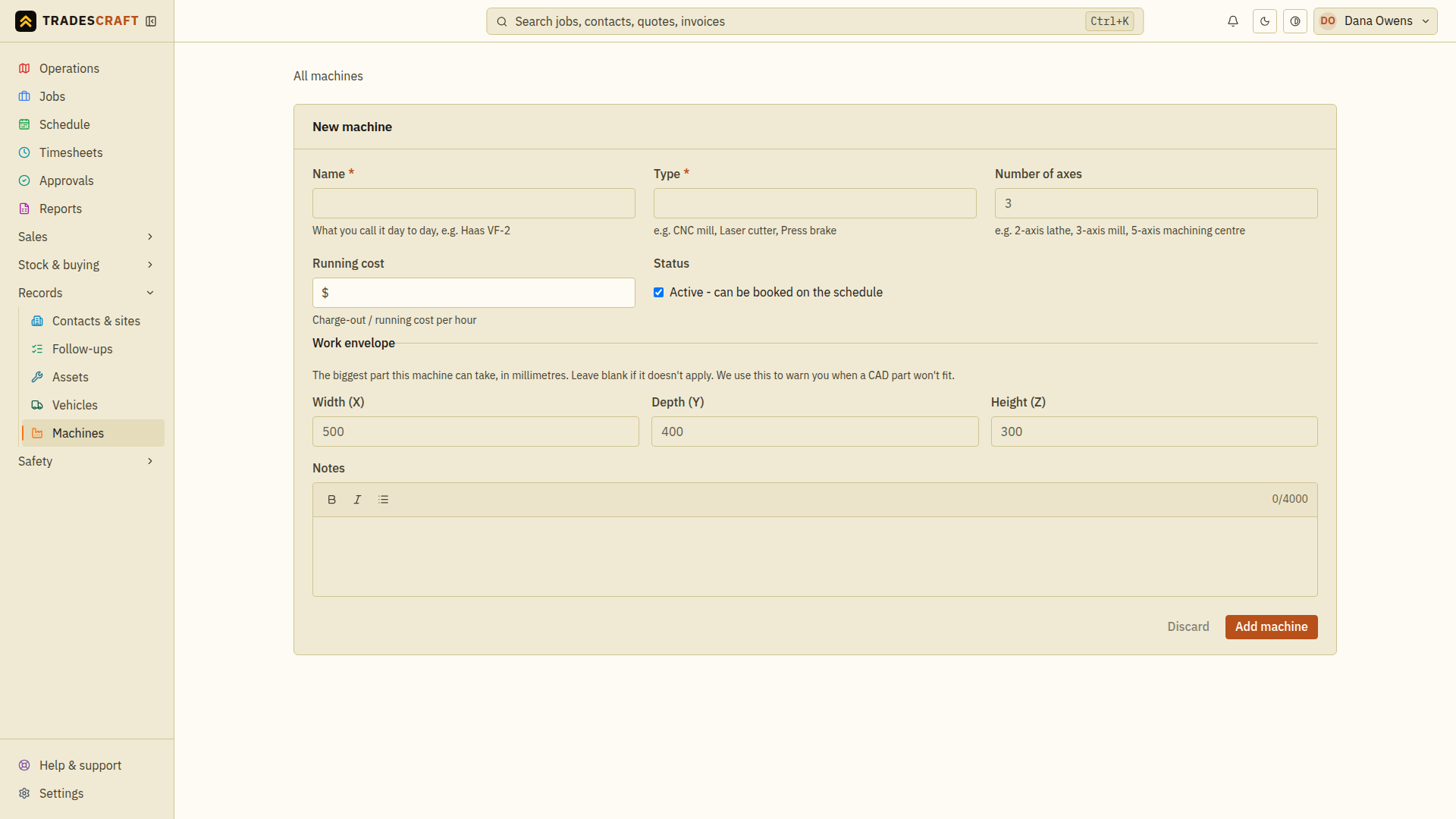
Enter the details
- Name (required) and type (required) - e.g. "CNC mill 1", a CNC mill.
- Number of axes and running cost per hour - used for scheduling and costing.
- Status - leave it Active so it shows in the schedule's machine picker.
- Work envelope (width × depth × height) - the biggest part it can take. Used to warn you when a CAD part won't fit.
- Notes - anything else worth recording.
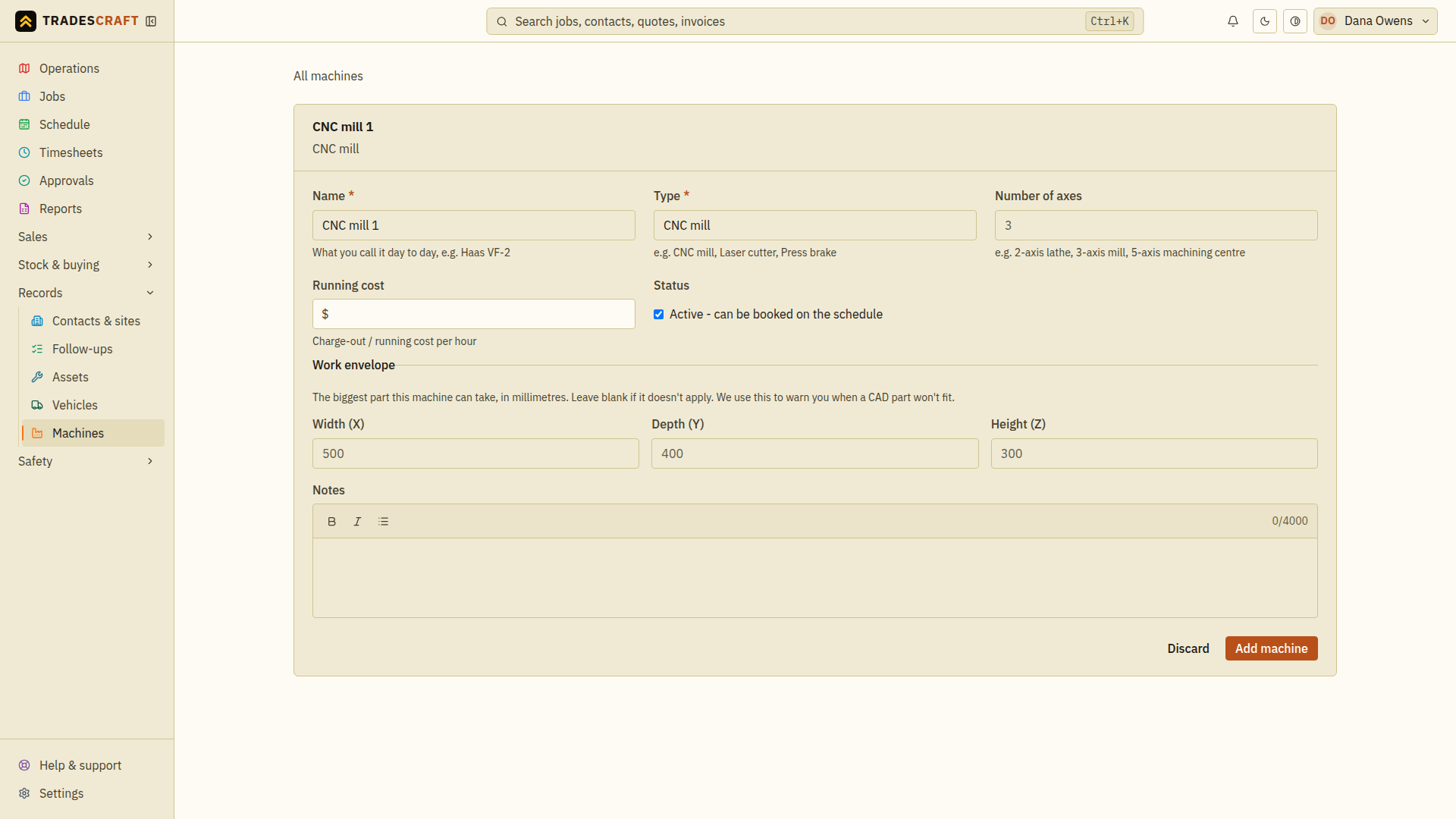
Tap Add machine to save it.
Ready to schedule
The machine is saved, ready to book jobs onto and to factor into the lead-time calculator. You can also attach CAD files for its fixtures, tooling or the machine model.
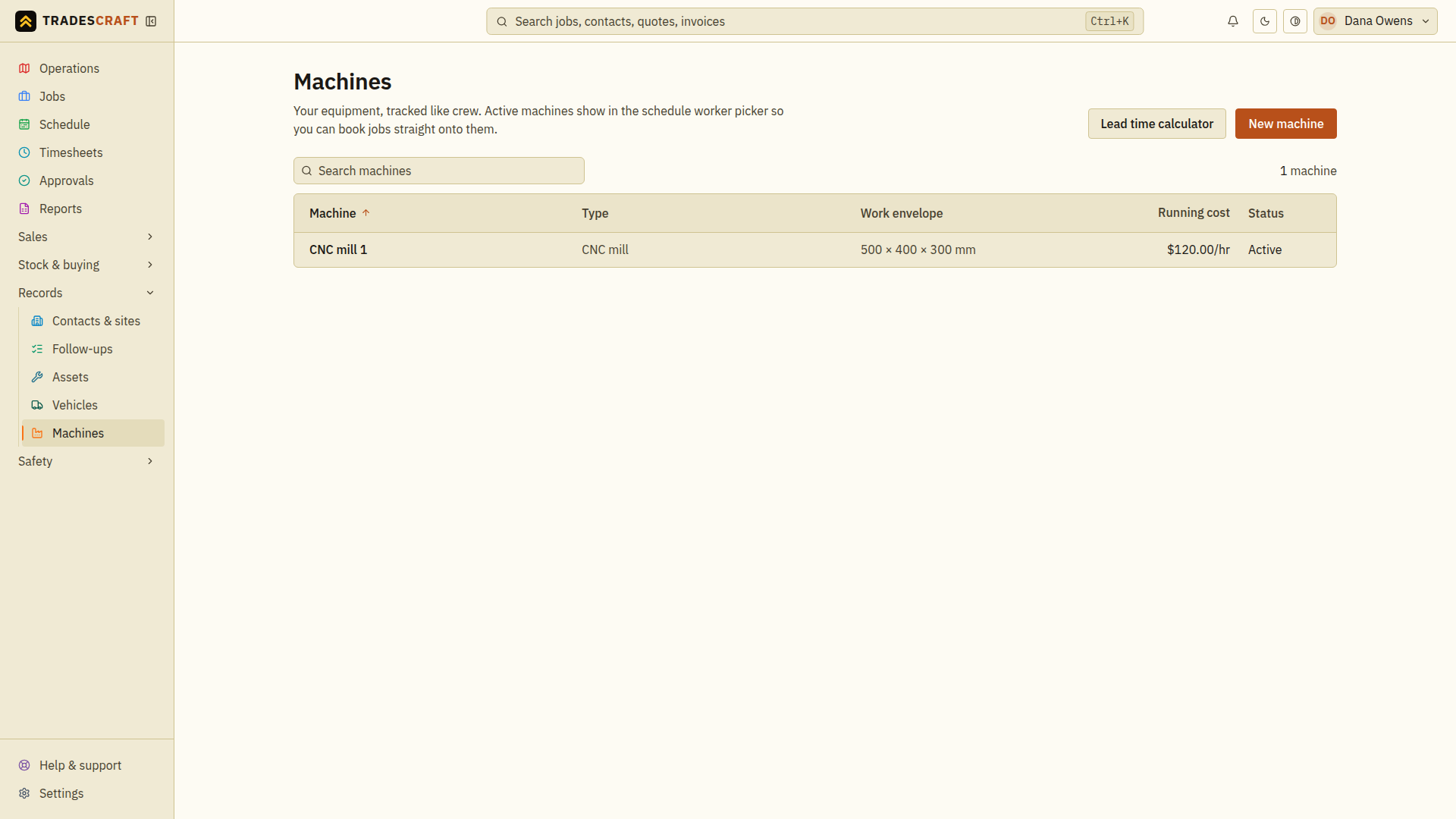
Check what you saved
After Add machine, find it by name in Machines, open it and check the axes, dimensions and running cost. Keep Active selected if it should appear in the scheduling picker. If you still see an empty list, check the form for an error explaining what needs fixing. Check for the saved machine before leaving.