
A CSV is a spreadsheet file that payroll software can read. Export means download that file from Tradescraft; import means add it to your payroll software.
Open Timesheets. Complete the review in Approve timesheets before preparing a file of approved hours. Check each worker's Payroll ID on their staff record. This is the code your payroll software uses to identify that worker; the codes must match.
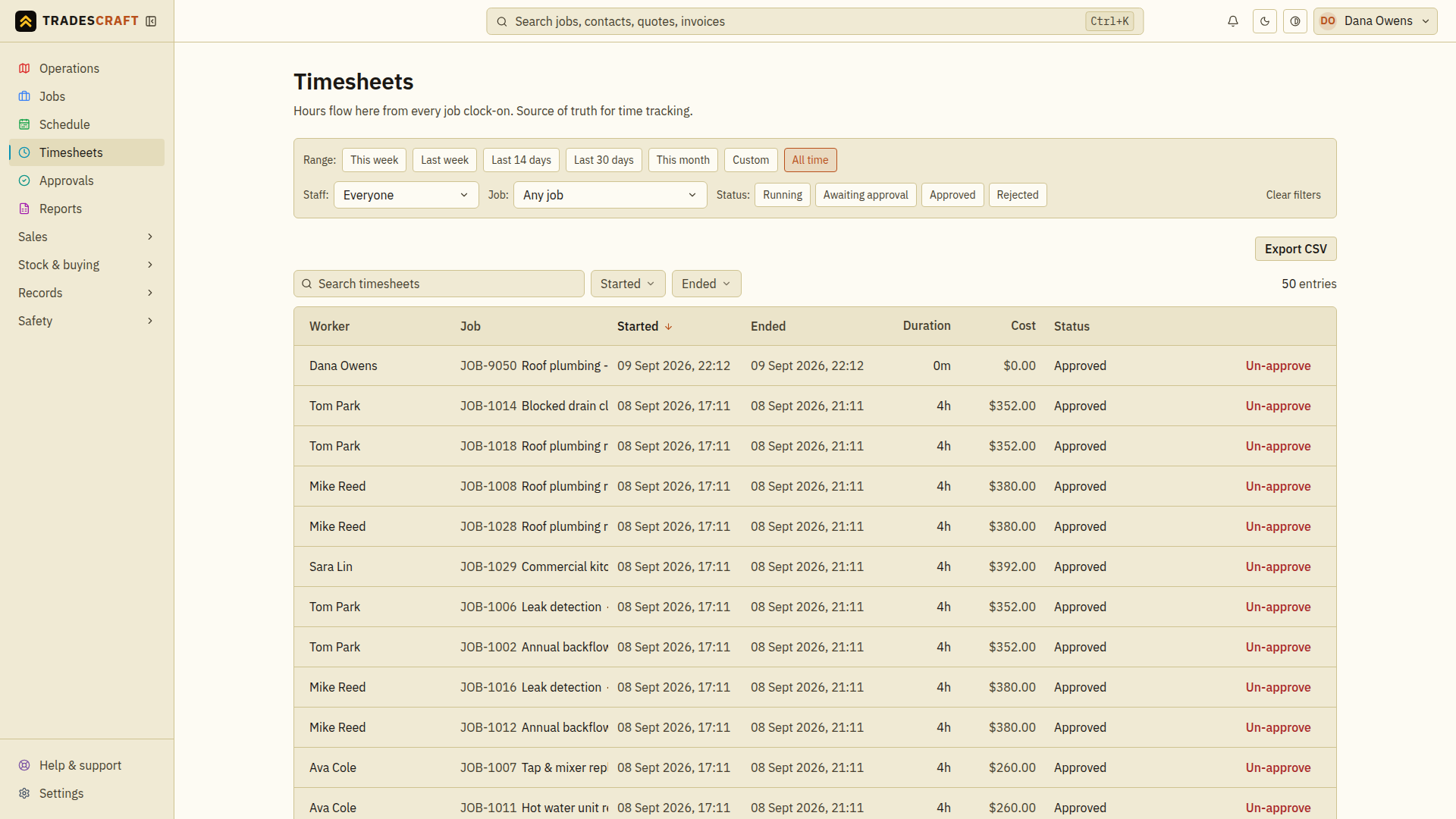
Select the pay period and approved hours
- Under Range, choose the required period. For exact payroll dates, choose Custom and enter From and To.
- Use Staff and Job if the export should cover a particular worker or job. Otherwise leave these at Everyone and Any job.
- Select Approved under Status. Review the entries and dates returned. The screenshot shows an All time example; set your own pay period before downloading.
The export does not automatically remove unapproved or rejected entries. It downloads only the page of entries selected by the period, staff, job and status filters above the table. The table's separate Search timesheets box and row checkboxes do not narrow that export. Use the filters above the table to choose the hours you need.
Download the file
Choose the export button above the table. Its label matches the payroll format chosen in Timesheet settings:
- Export CSV for Standalone.
- Export for Xero Payroll or Export for MYOB Payroll on AU/NZ accounts.
The file name starts with timesheets and includes the payroll format and date. If no entries match, clear unnecessary filters and check the pay-period dates; the export button is not shown for an empty result. If entries are still awaiting approval, review those first instead of widening the export to include them.
The list loads 50 entries per page. If Next is available below the table, save the first download with a distinct name, such as the pay period plus page-1, then choose Next below the table and export each remaining page with the same filters. A single download does not contain the entire period when it spans several pages. Keep a list of the files you download. Check that together they cover all the approved hours for the pay period, with no hours missing or repeated.
Check before importing
Open the downloaded CSV and check the workers, payroll IDs, dates and hours against the period you reviewed. The standalone file also includes each entry's status. Check that the file uses the format your payroll software needs. Fix missing worker codes or incorrect hours before adding the file to payroll.
Hours use the business's display rounding setting. Downloading a CSV neither pays workers nor marks the period as paid. Keep track of the file you import to avoid importing the same hours twice.
Good to know
Tradescraft provides a file to import; it does not push timesheets directly to Xero or MYOB payroll. US accounts use the standalone CSV. AU/NZ payroll formats and fields are unavailable on US accounts.