
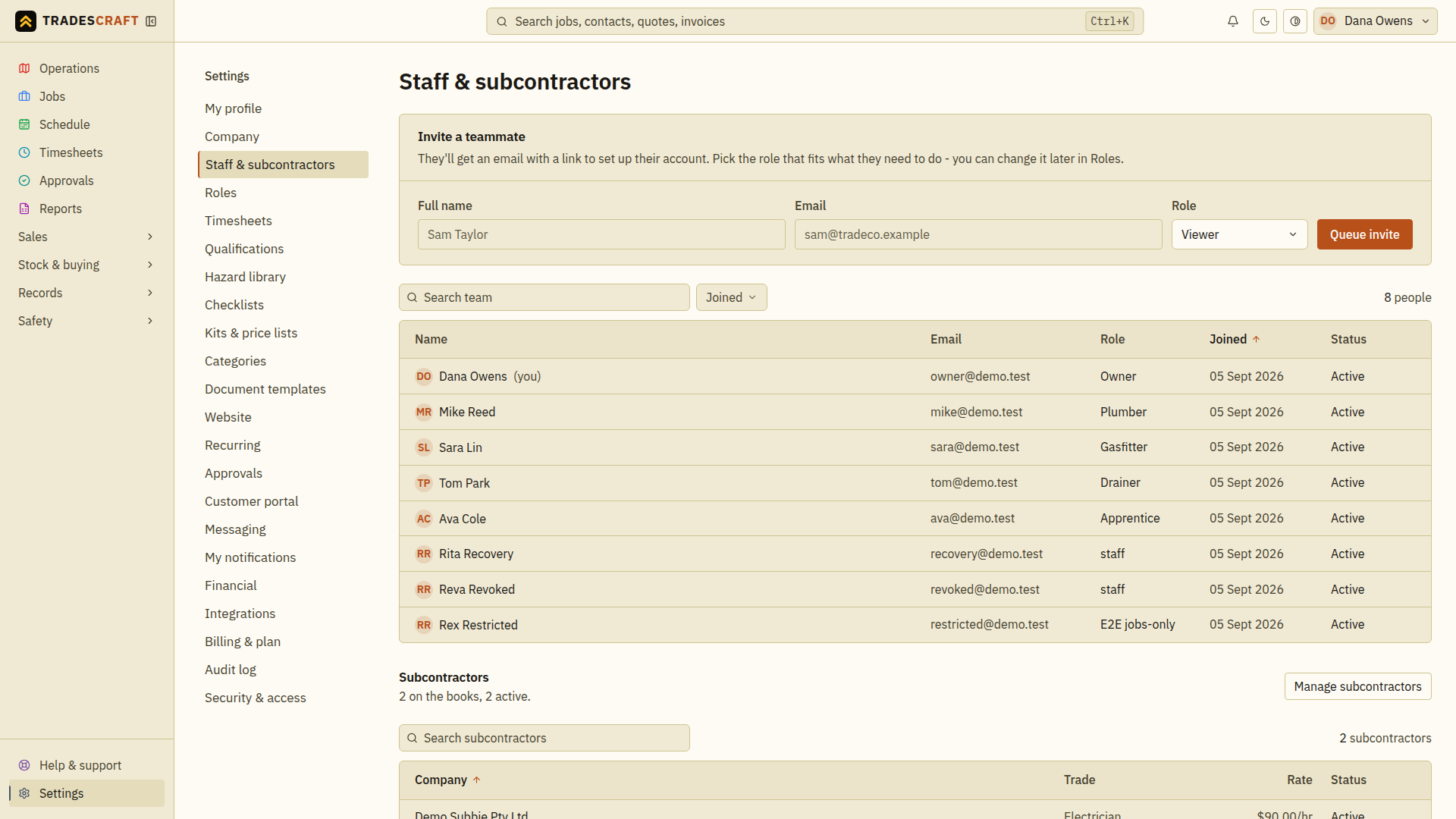
Staff is everyone in your business - office and field. Open it from Settings → Staff & subcontractors.
What's on the list
Each row is a worker, with their name, role (admin, staff…) and status. Their role controls what they can see and do in the app.
- The Invite a teammate form at the top of the page invites someone (name, email, role).
- Click a worker to see their details, the qualifications they hold (with expiry) and their roles. Choose Edit to update their record or use the Access card to deactivate them (blocks sign-in but keeps their history), or - when someone asks to be removed for good - erase permanently, which deletes their record along with their payroll/bank details, tax-file number and any uploaded documents. Erase is irreversible, asks you to confirm, and (like other sensitive actions) re-checks your two-step verification first.
- If billing is in read-only mode, deactivation, admin demotion, role removal and permanent erasure remain available because they reduce access or satisfy a privacy request. Reactivation, promotion, invitations and profile edits remain locked until the subscription is active.
- On a worker's Edit screen you can also change their sign-in email for them - the escape hatch for someone who's lost access to their old inbox or is moving to a company address. It sets the new address straight away (skipping the usual confirm-from-both-inboxes step), so it's admin-only, asks you to confirm, and notifies the worker at both their old and new address. Everyone else changes their own email themselves from Security & access.
Review a teammate before changing access
- Search or select the person under Settings → Staff & subcontractors. Check their name and sign-in email so you have the intended account.
- Choose Edit to change their record. Use the Access card for access changes, or the linked guides below for pay details and two-factor recovery.
- Read the confirmation for the particular action and finish any verification request. Check the saved status or details after it succeeds.
Use deactivation when someone should stop signing in but their work history must remain. Permanent erasure is a separate action; review its stated effects before confirming. A missing Access card on your own record is expected.